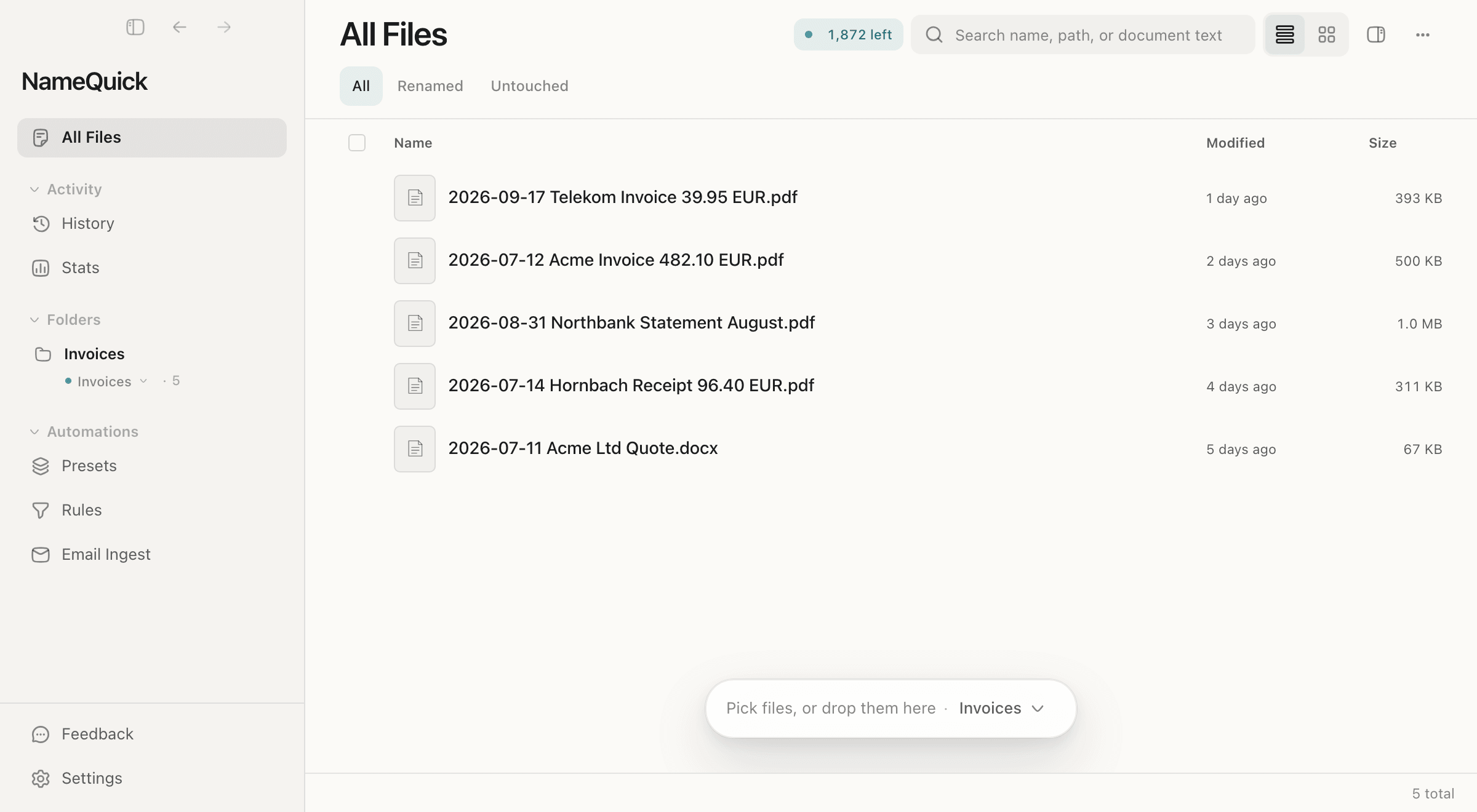
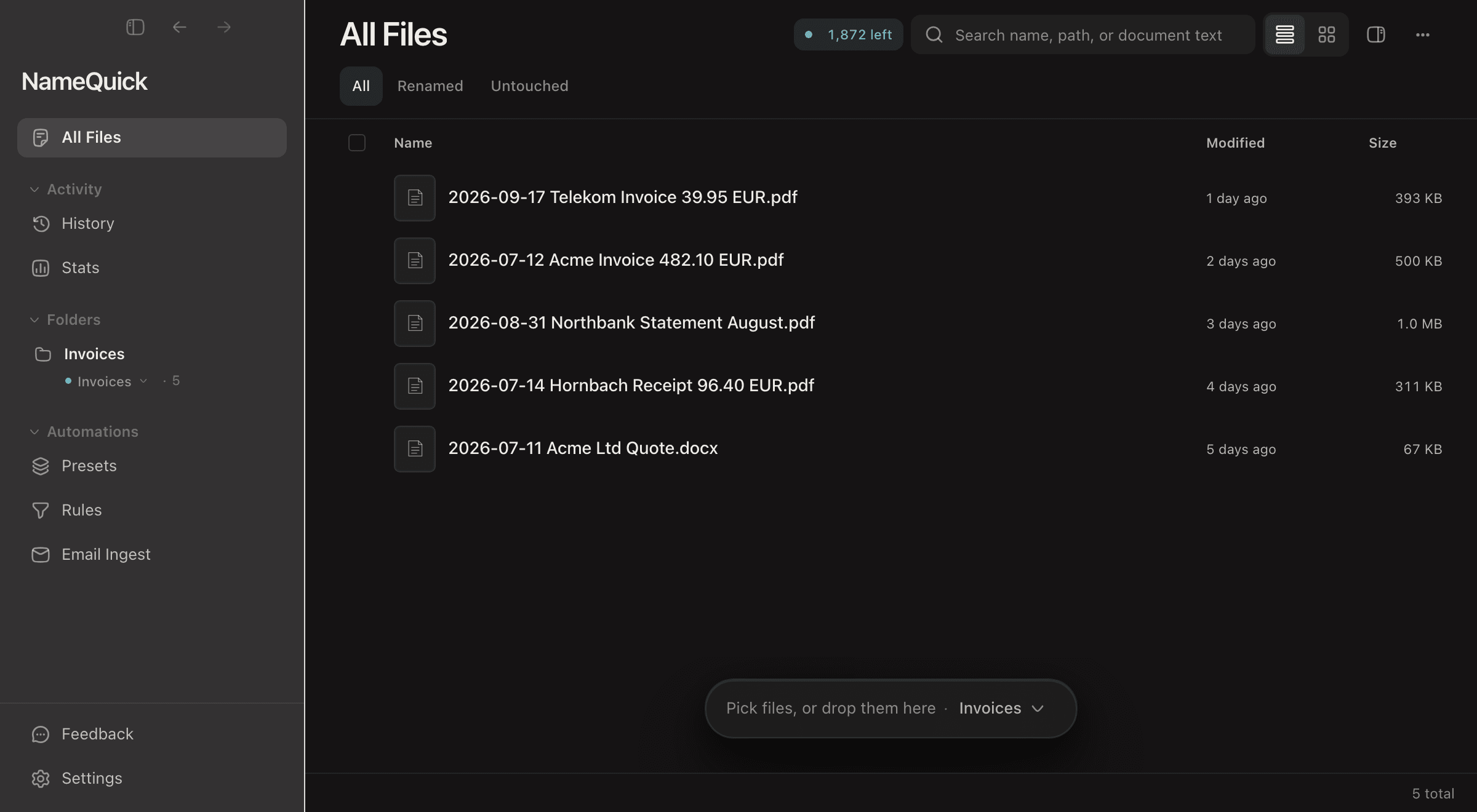
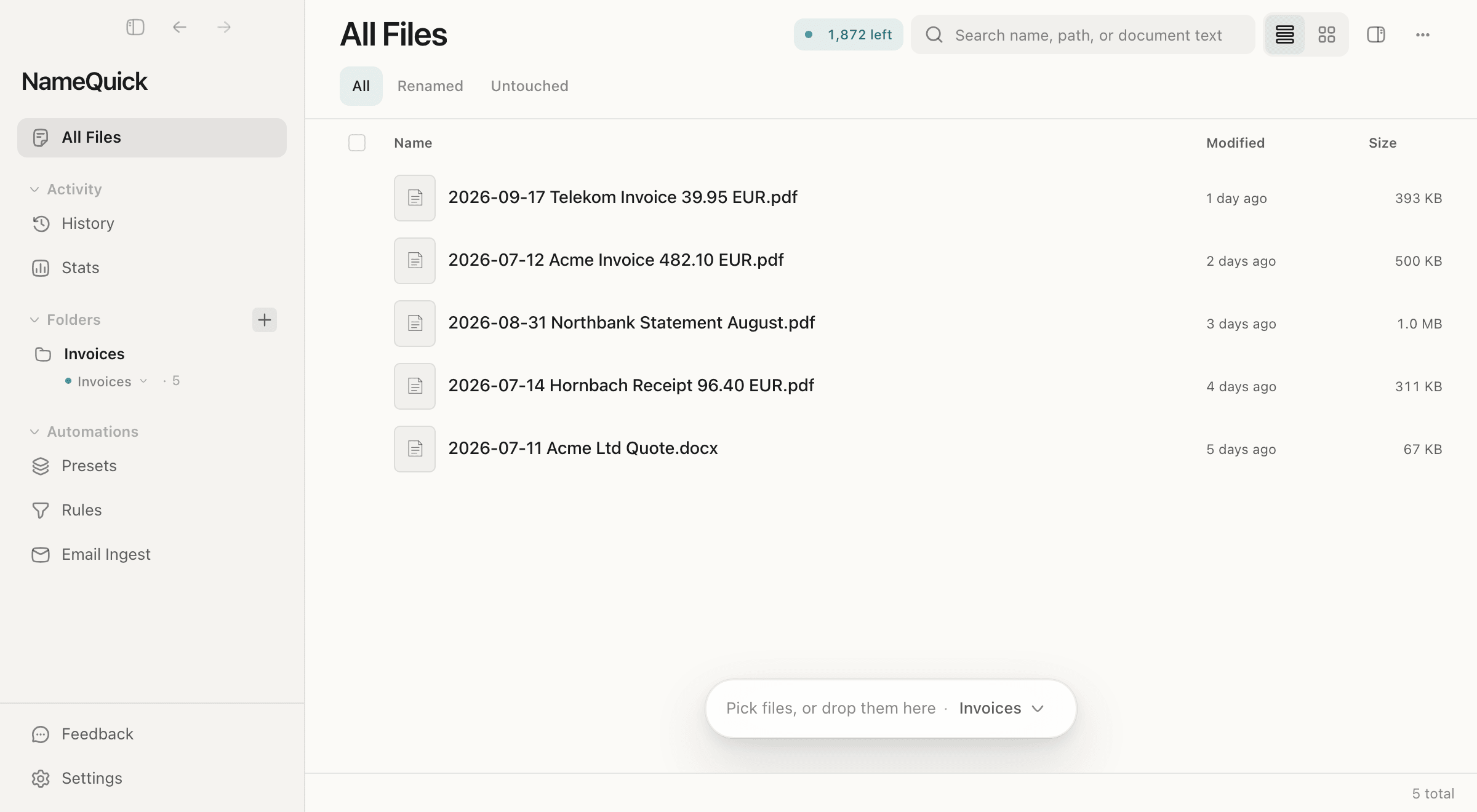
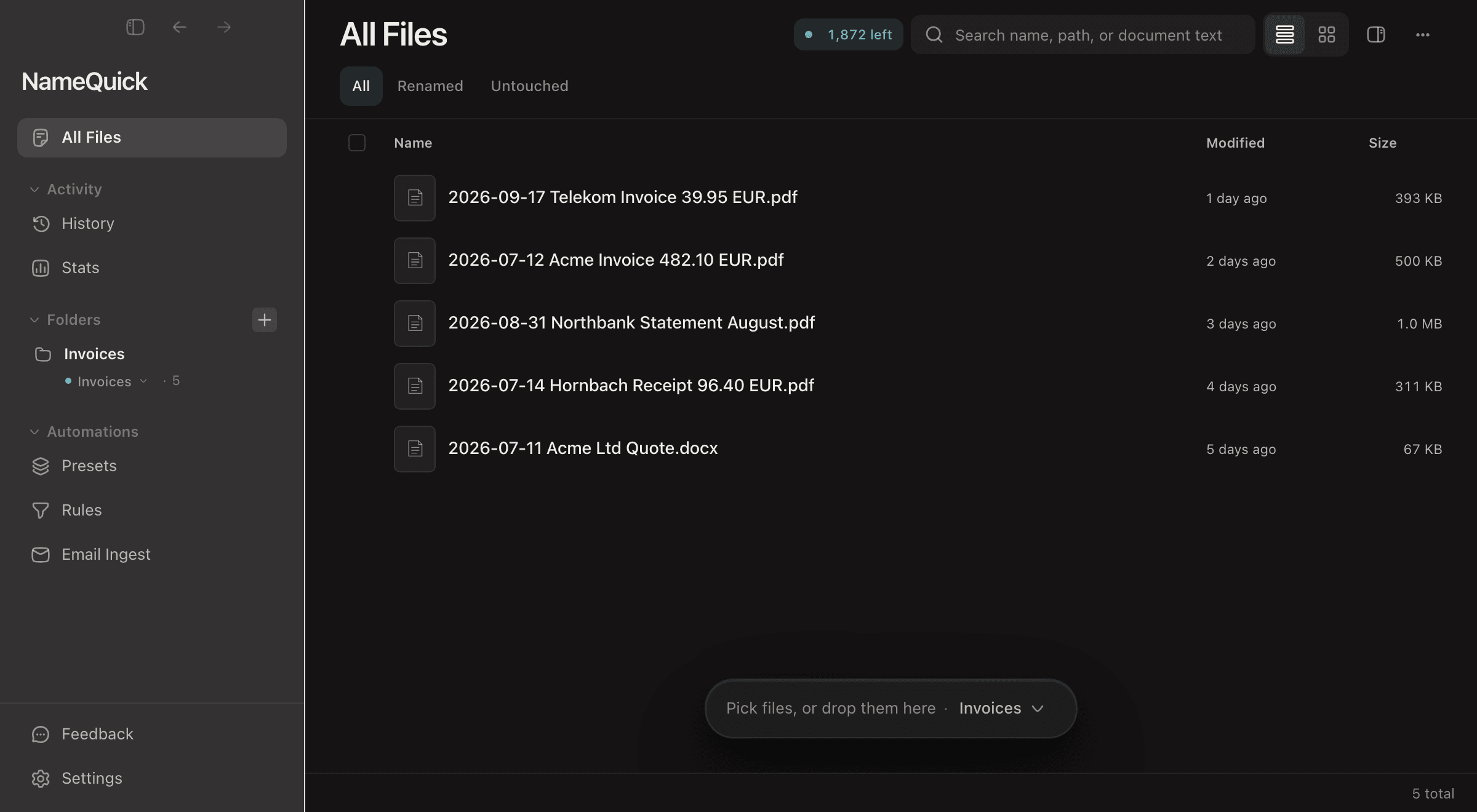
AI file organizer · Mac and Windows

Name every file by what's inside.Then file it where it belongs.

NameQuick is an AI file organizer for Mac and Windows. It reads PDFs, scans, photos and documents, names each file from what it says, and sorts files into folders. You can check every name and every folder plan before anything changes.

2,100+ customersFor Mac and Windows computers

Demo

See it inunder two minutes.

A narrated walkthrough built from NameQuick 3 screens with example files: Quick Organize on a Mac, then a watched folder on Mac and Windows.

On a Mac

Watch it sort aDownloads folder.

Quick Organize reads the files, plans folders and waits for your OK. The files keep their names. Quick Organize is in the Mac app from namequick.app and Setapp. On Windows, NameQuick names files and Rules file them, as shown below.

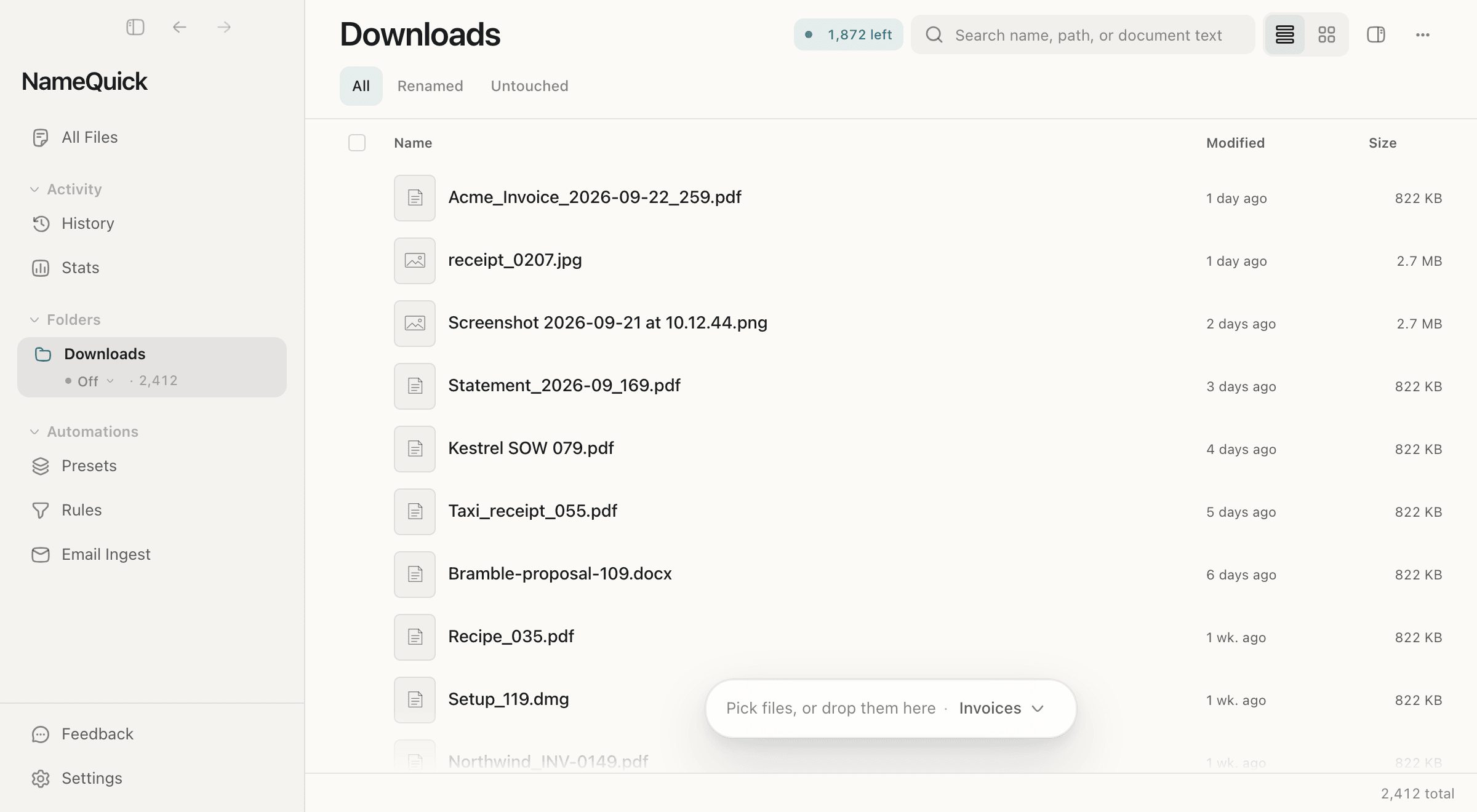
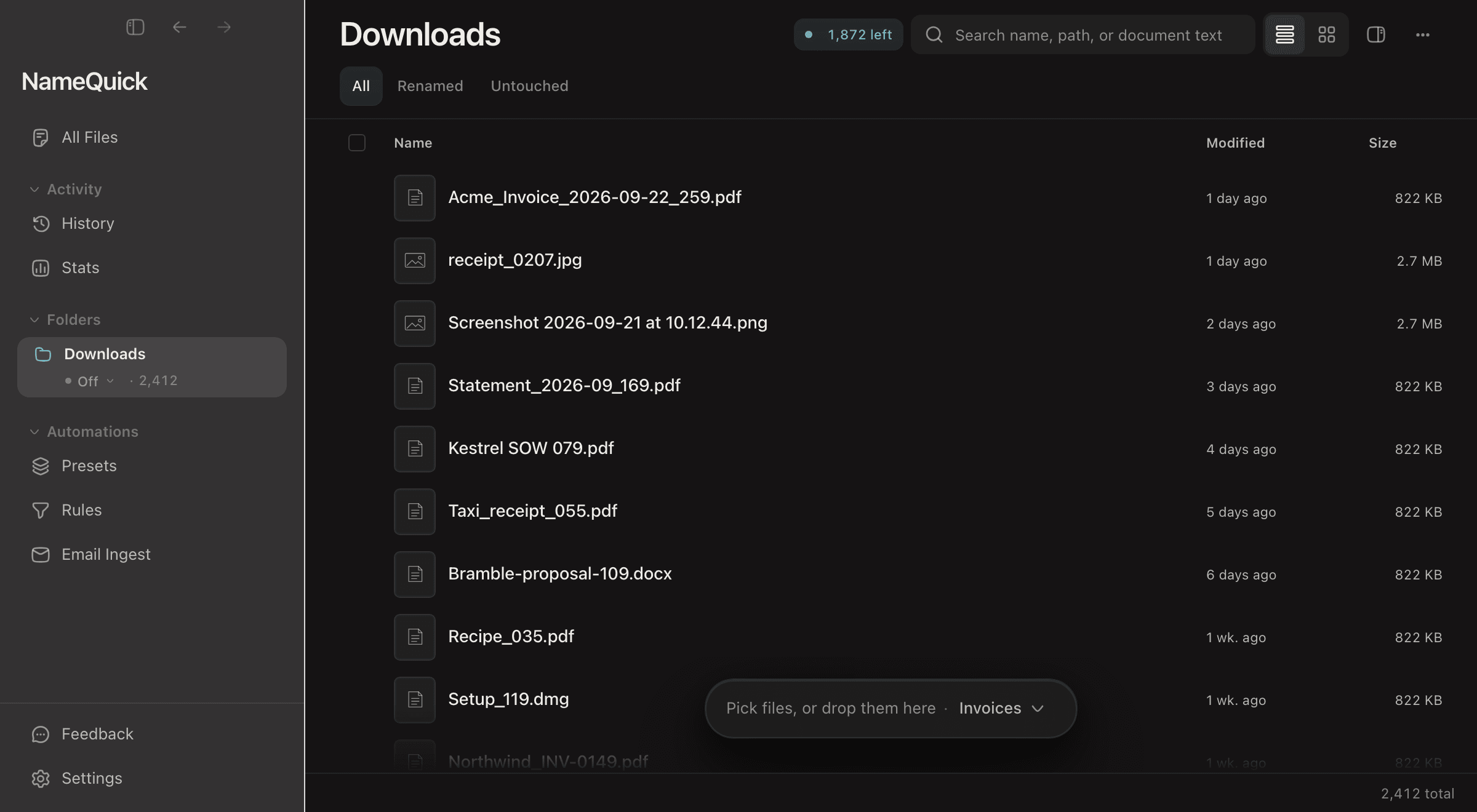
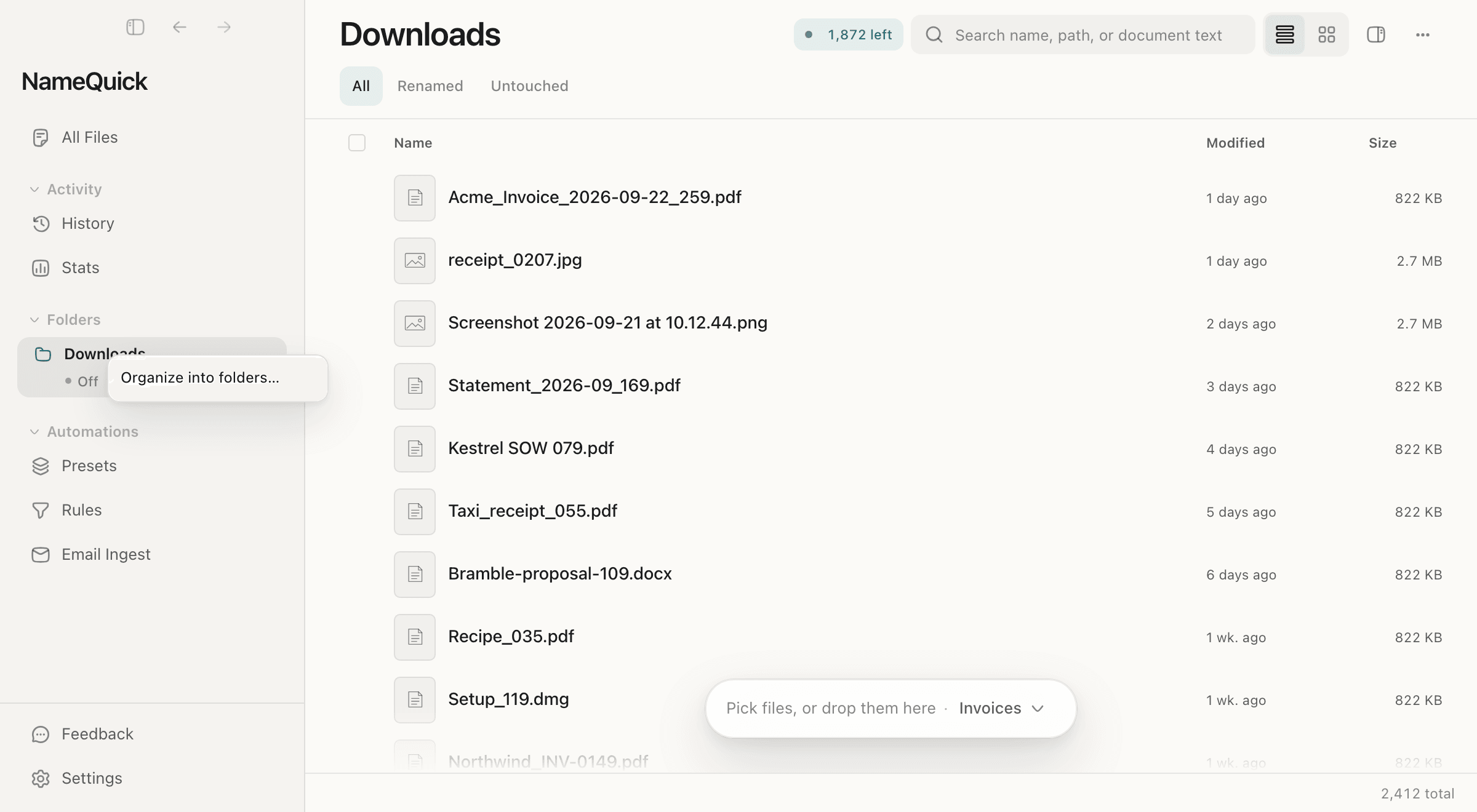
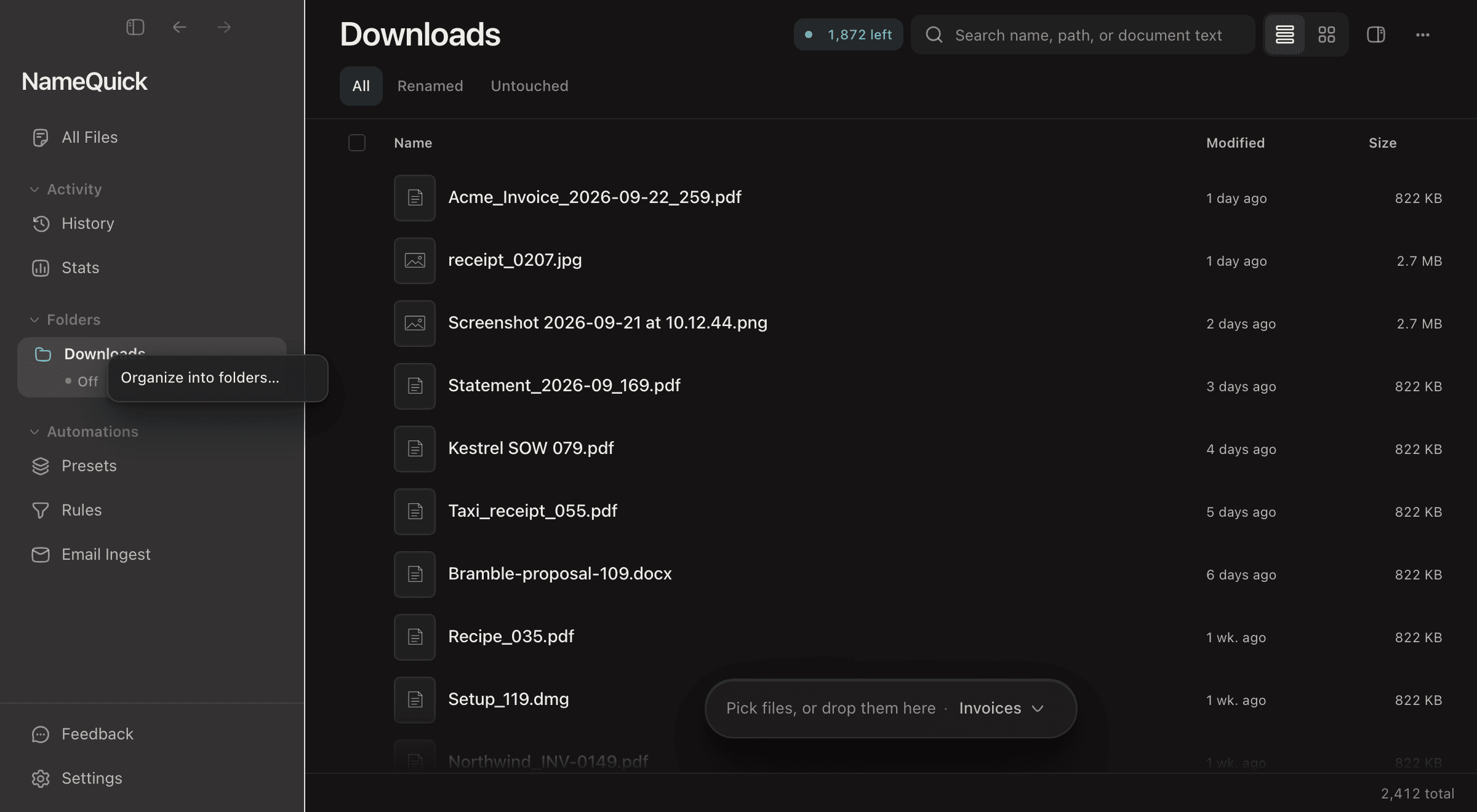
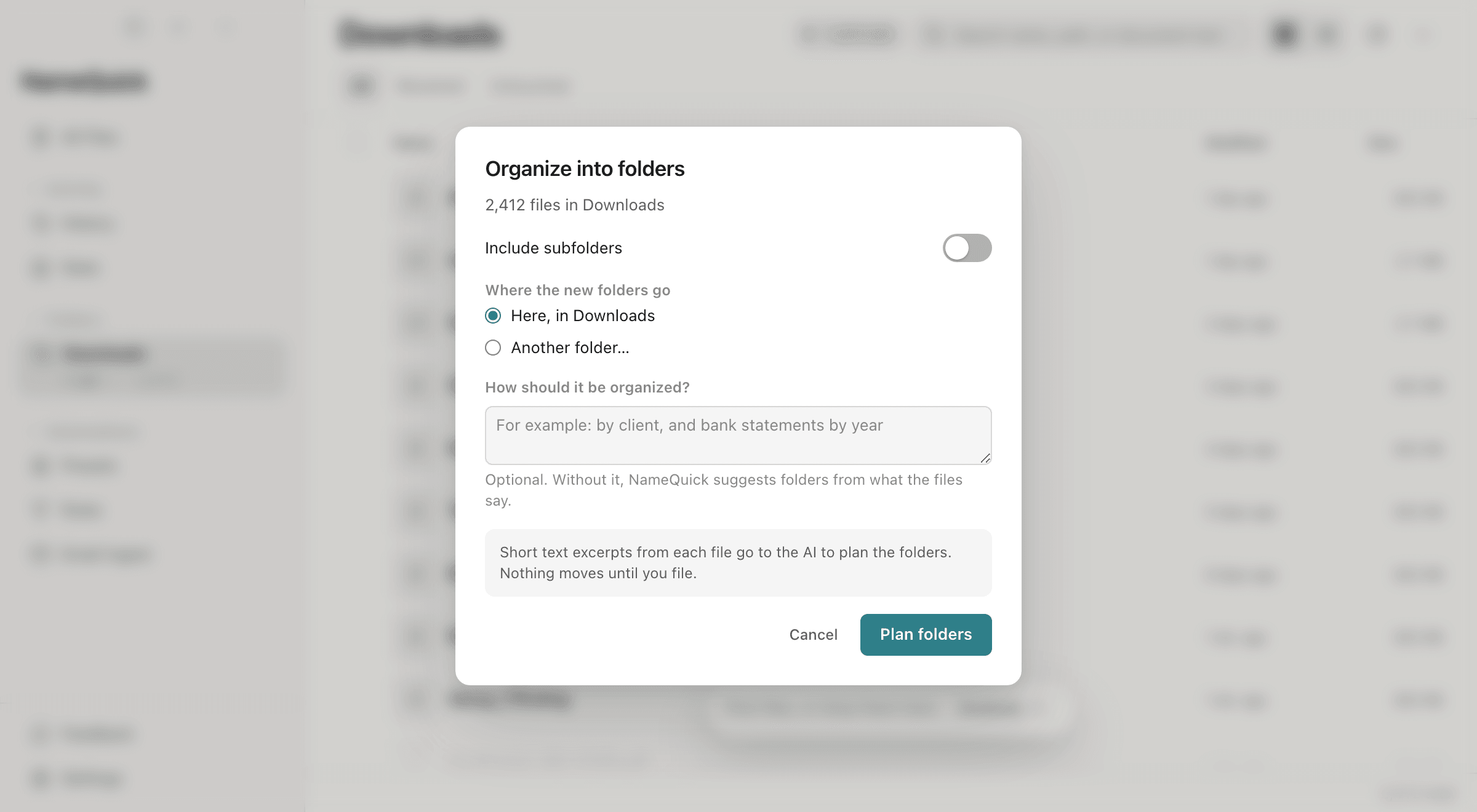
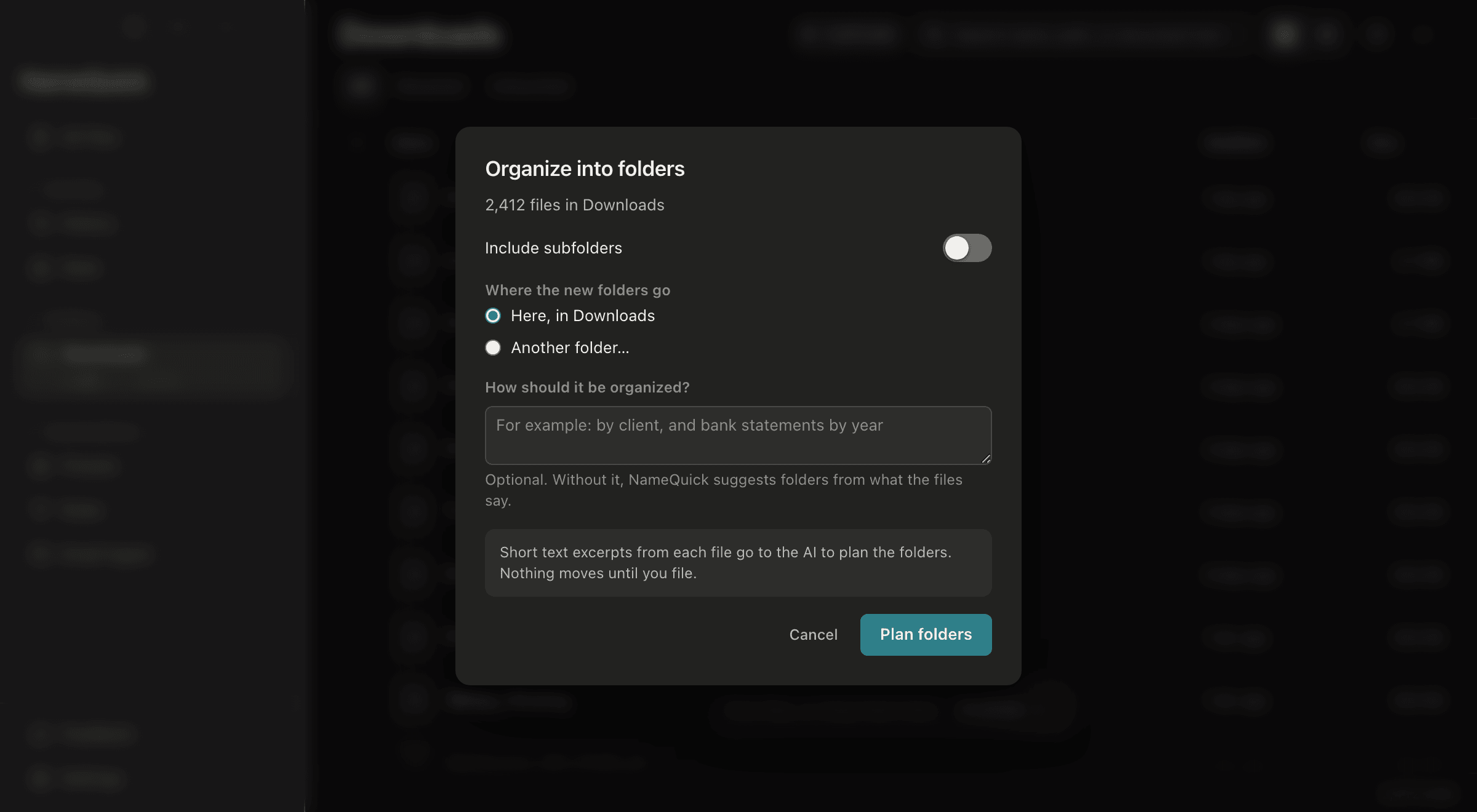
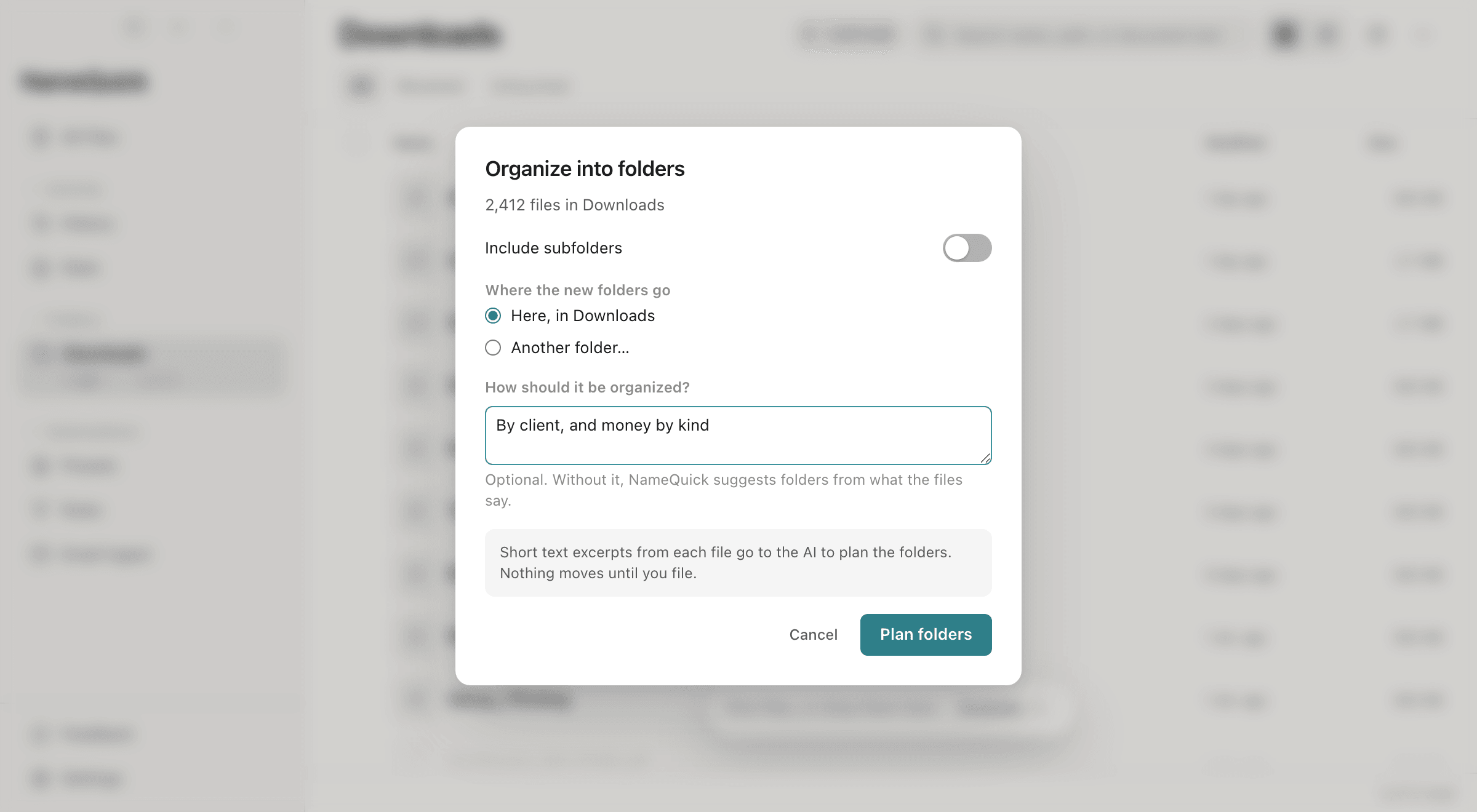
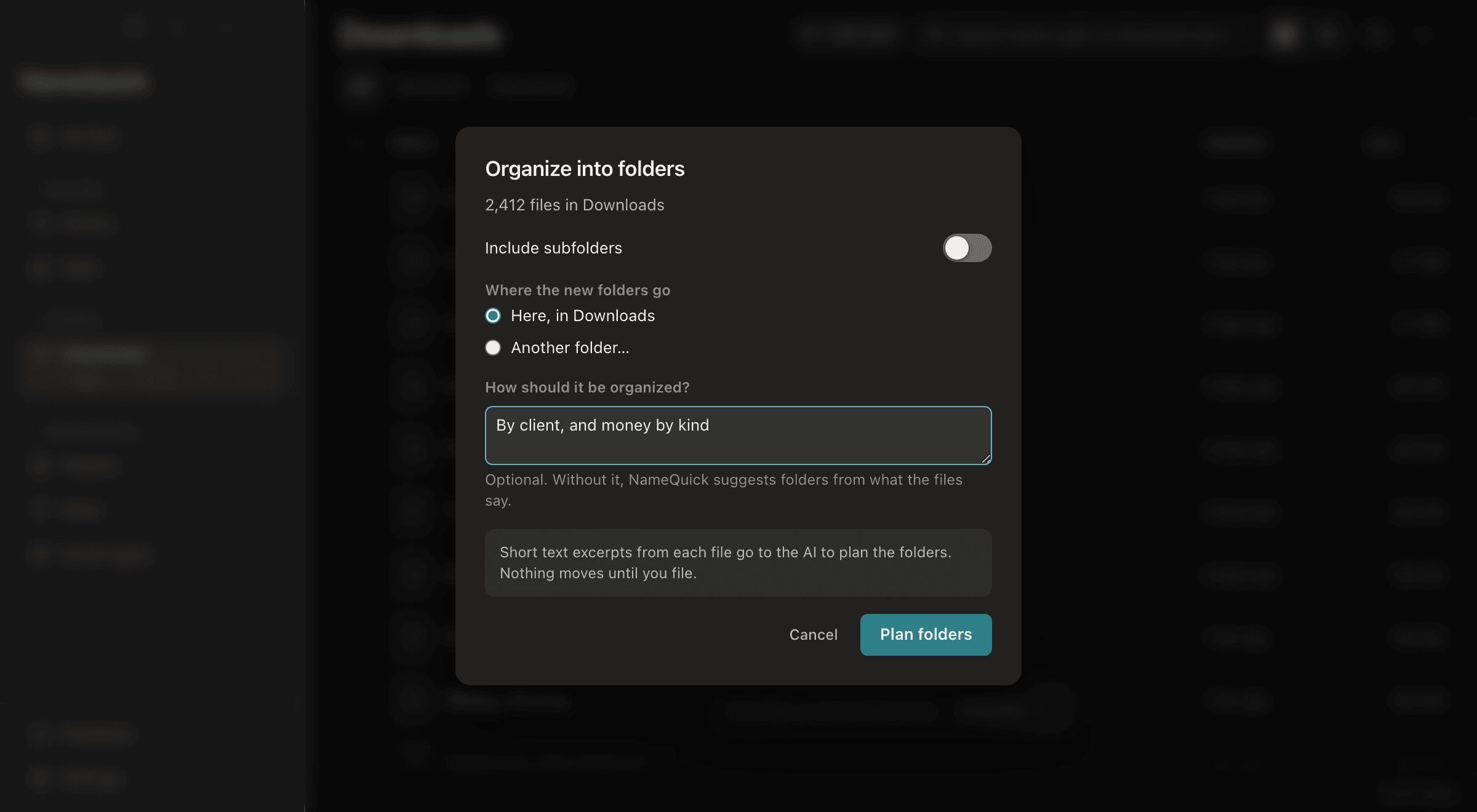
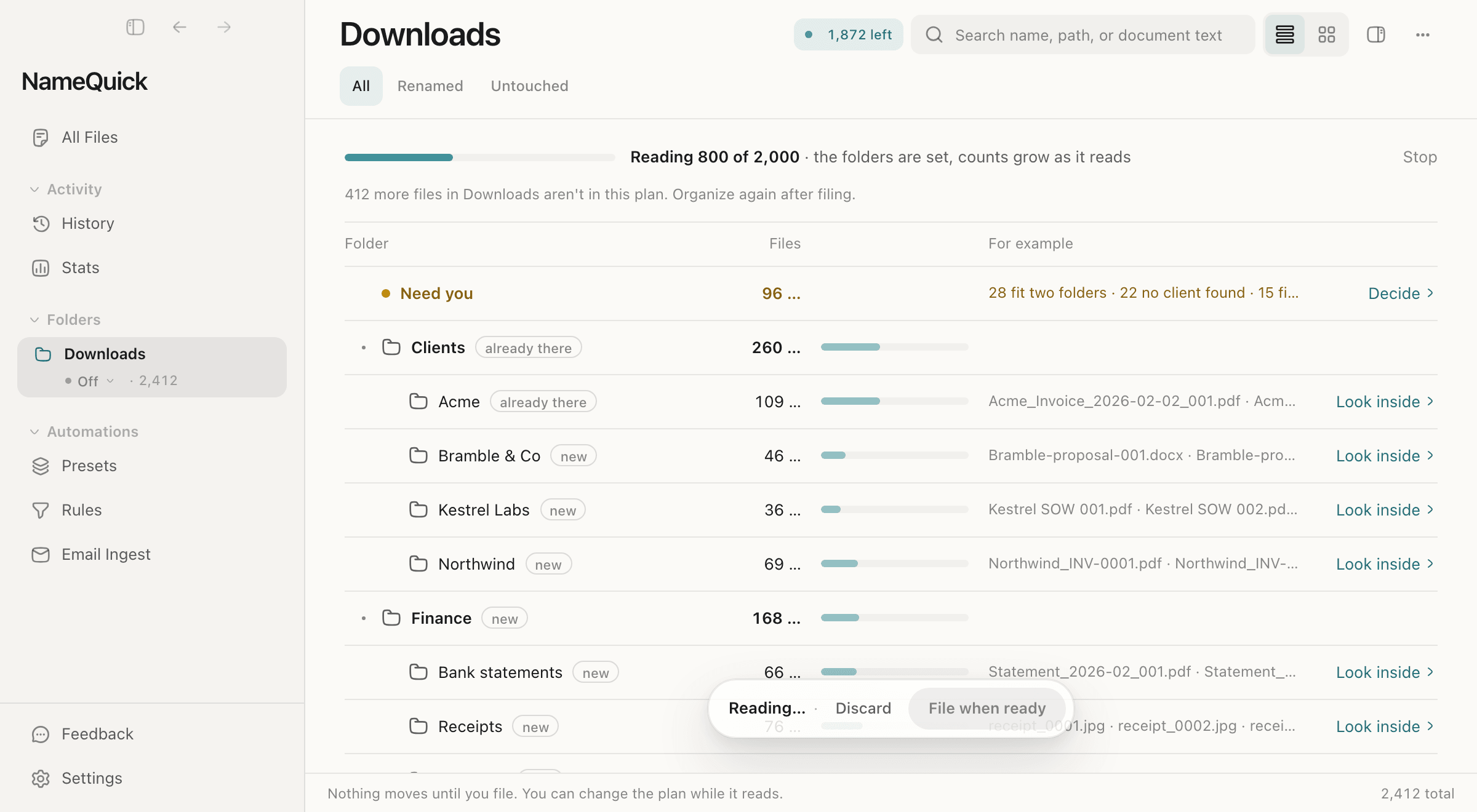
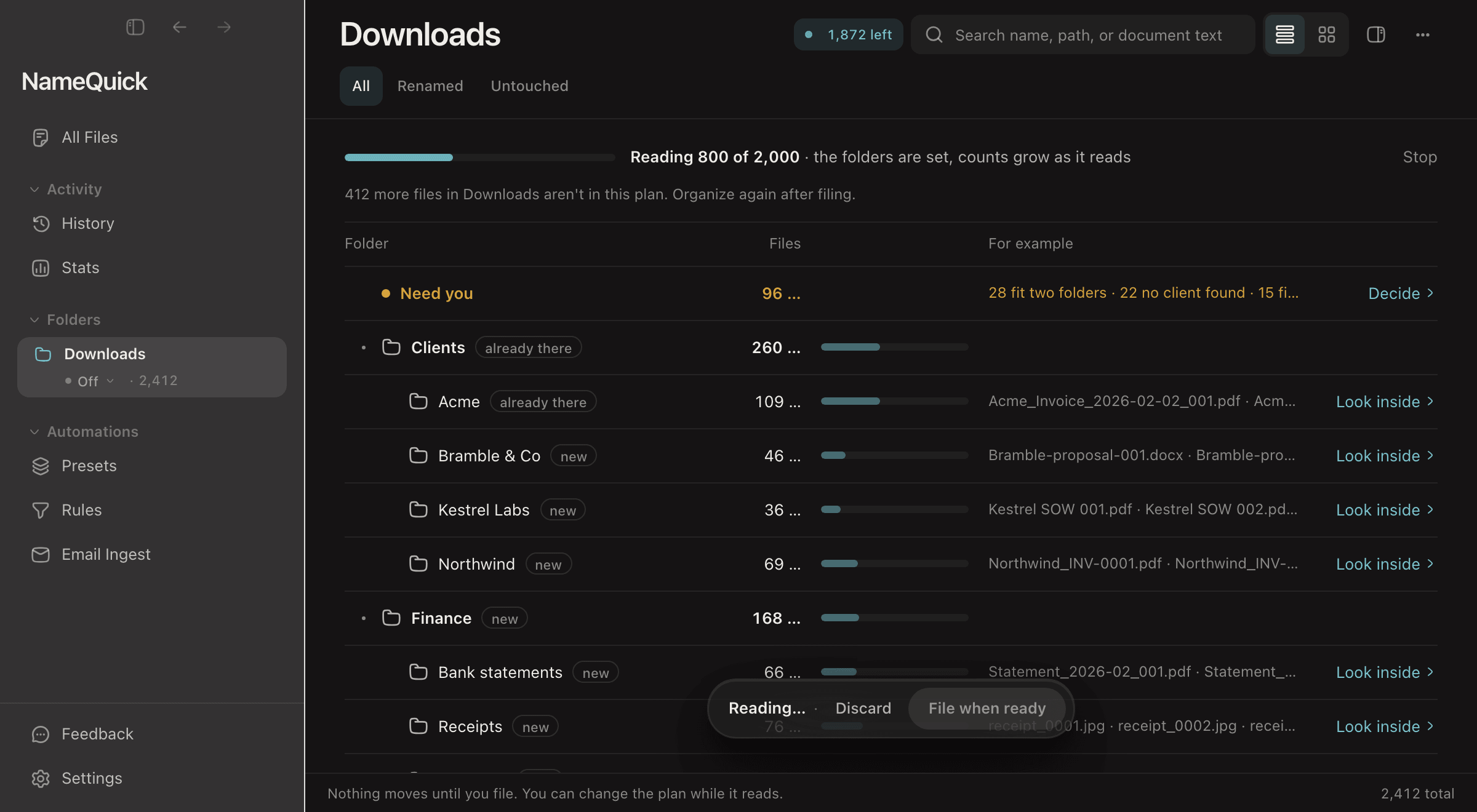
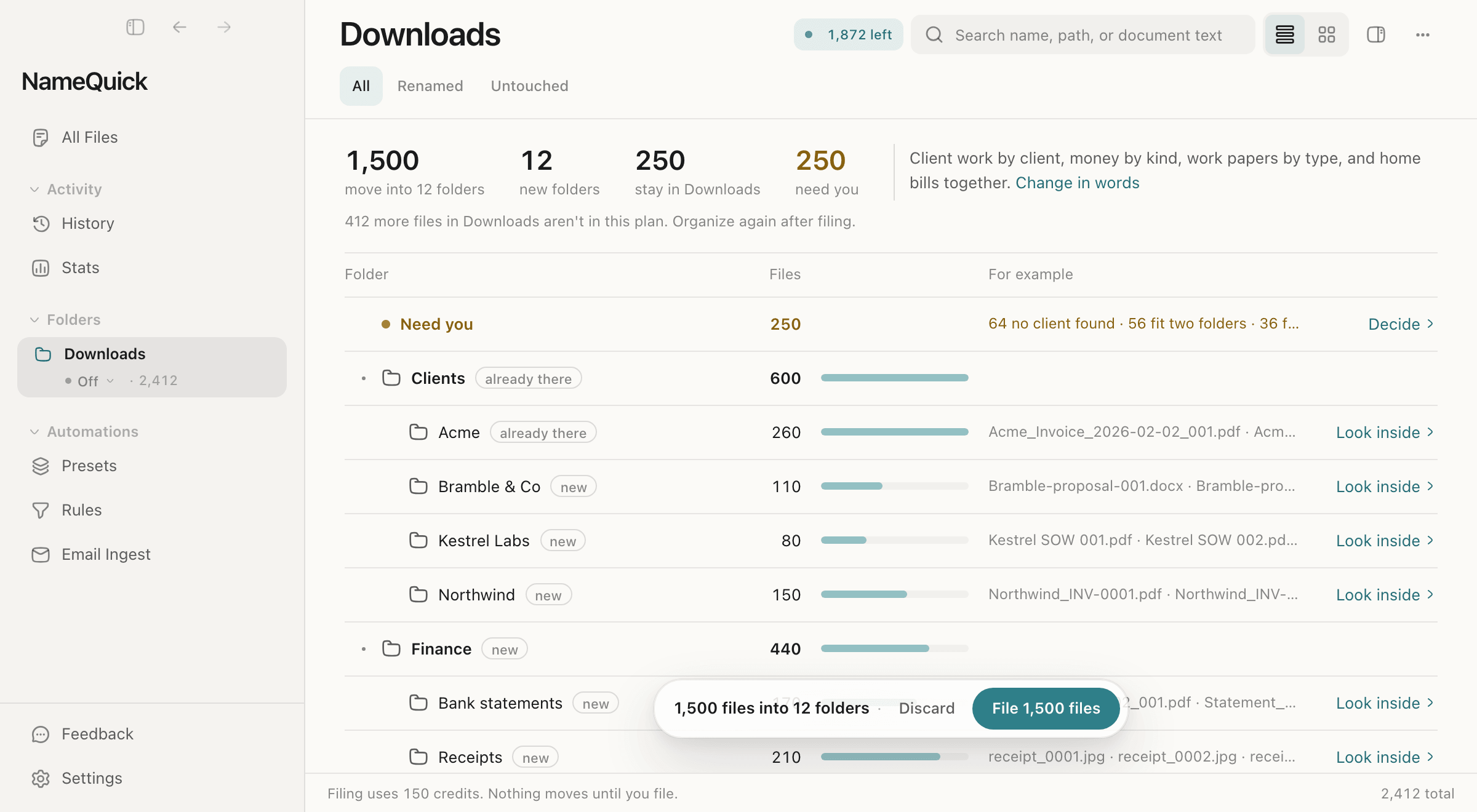
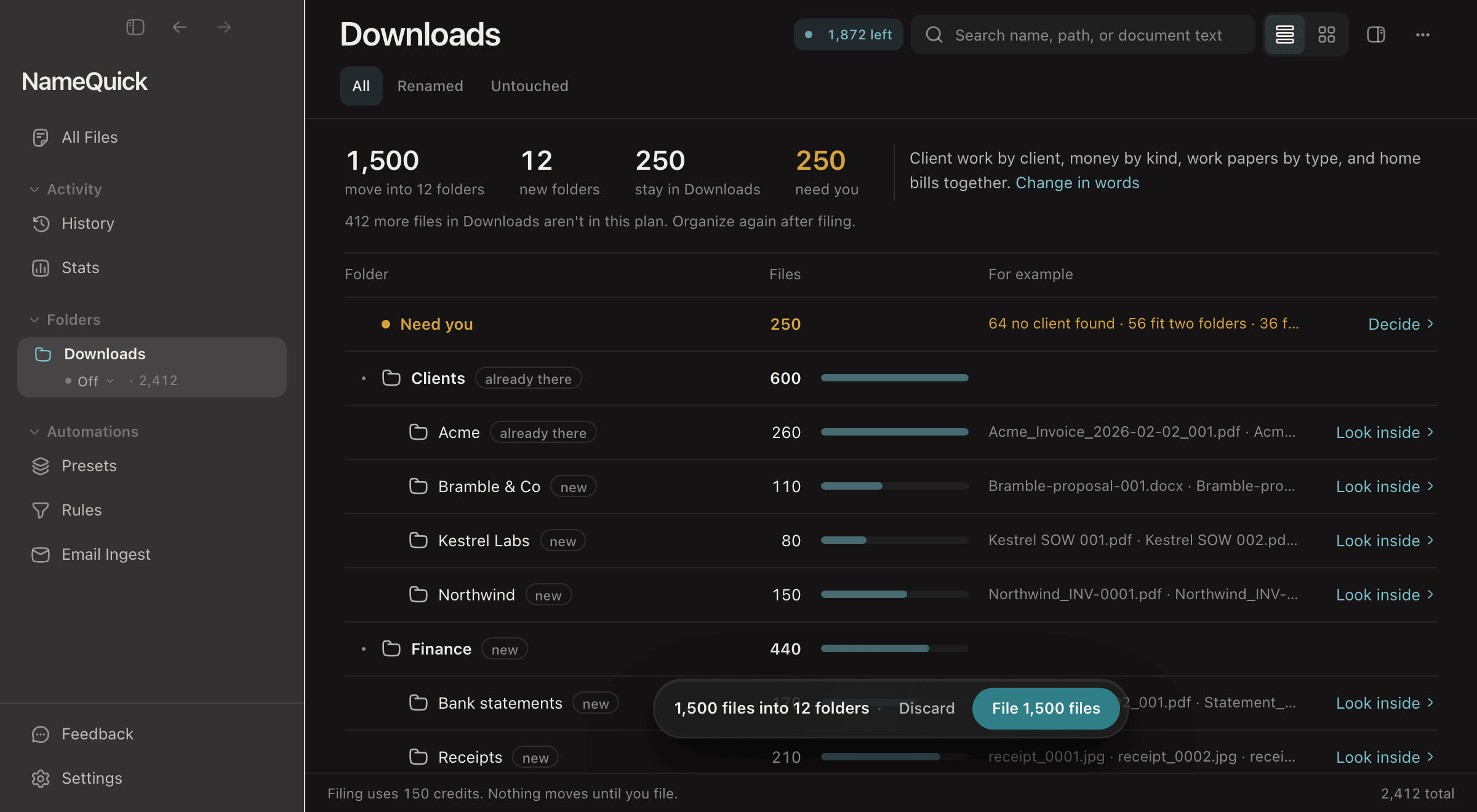
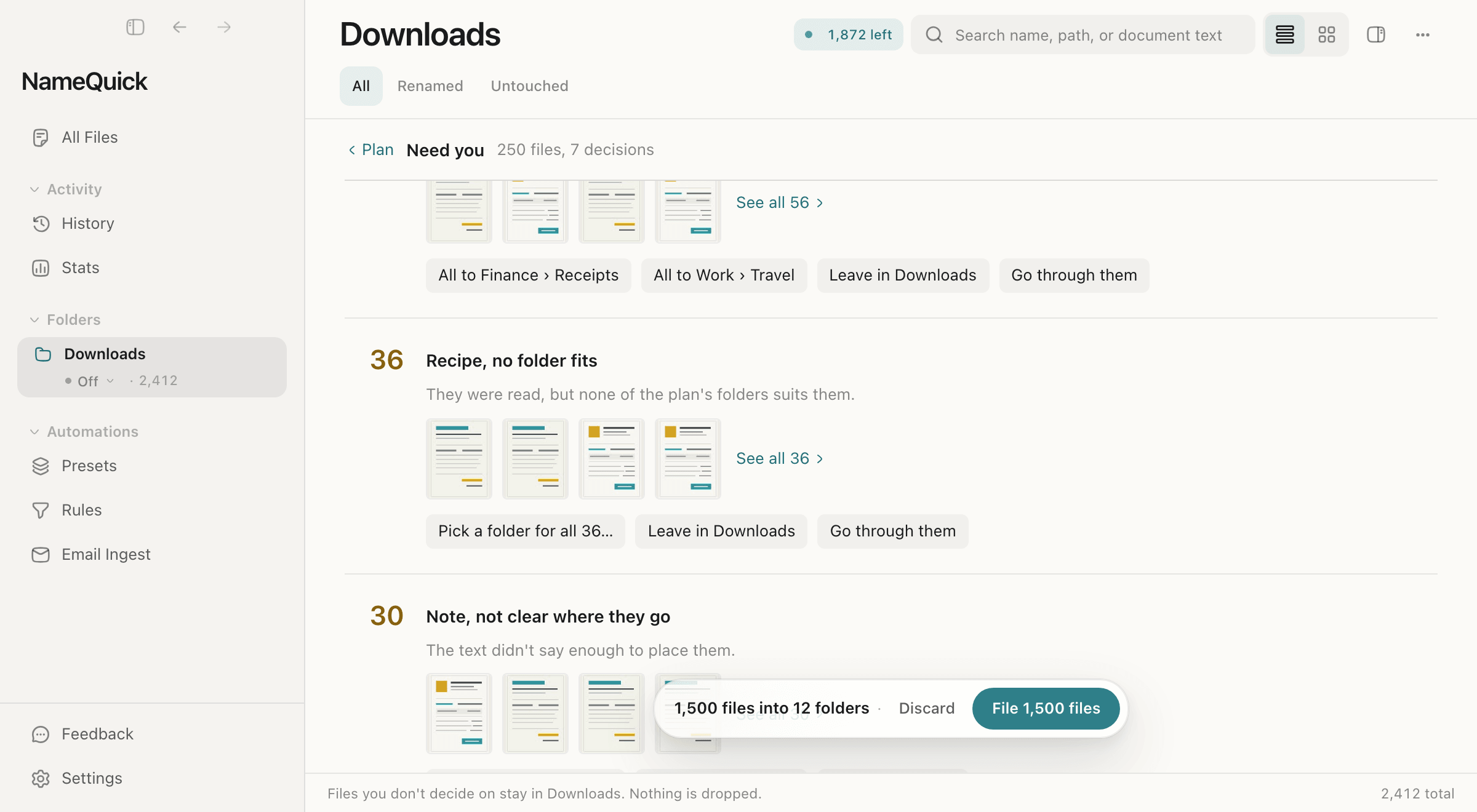
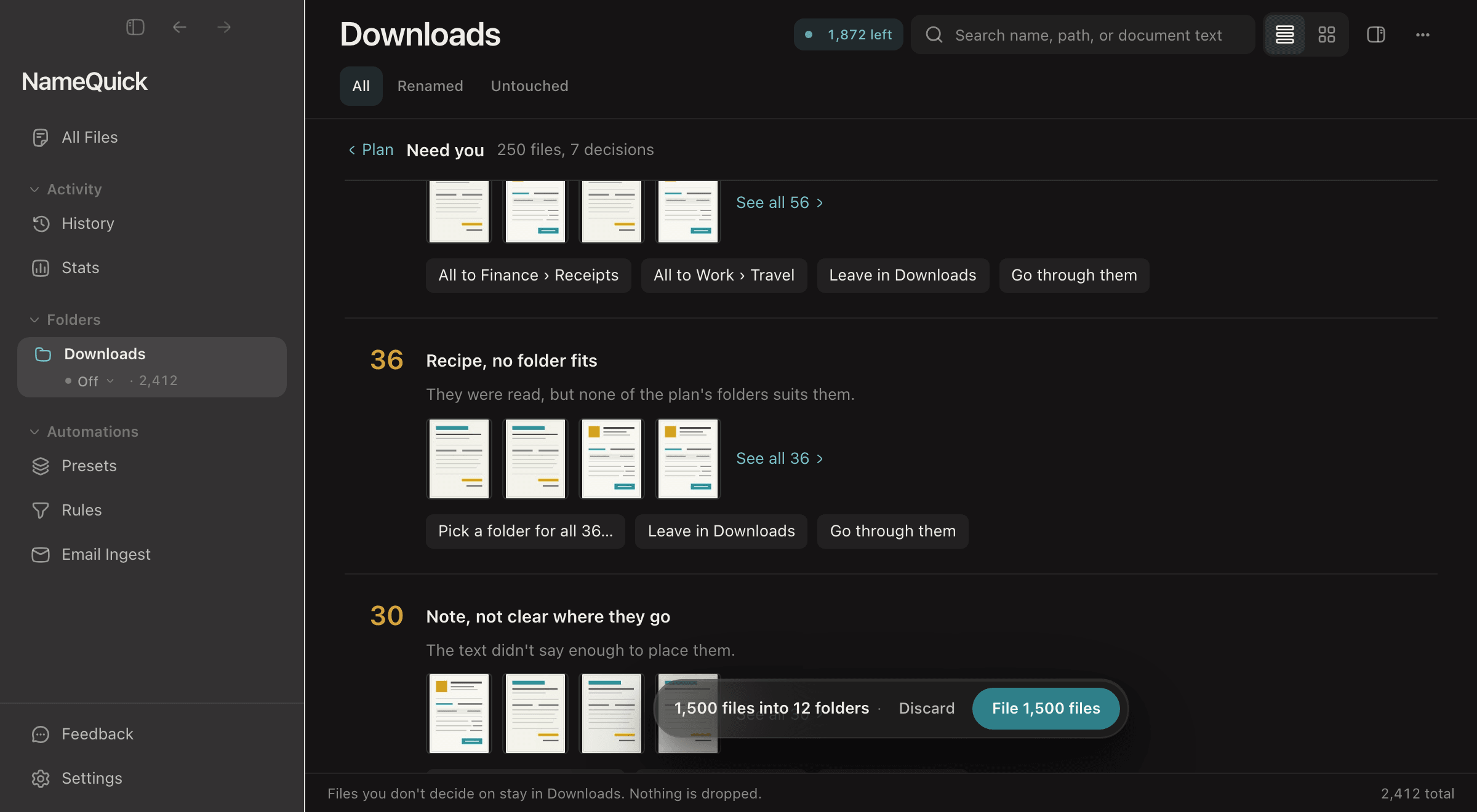
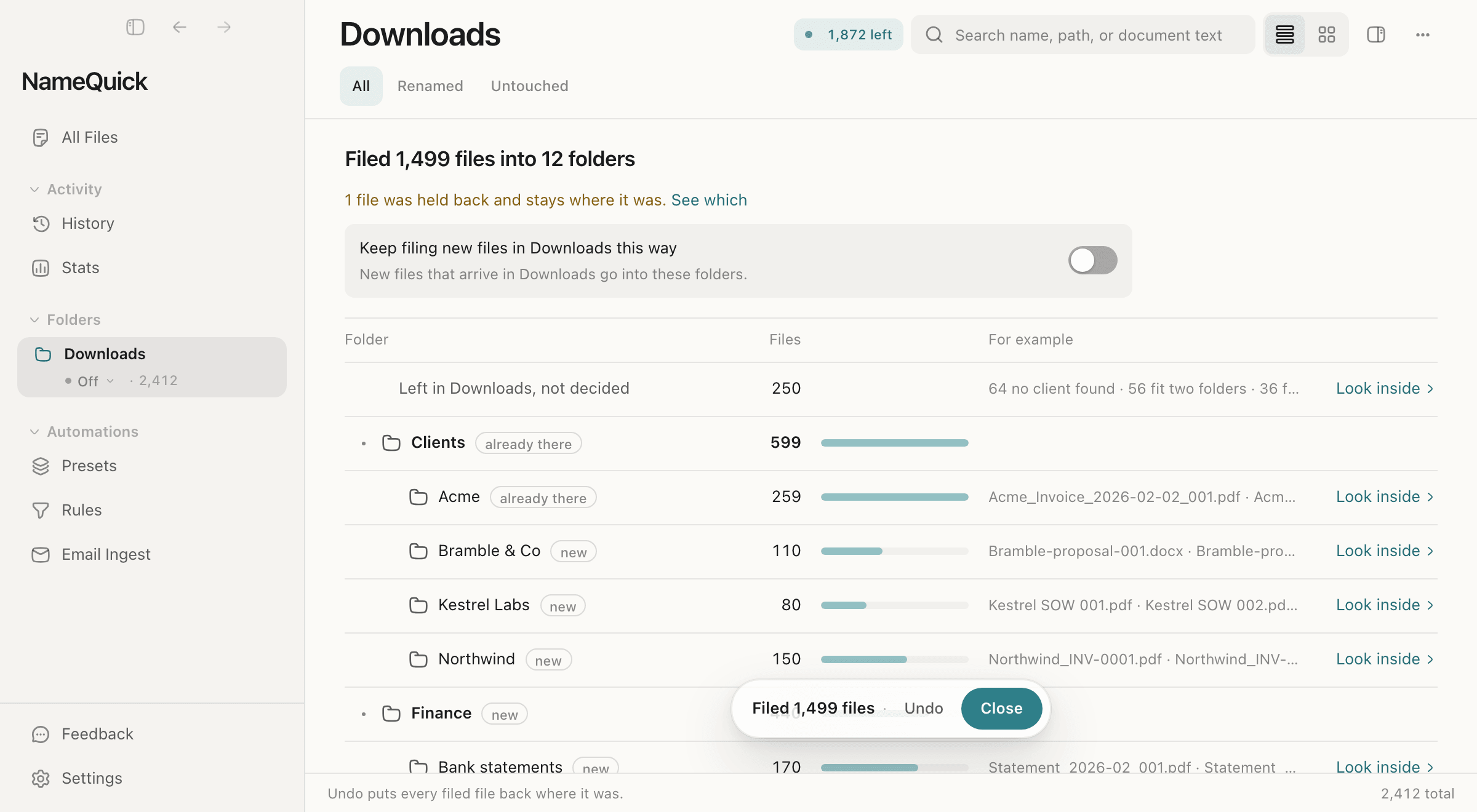
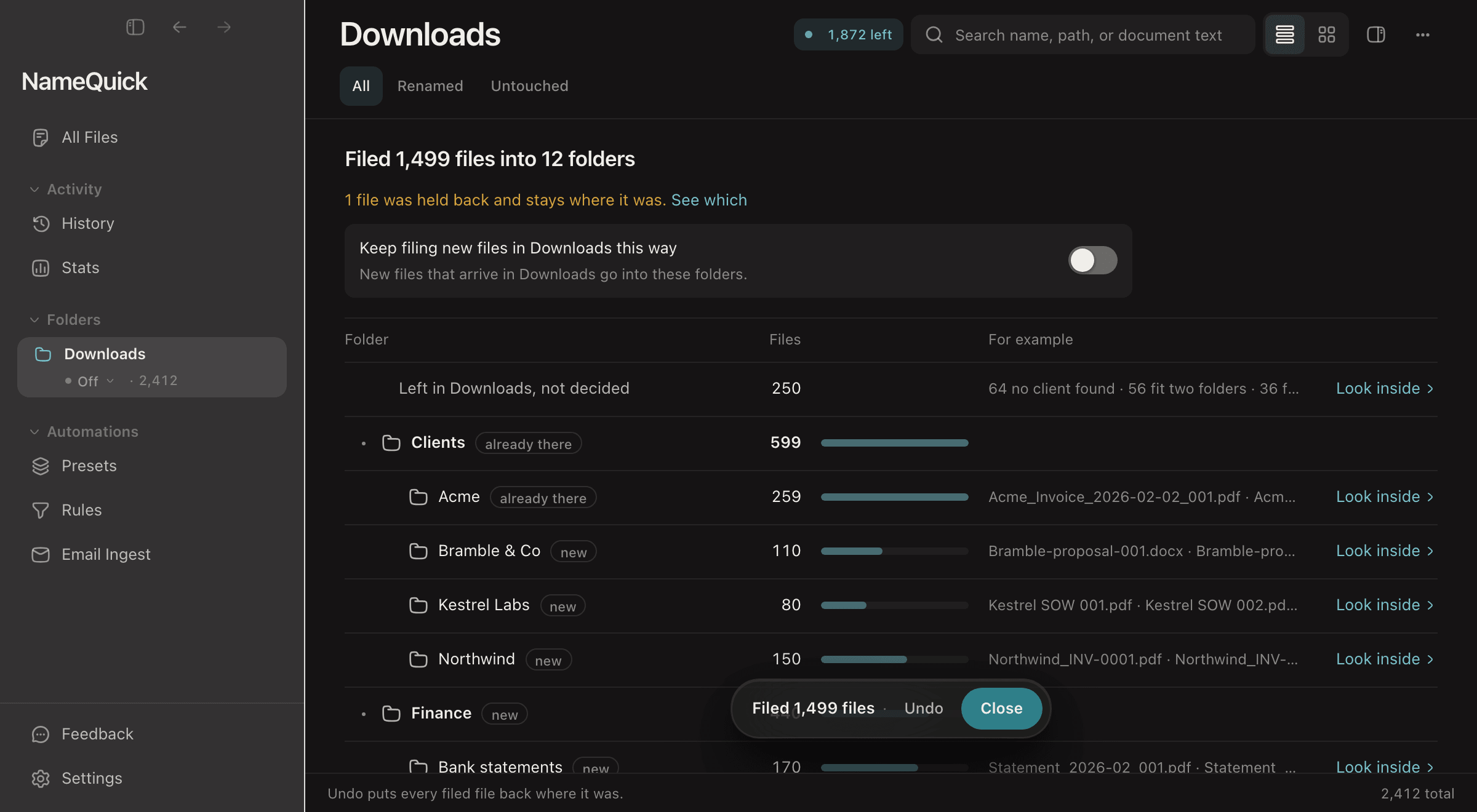
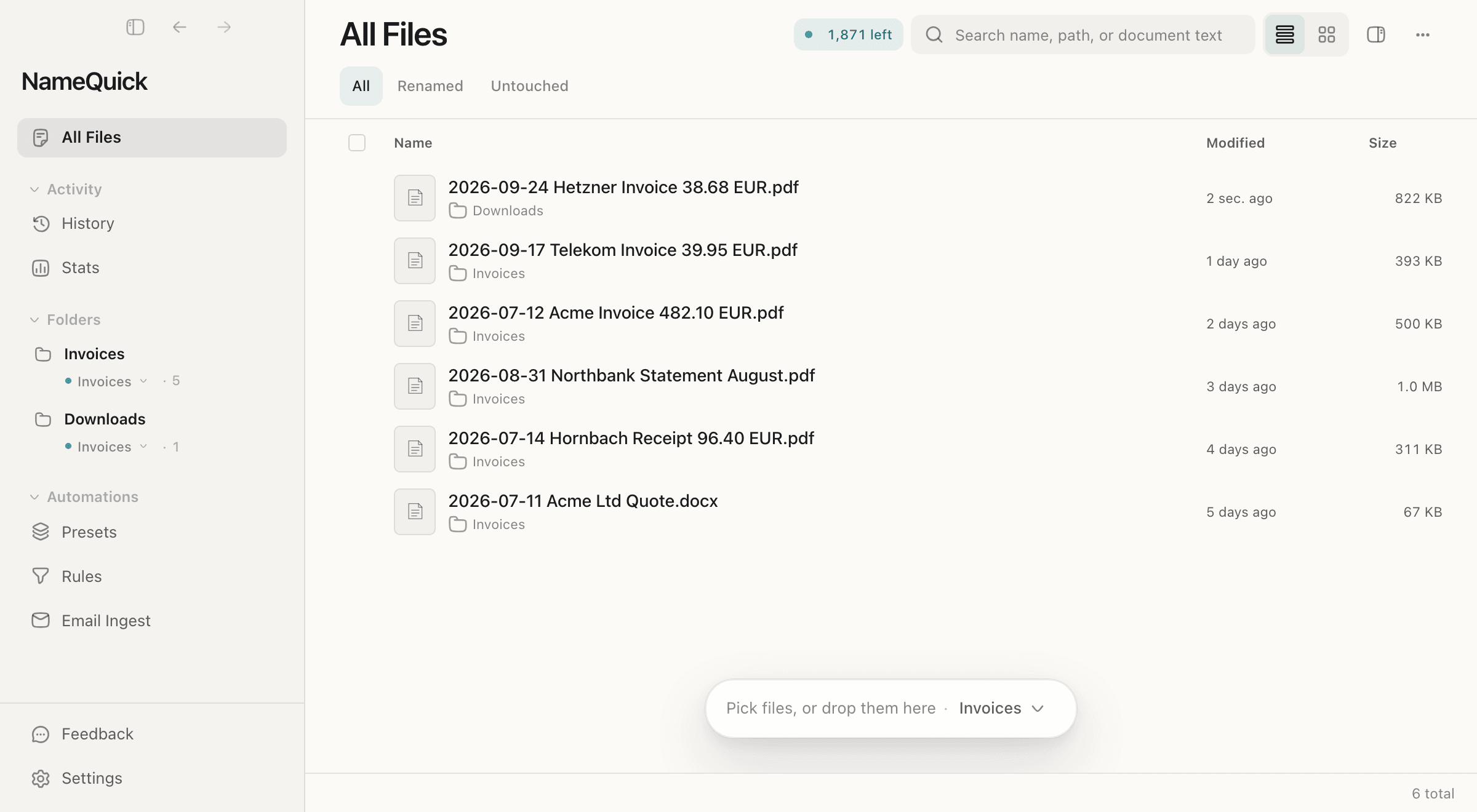
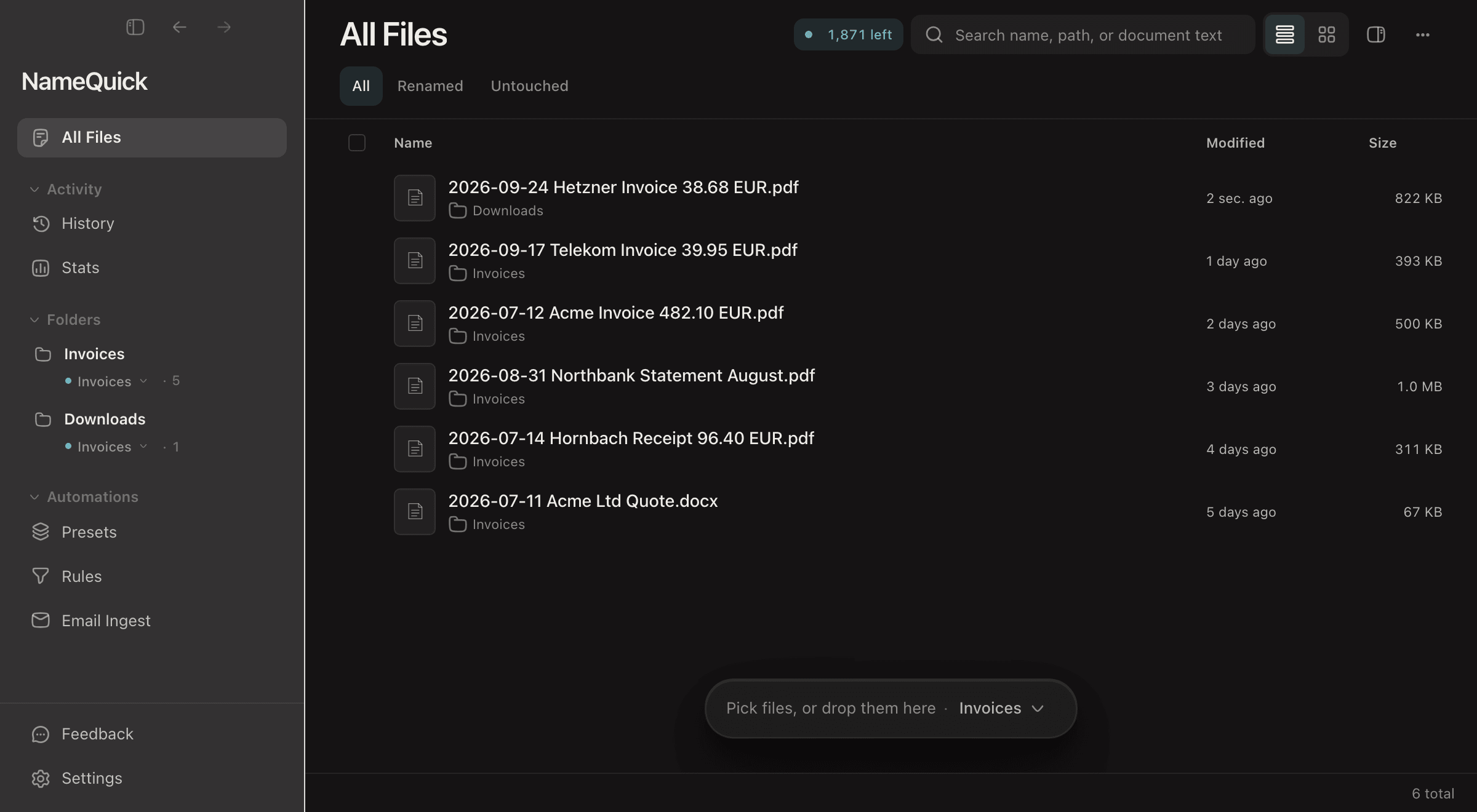
NameQuick 3.0.35 on a Mac: Downloads, with 2,412 files, is right-clicked in the sidebar and Organize into folders… is chosen. The start sheet gets the instruction “By client, and money by kind”, then Plan folders. NameQuick reads the files and plans 1,500 of them into 12 folders; 250 stay in Downloads and 250 need you, such as 36 recipes where no folder fits. File 1,500 files moves 1,499 of them, one is held back, and Undo would put every filed file back.

How it works

Three jobs,one app.

Organizing files is really three jobs. NameQuick does each one, and you can use them together or on their own.

  1. Mac and Windows

    Name each file from its content

    NameQuick reads the text of PDFs, scans and documents and looks at photos, then suggests a name. Set your own naming pattern once as a Preset: the date, who it's from, the kind of document. Or use Smart Rename for a quick tidy-up with no setup.

    scan_001.pdf
    2026-05-18_Contoso_Invoice2847.pdf
    Example only. Real names depend on your files and your Preset.
    Set up a Preset
  2. Mac

    Sort a pile that already exists

    Quick Organize reads a folder such as Downloads, plans folders and moves the files once you've checked the plan. Describe the folders in your own words, such as "by client, and bank statements by year", or let it suggest them. One Undo puts every file back.

    Needs: NameQuick for Mac from namequick.app or Setapp, with Managed AI or your own cloud AI key.

    How Quick Organize works
  3. Mac and Windows

    File new arrivals automatically

    Point a watched folder at Downloads or your scanner's output. While NameQuick is running, each new file gets its name, then a Rule moves it, for example every file with Invoice in its name into your Invoices folder. Start on Review first to check each name before it's applied.

    Watch Folders and Rules
Examples

Say how you want it.It plans the folders.

As an AI document organizer, NameQuick turns a short instruction into a folder plan. These are examples, not templates you have to follow, and you check every plan before anything moves.

Invoices by vendor and year

You type: “invoices by vendor, then by year”

Invoices/
  Contoso/
    2025/
    2026/
  Northwind/
    2026/

One folder per client

You type: “by client”

Clients/
  Acme/
  Bramble & Co/
  Kestrel Labs/

Home paperwork

You type: “bank statements by year, plus insurance, health and car”

Finance/
  Bank statements/
    2026/
Insurance/
Health/
Car/

On a Mac, Quick Organize plans folders like these for files you already have. On Windows, or for files that keep arriving, set up the folders once and add a Rule for each kind of file.

Mac and Windows

New files,named as they arrive.

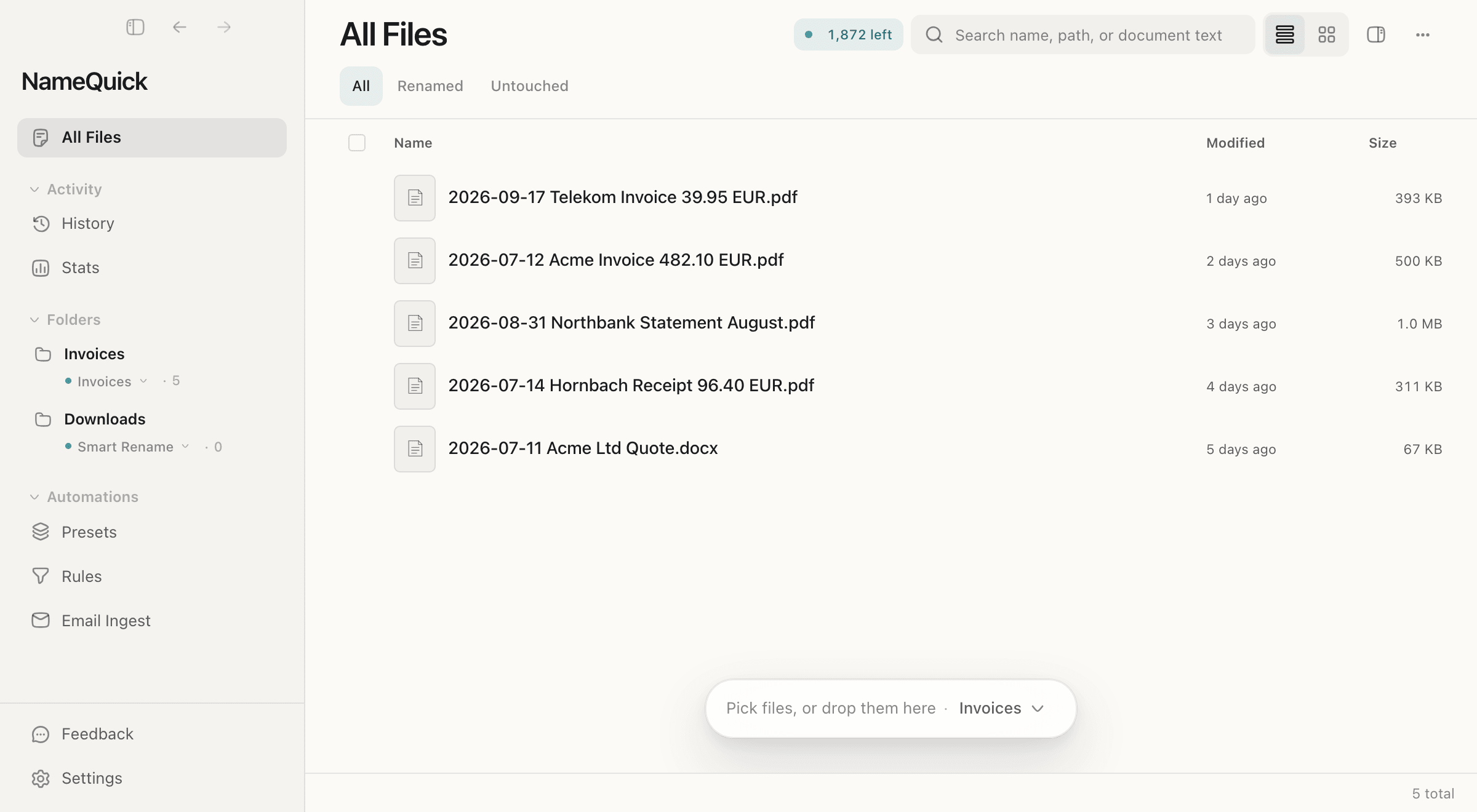
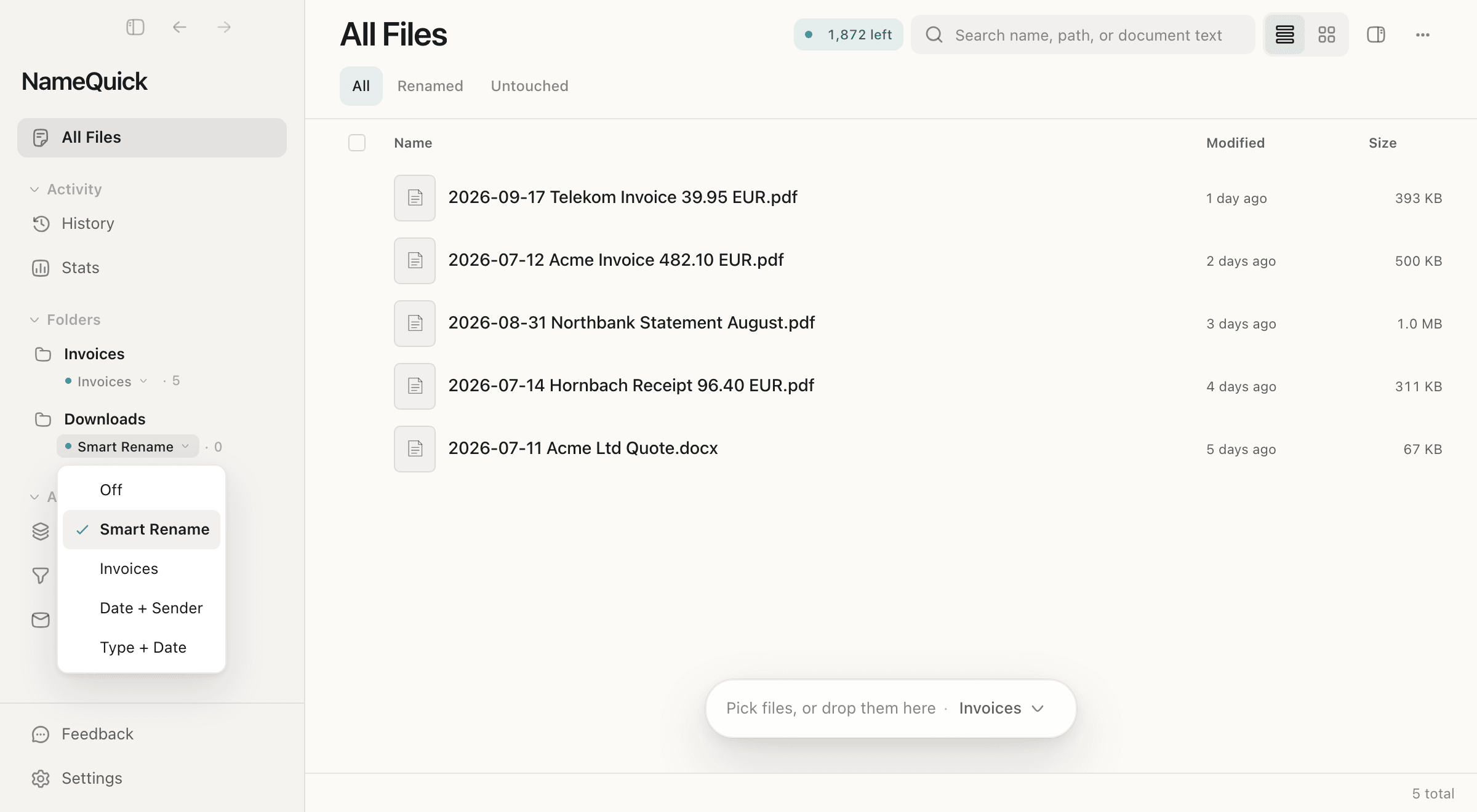
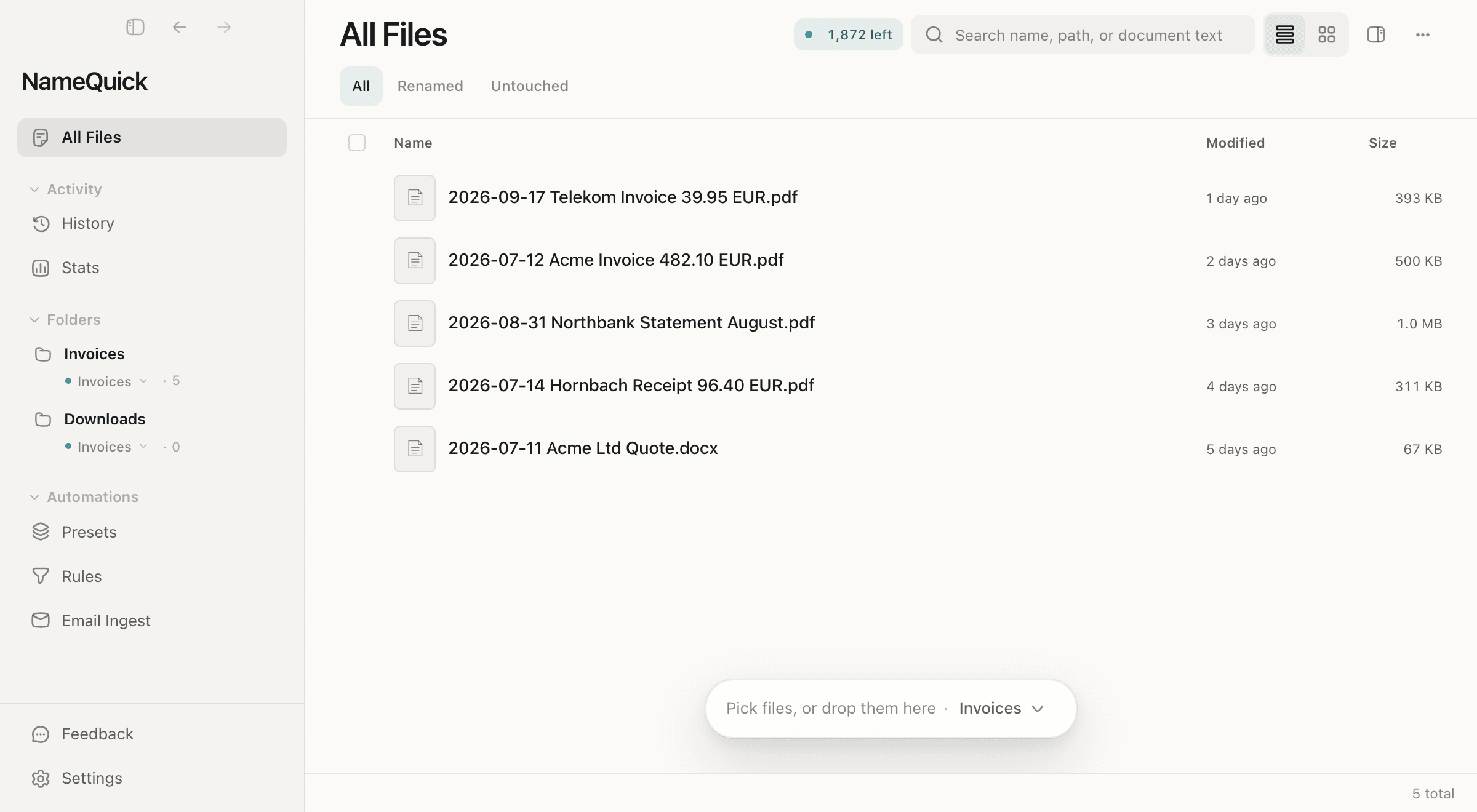
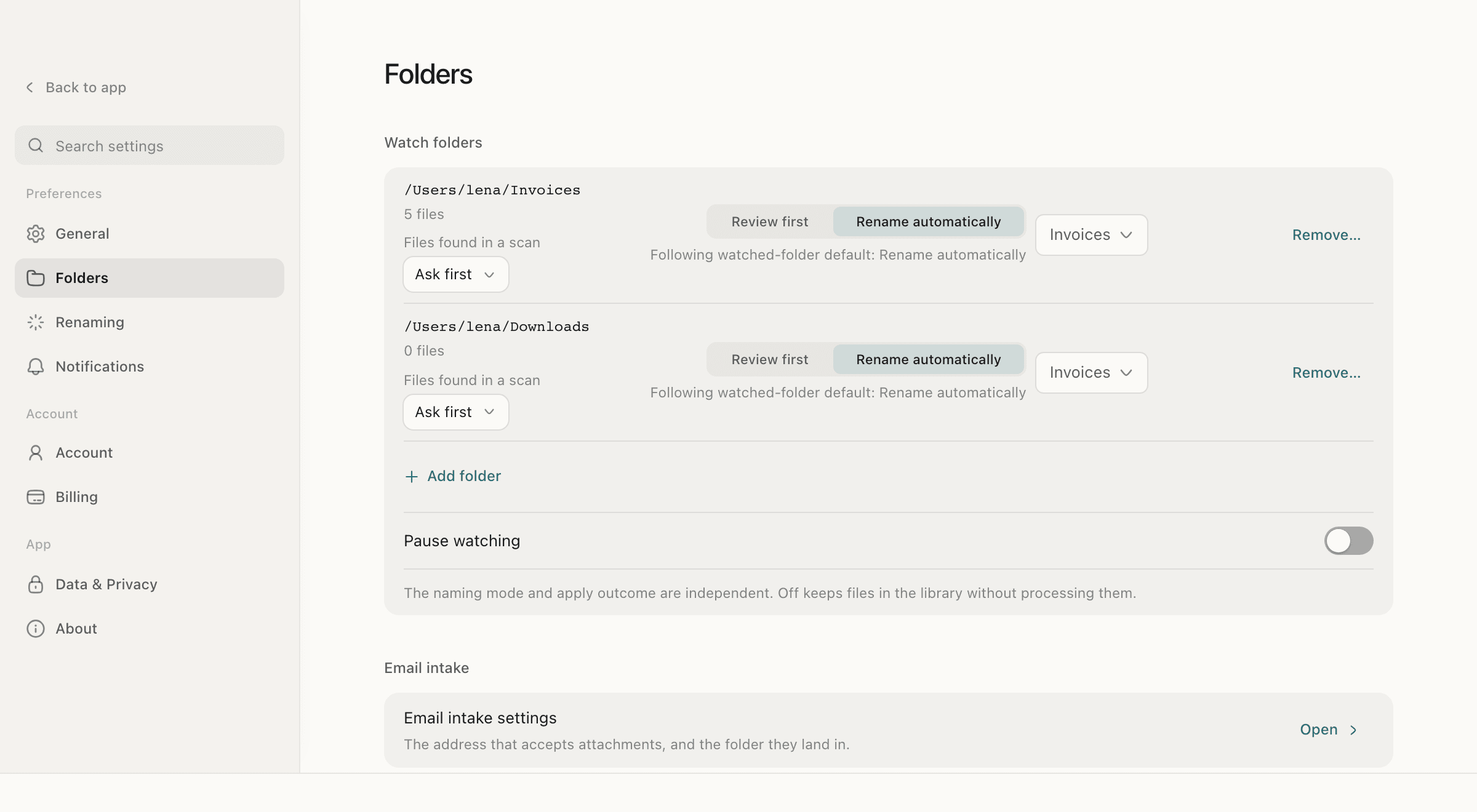
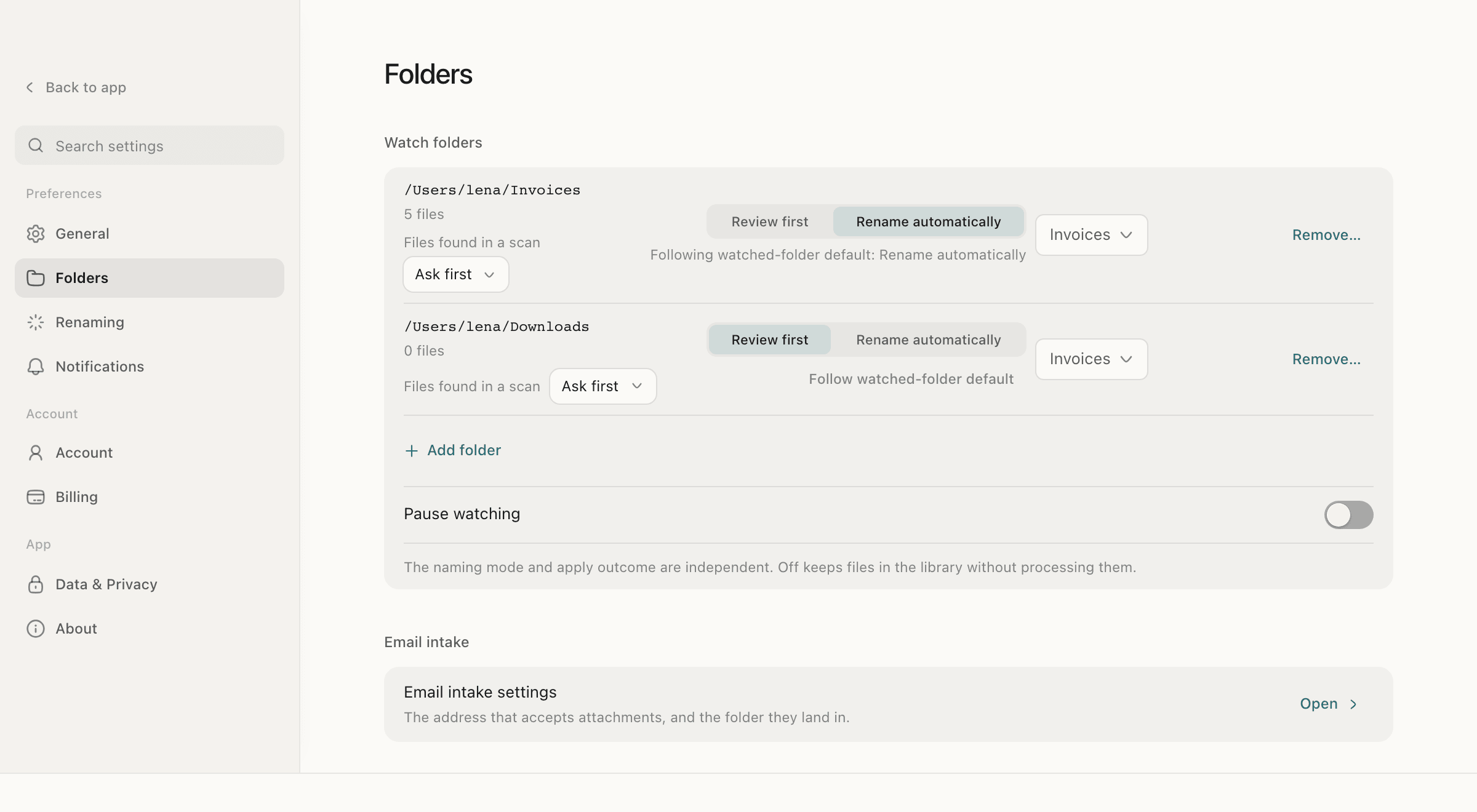
A watched folder names every new file while NameQuick is running. Start on Review first to check each name, or let it rename automatically. Then a Rule can move each file into its folder.

How new names are applied
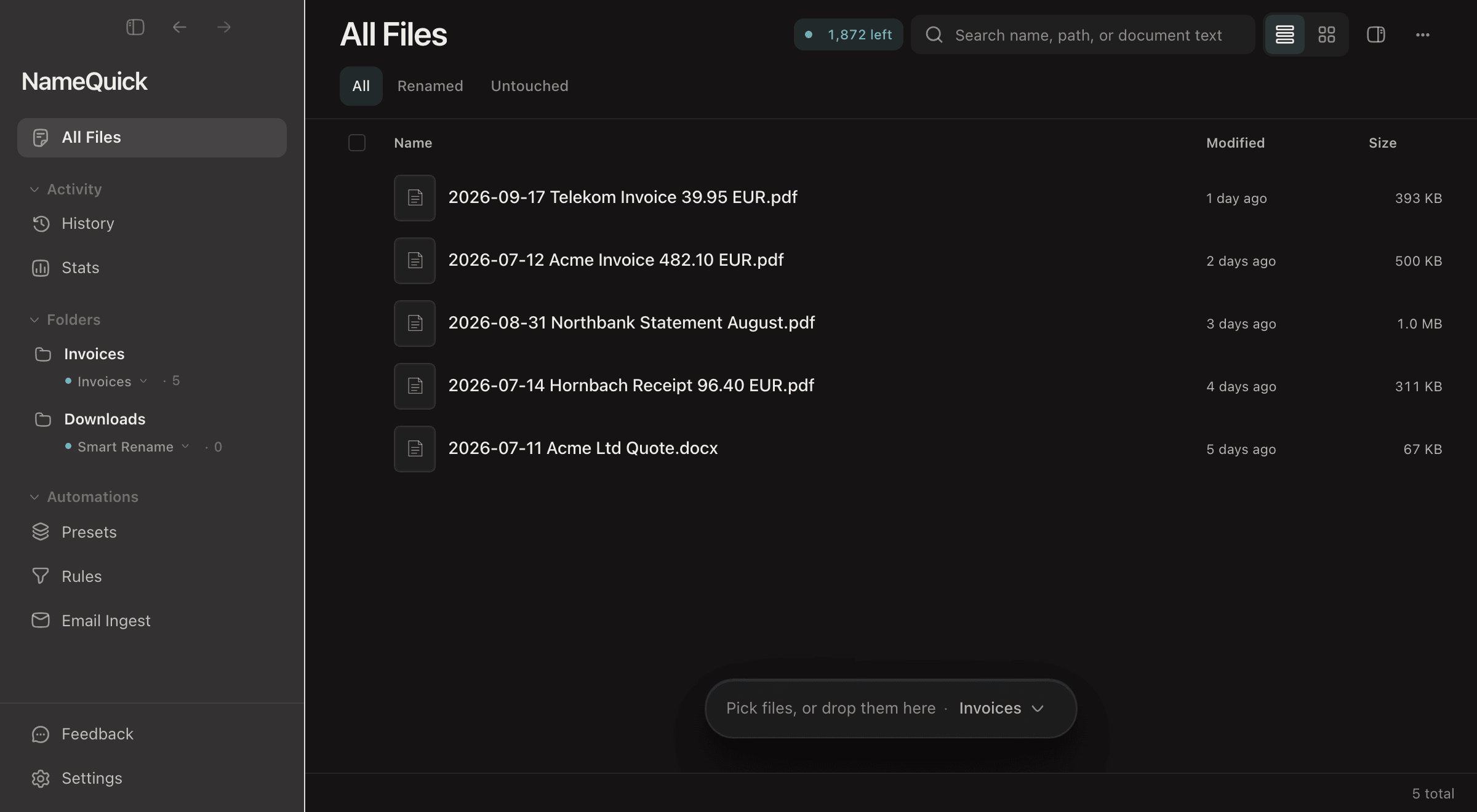
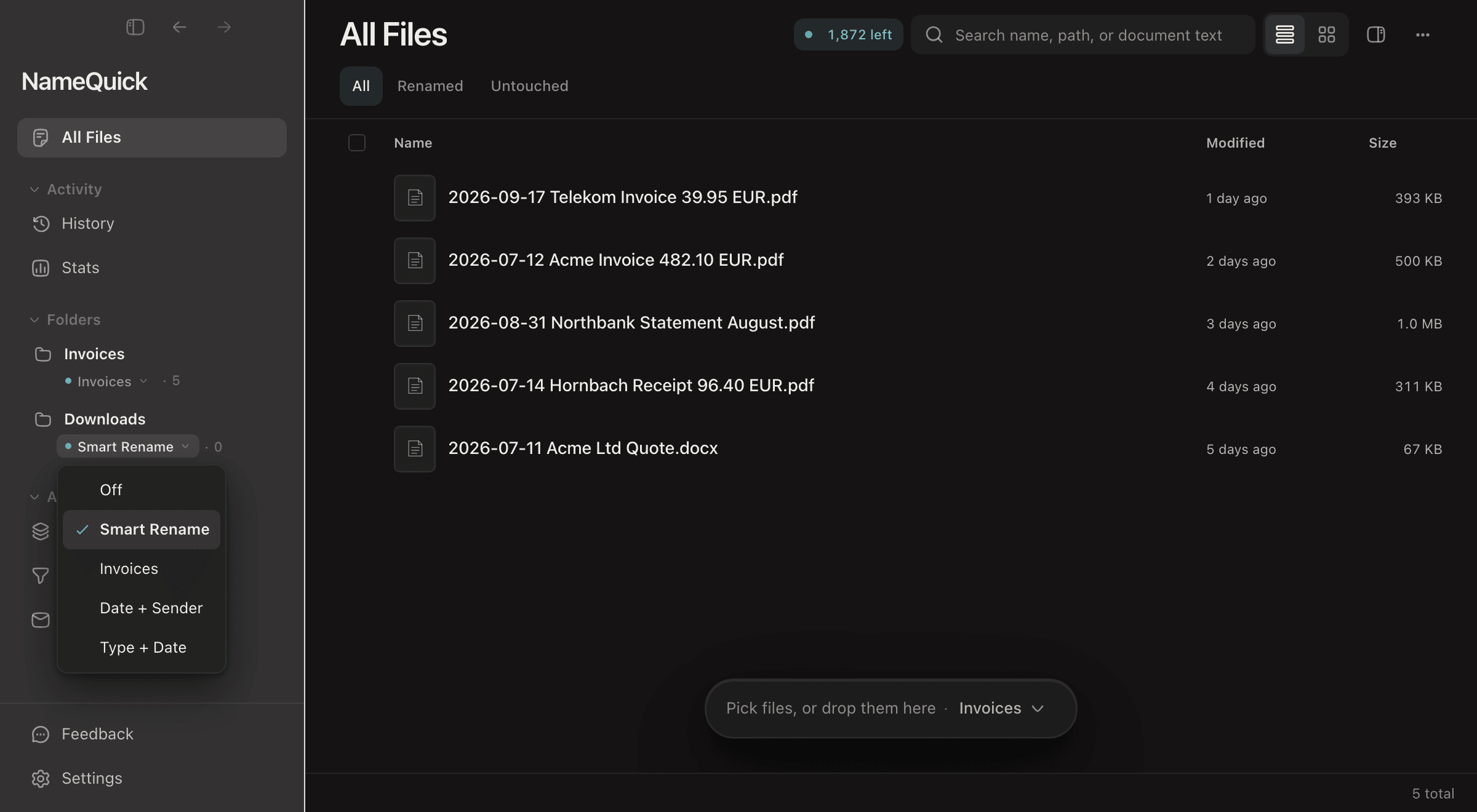
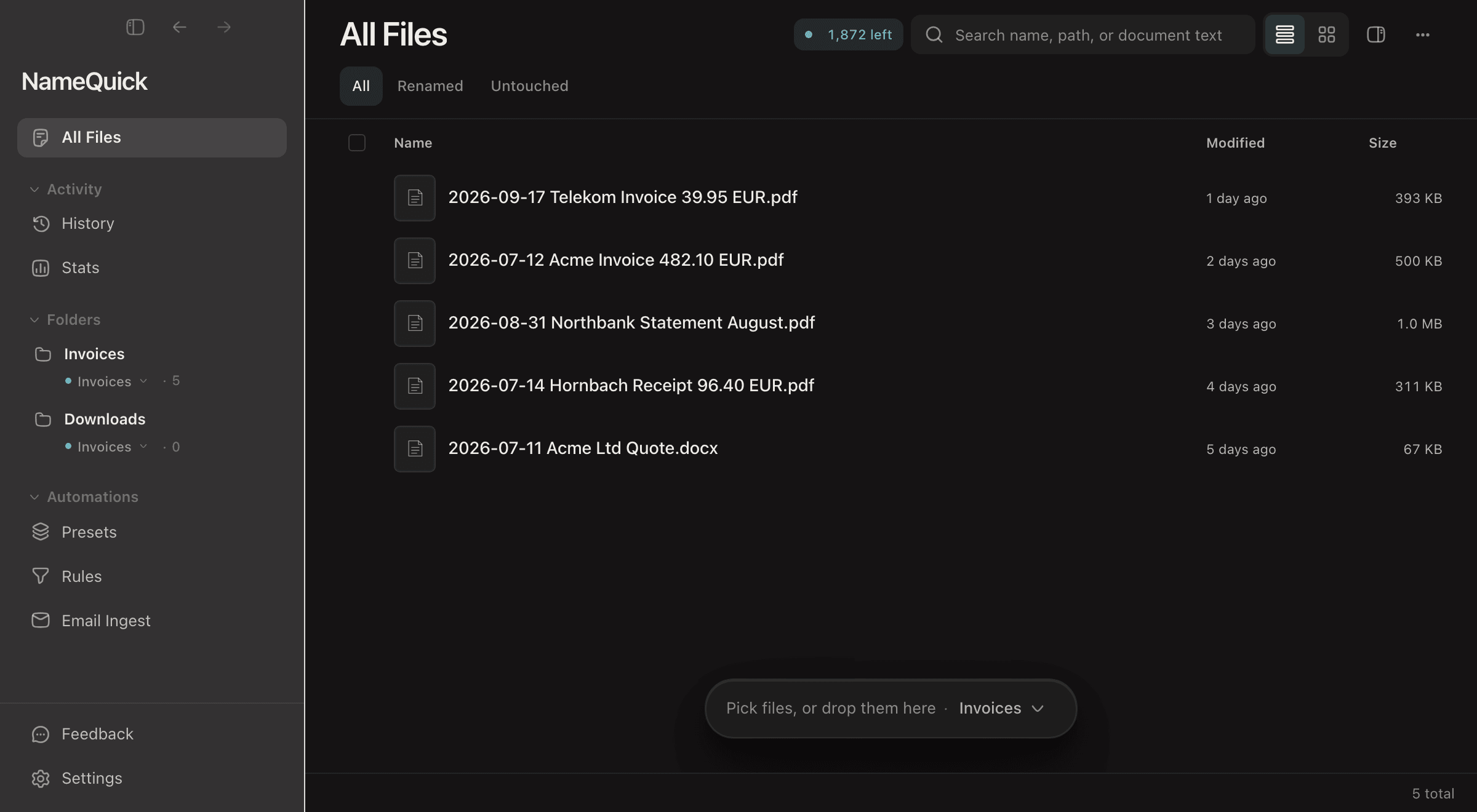
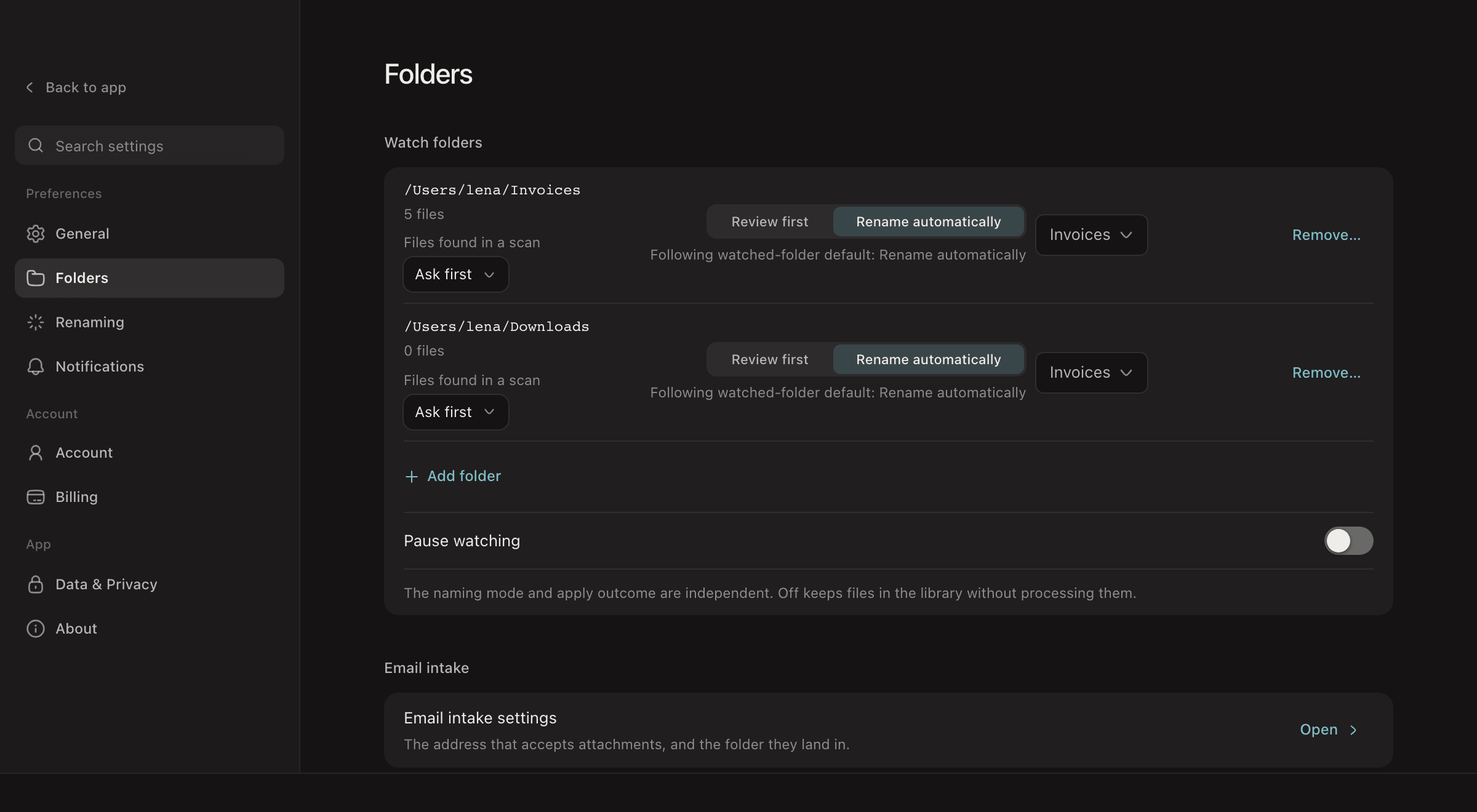
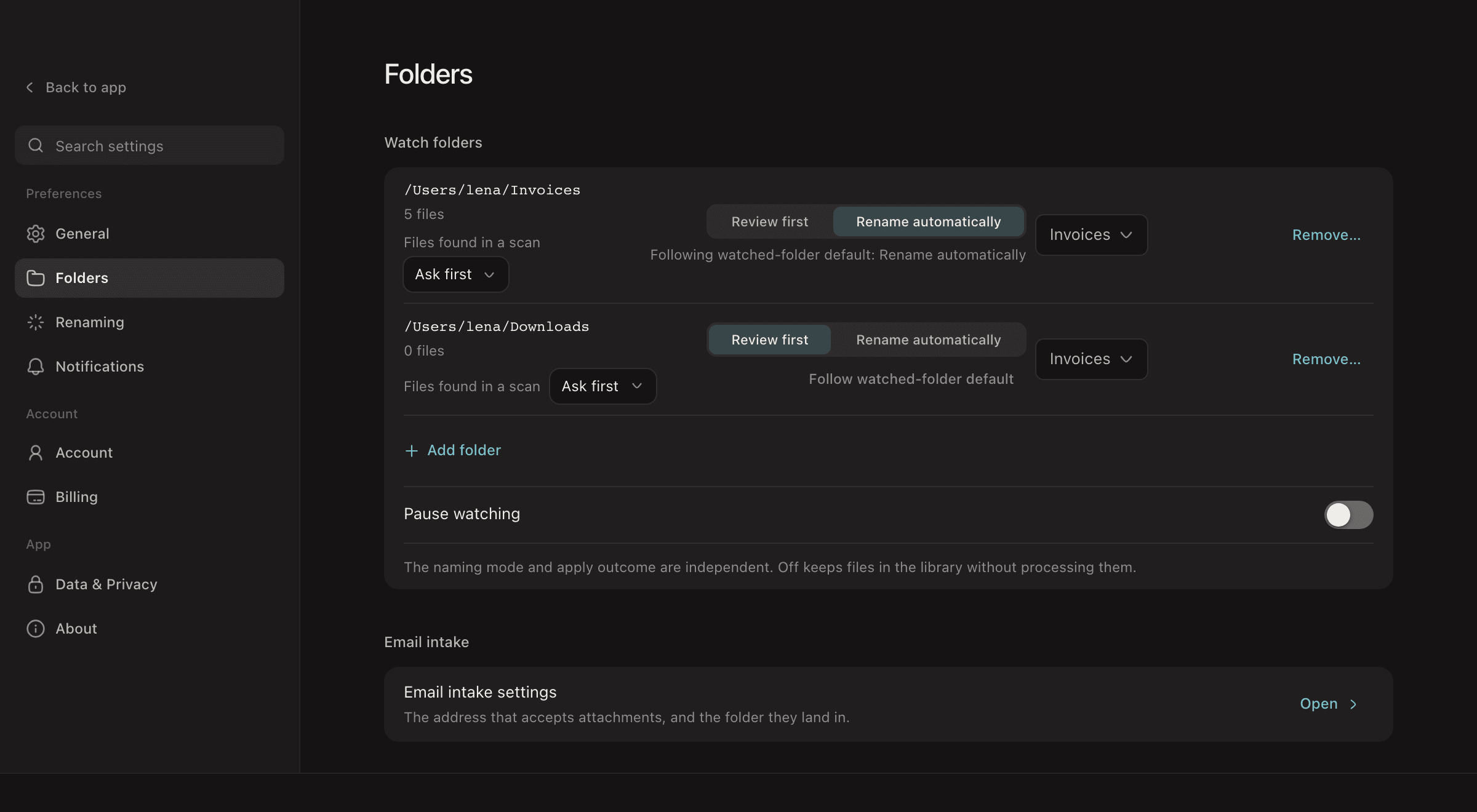
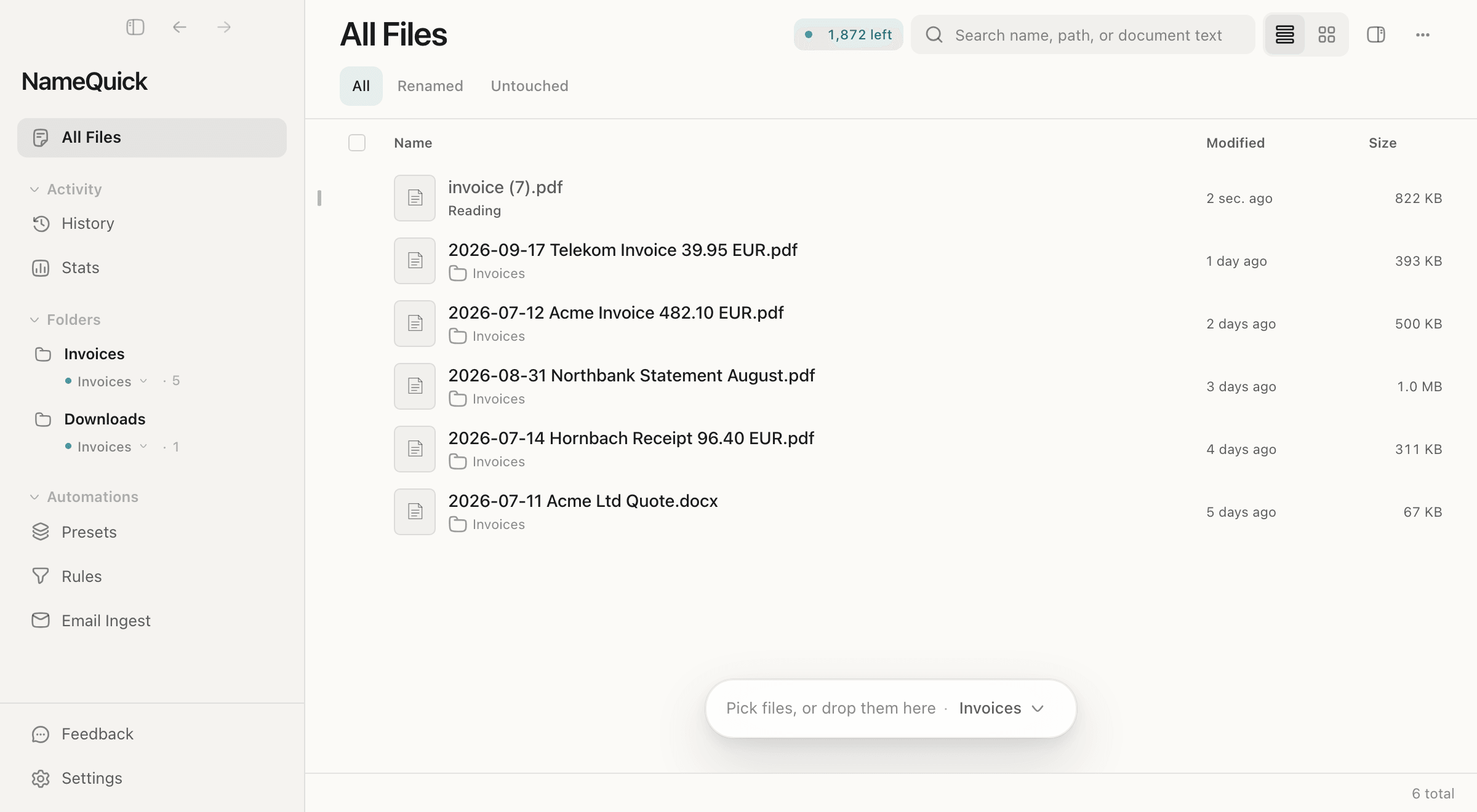
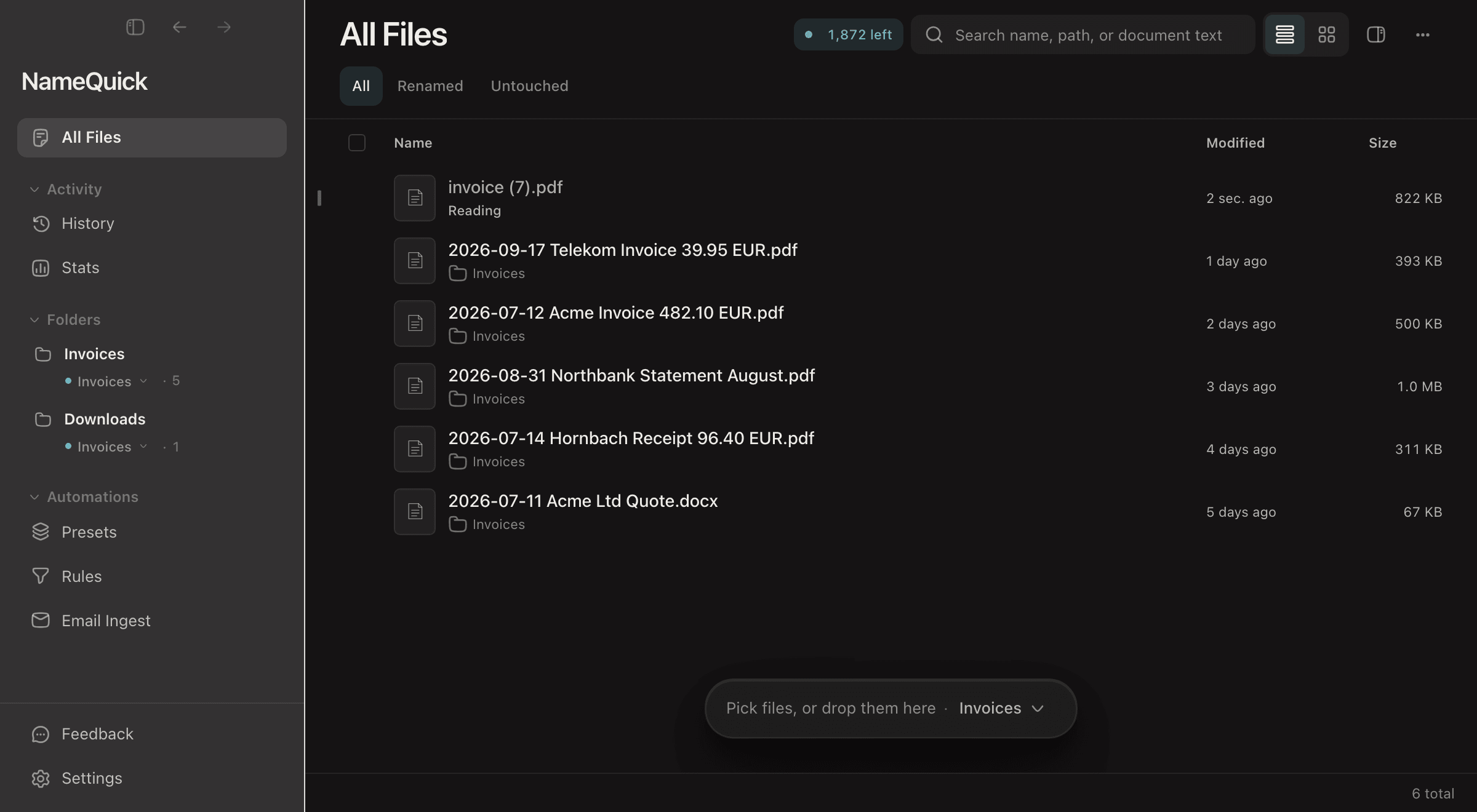
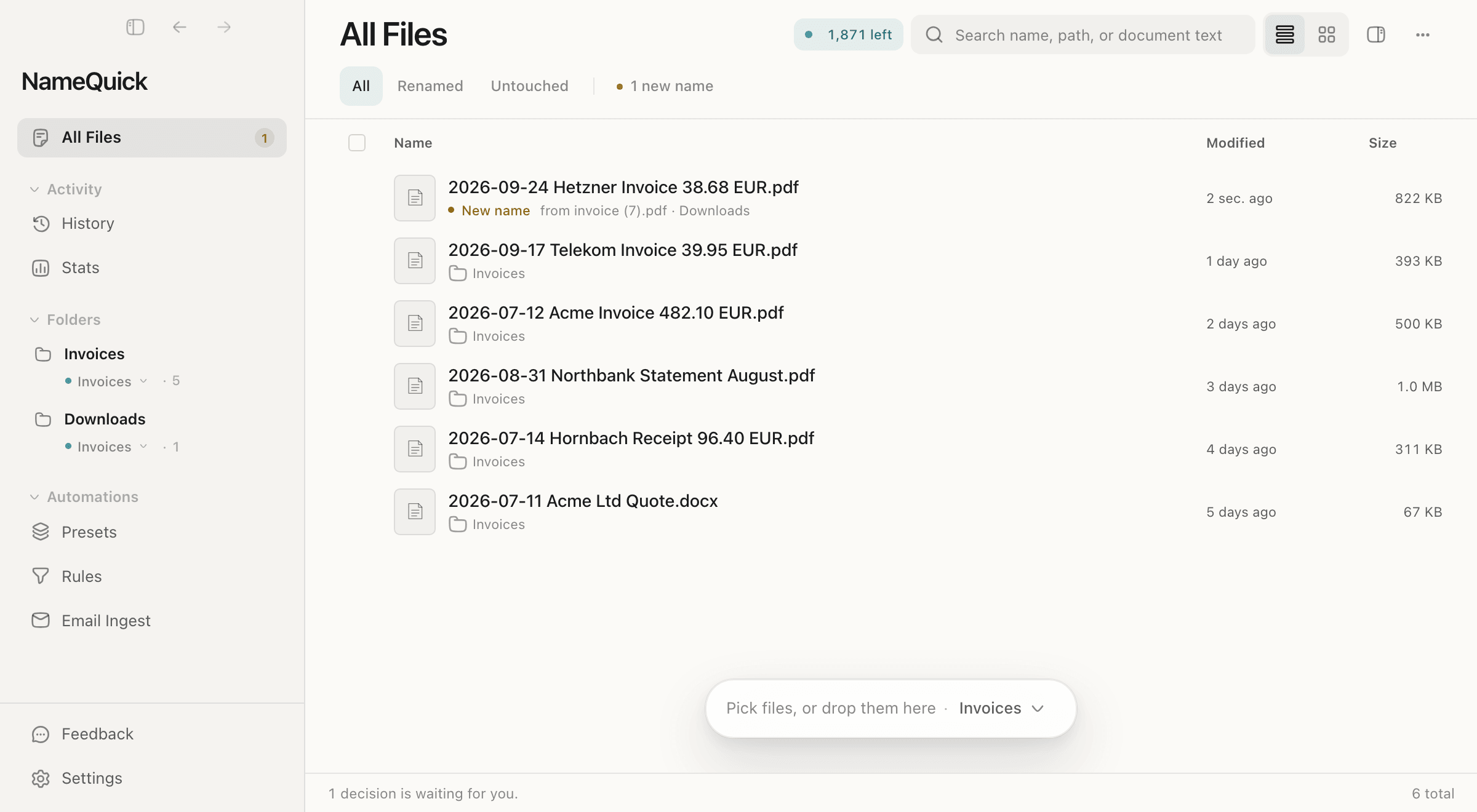
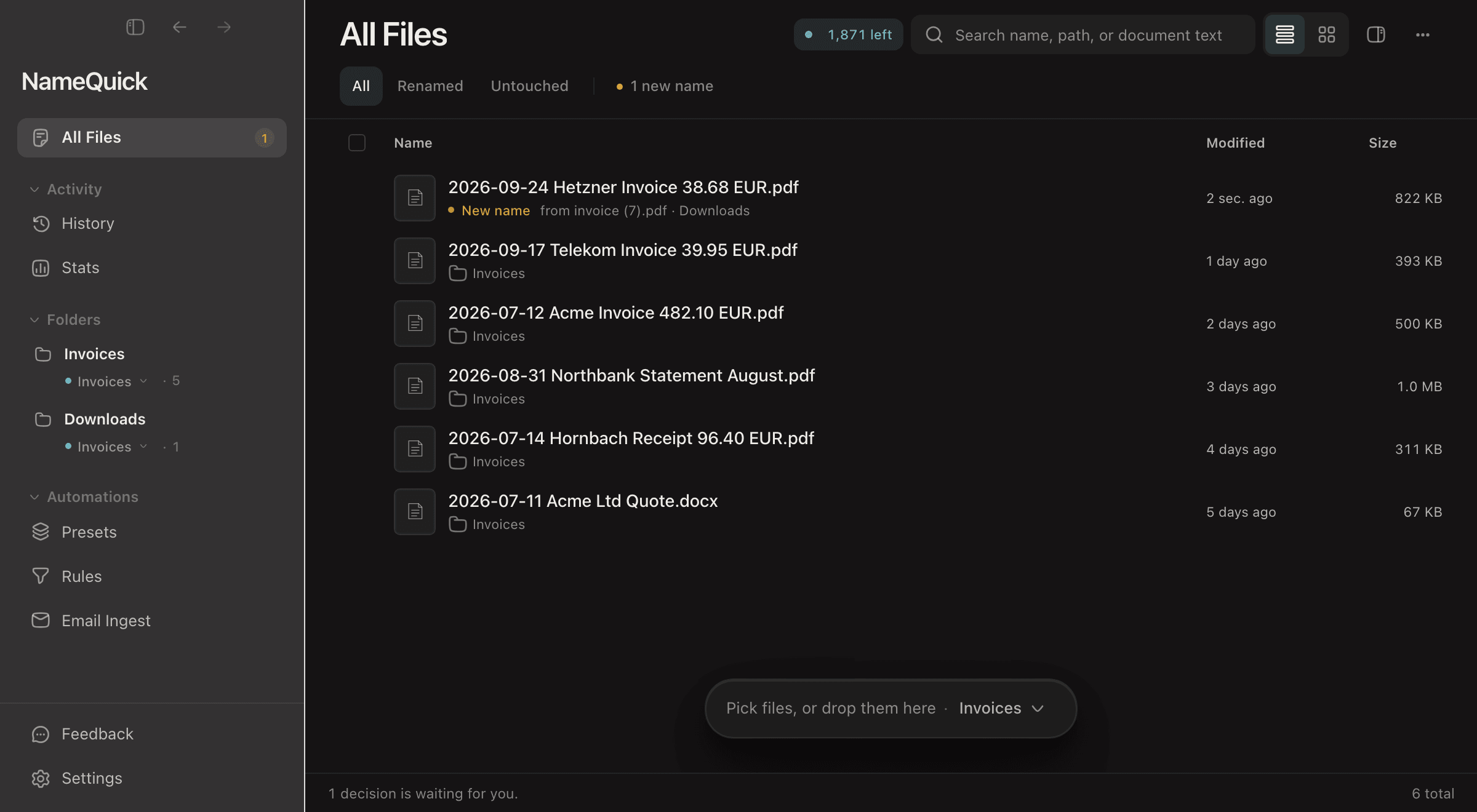
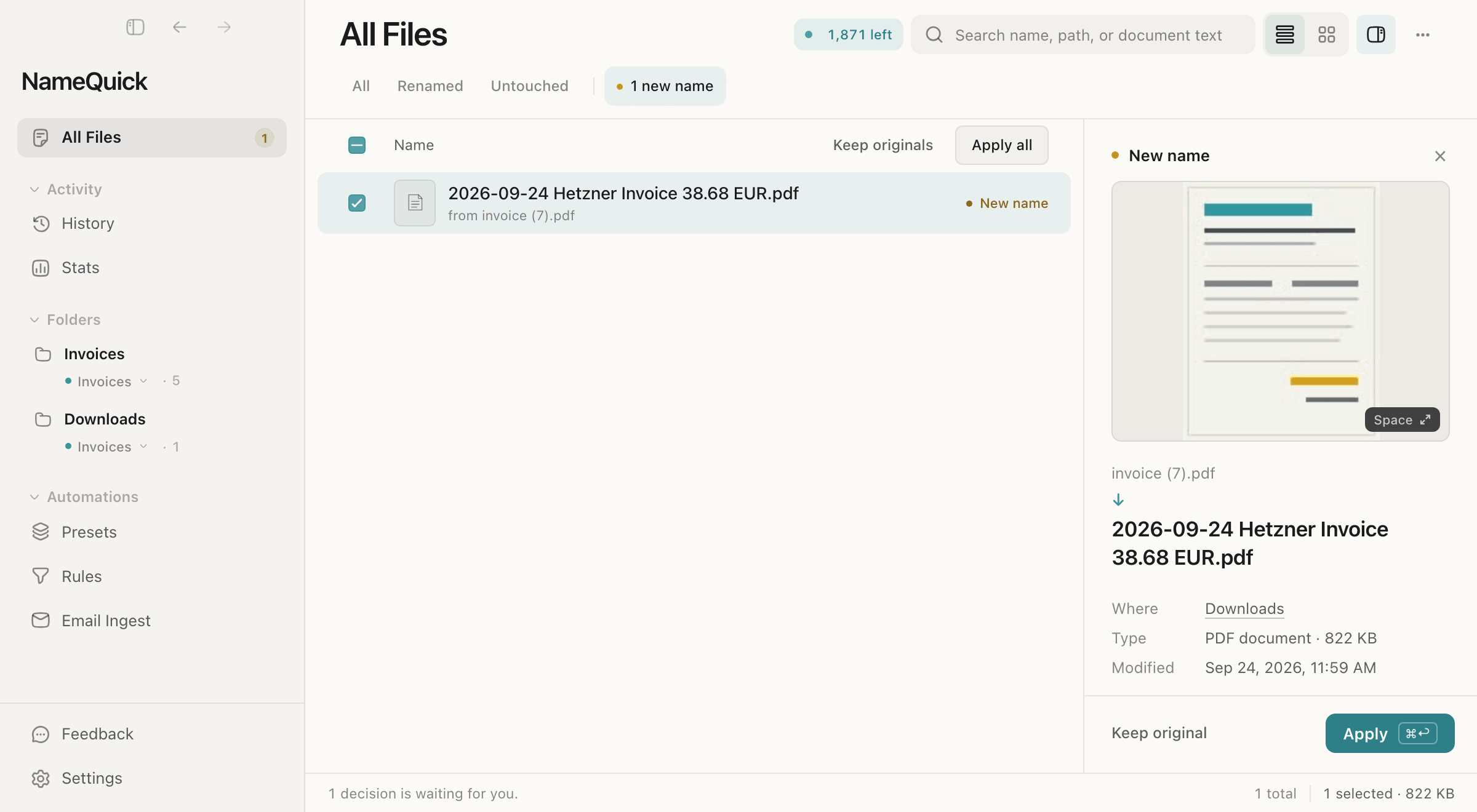
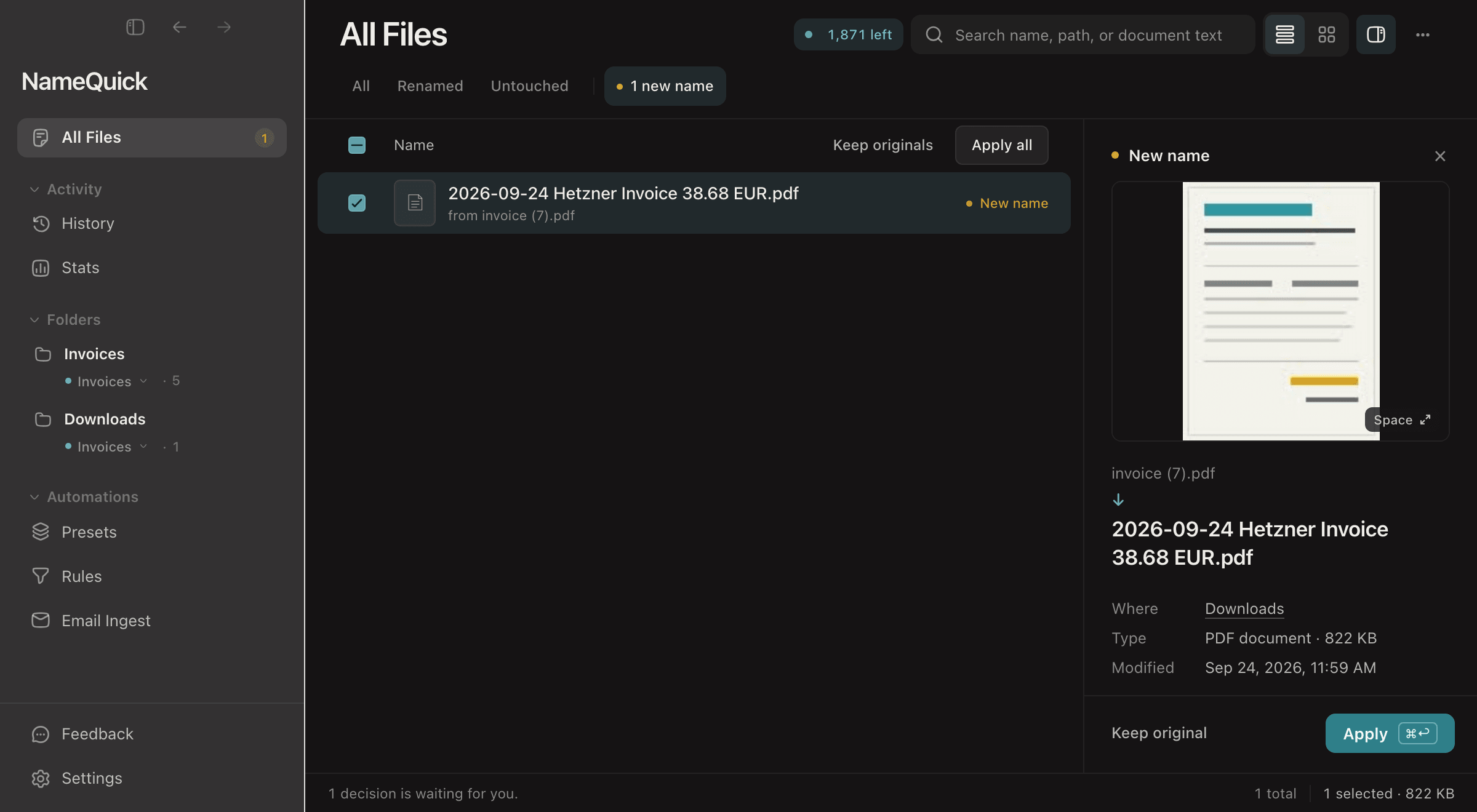
NameQuick 3: Downloads is added in the sidebar, given the Invoices Preset and set to Review first in Settings › Folders. A new invoice then waits in All Files with a new name, which is applied from the 1 new name filter.

Mac and Windows

What workswhere.

NameQuick is one app for Mac and Windows. One part, Quick Organize, isn't on Windows or in the Mac App Store version yet.

  • Names from file content, with Presets and Smart Rename

    Mac
    Yes
    Windows
    Yes
  • Watched folders and Rules that file new files

    Mac
    Yes
    Windows
    Yes
  • Quick Organize: folders planned for an existing pile

    Mac
    Yes. Not yet in the Mac App Store version
    Windows
    Not yet
  • Local AI models

    Mac
    Ollama, LM Studio, and MLX on Apple Silicon
    Windows
    Ollama, LM Studio, and Built-in, an engine that comes with the app
  • Undo in History

    Mac
    Yes
    Windows
    Yes

On Windows, sort a pile you already have in two steps: let NameQuick name the files, then move them into folders yourself. Rules take care of everything that arrives after that. Windows and Mac differences

What the AI sees

It reads your files.Here's what that means.

NameQuick runs on your computer. What it sends depends on the job and on the AI you choose.

Naming a file

The file's text or image goes to the AI you choose: NameQuick's Managed AI, your own AI provider, or a local model, where nothing leaves your computer. Compare the options.

Planning folders with Quick Organize

Each file's name and up to 1,500 characters of its text, from the first three pages of a PDF, plus your instruction and the names of folders already there. Not the full paths. Quick Organize needs a cloud AI and doesn't run on a local model yet.

Moving files

Quick Organize and Rules move files on your computer. Nothing moves until you file a plan, or until a Rule you set up runs.

Pricing

Start free.Then pay for how you rename.

Rename most weeks? Subscribe. A few batches a year? Buy a pack. Have your own AI key, or want it all local? Self-Managed.

Every monthRecommended

Managed

We run the AI. No key, nothing to set up. Switch to the one-time license any time.

$12/mo

500 renames a month, billed monthly
Billing period
Renames per month
  • Monthly: unused renames don't carry over
  • Annual: the whole year's renames upfront
  • No device limit, Mac and Windows

Card required, cancel anytime. Includes 70 renames.First regular charge after 14 days unless you start the subscription early.No card? Download the app and start with 30 free renames.

Now and then

Rename packs

Pay once for a batch of renames. No subscription.

$19once

500 renames, same AI as Managed
Pack size
  • Valid for 12 months from purchase
  • With a subscription, your plan's renames go first
  • Unused renames don't expire at month end
  • Uses NameQuick's AI, not your own API key
  • Renames only. The Assistant comes with Managed

Try the app free first.

Your own AI

Self-Managed

You bring the AI: an API key from OpenAI, Anthropic, Gemini, OpenRouter, Mistral or your university's AI gateway, or a local model on your computer.

$69once

One license, one computer
  • AI costs are separate: your provider bills you for each use
  • With a local model, files never leave your computer
  • Lifetime updates

No card, no time limit.Needs an API key or a local model. No key? Start with Managed.

Already on Setapp?

NameQuick comes with your Setapp membership, AI renaming included, so you need no API key. The included AI credits can run out. The app tells you when they do and links to your remaining credits.

Prefer the Mac App Store?

Install NameQuick from the Mac App Store and get updates through it.

Download on the Mac App Store

Prices in US dollars. In the EU you pay the same numbers in euros. Switch plans any time in Settings.

Compare every plan →
FAQ

AI file organizerquestions.

Step-by-step setup is in Organize files into folders.

What is an AI file organizer?

An app that reads what's inside your files, not just their names, and uses it to name them and sort them into folders. NameQuick names each file from its content on Mac and Windows. On a Mac, it can also plan folders for a pile you already have.

Does it rename files or move them?

Both, as separate steps. Renaming gives a file a new name and leaves it where it is. Quick Organize and Rules move files into folders. Quick Organize keeps the names as they are, so you can rename first, organize second, or do only one of the two.

Does it work on Windows?

Yes. Naming from content, watched folders and Rules work on Windows. Quick Organize, which plans folders for a pile you already have, isn't on Windows yet. See what differs.

Can it organize scanned PDFs and photos?

Yes. NameQuick reads the text of PDFs and documents and uses your chosen AI to read scans and photos. Quick Organize plans photos without text from their name and photo details such as the date taken.

Can I undo it?

Yes. Renames are recorded in History, where you can undo them. After Quick Organize files a plan, one Undo puts every file back and removes the empty folders it created.

Does it work without sending files to the cloud?

Naming can run on a local model: Ollama or LM Studio on Mac and Windows, MLX on Apple Silicon Macs, or Built-in, the engine that comes with the Windows app. Then nothing leaves your computer. Quick Organize needs a cloud AI.

Does it organize files in iCloud Drive, Dropbox or Google Drive?

On a Mac, it works in folders synced to your computer, including iCloud Drive, Dropbox, Google Drive, OneDrive and Box. NameQuick downloads an online-only file before it names it. Quick Organize doesn't download files that are only in the cloud; it leaves them for you to decide on. NameQuick doesn't connect to your cloud account.

How much does it cost?

Managed starts in the app with 30 free renames: no email, no card, no time limit. Add a card for 70 more and 14 days of your plan. Self-Managed is a one-time license for one device, with your own AI key or a local model. On Managed plans, filing with Quick Organize uses 1 credit for every 10 files filed; planning is free. See pricing.

Start with onemessy folder.

Copy a folder like Downloads, add it to NameQuick and check the names and folders it suggests. 30 free renames, no email, no card.