
Organize files into folders
Sort a full folder into new folders with Quick Organize on Mac, or rename files and sort them by hand. Then let a watched folder and a Rule file new invoices automatically.
On a Mac with NameQuick 3.0.35 or later, Quick Organize sorts a folder you already have: it reads the files, plans folders, and moves the files once you've checked the plan. The files keep their names. Without Quick Organize (on Windows, in the Mac App Store version, or with a local AI model), rename the files in Quick Rename and move them into folders yourself. For files that keep arriving, a watched folder and a Rule file each new one automatically.
Which way fits#
| Quick Organize | Rename, then sort by hand | Rules | |
|---|---|---|---|
| Best for | A pile that already exists: Downloads, an old archive | The same pile, where Quick Organize isn't available | Files that keep arriving: invoices into an Invoices folder |
| Where | Mac, NameQuick 3.0.35 or later from namequick.app or Setapp, with a cloud AI | Mac and Windows | Mac and Windows, inside Watch Folders |
| Folders | NameQuick plans them; you check and change the plan | You create them | You set them up front in the Rule |
| Names | Unchanged | Renamed with review | Renamed by the folder's preset, then moved |
| Undo | One Undo for the whole filing, also in History | Renames in History; your own moves are yours to reverse | Recorded renames and moves in History, where possible |
Organize a folder with Quick Organize#
Quick Organize is on in the Mac app from namequick.app and in the Setapp version. It isn't in the Mac App Store version or the Windows app, and there is no setting to turn it on or off. It needs a cloud AI: with a local model, NameQuick says "Organize into folders needs a cloud AI. It doesn't run on a local model yet." In those cases, rename and sort by hand.
For your first run, try it on a copy of a small folder. Nothing moves until you file, and Undo puts filed files back, but a small folder is quicker to check.
Open it
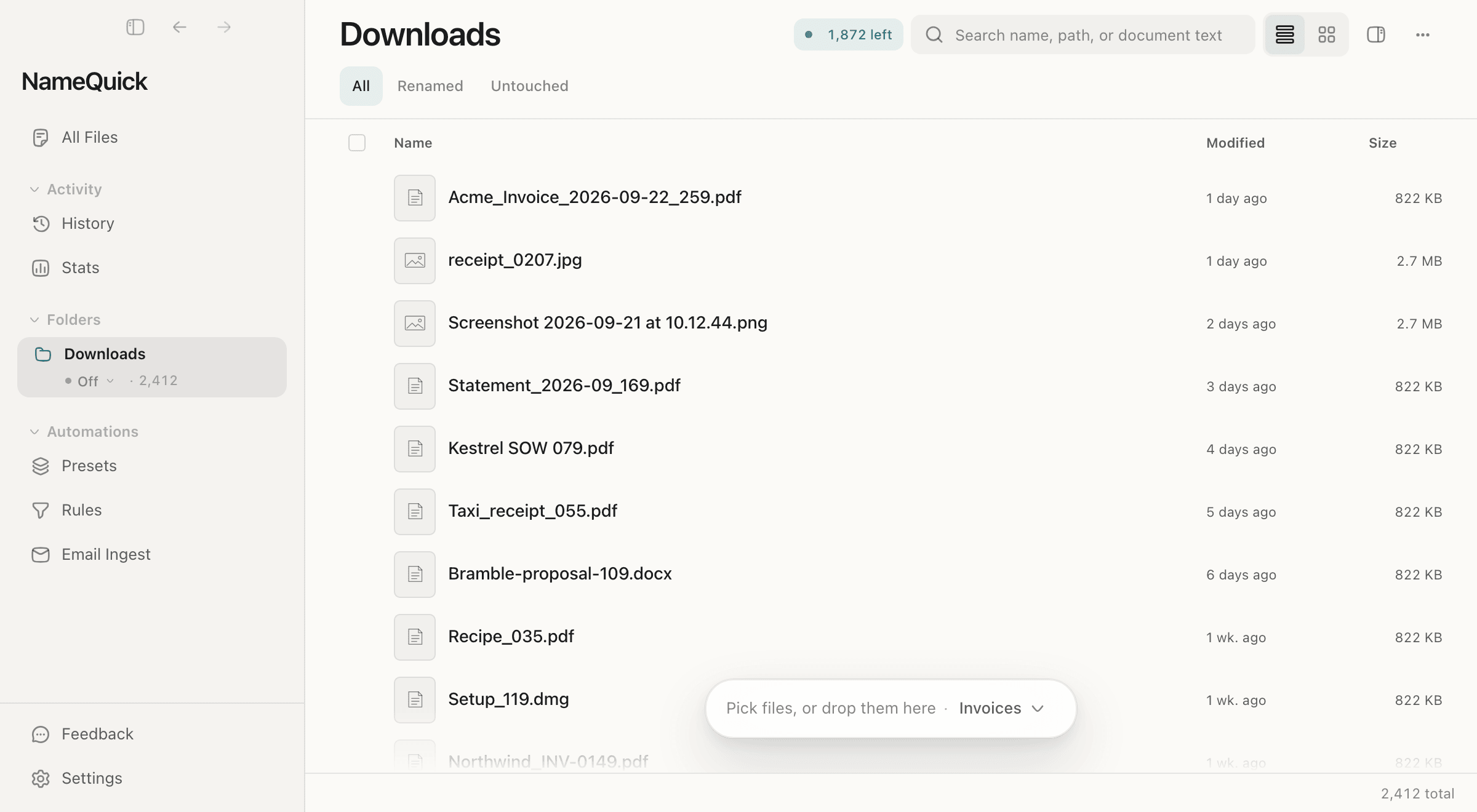
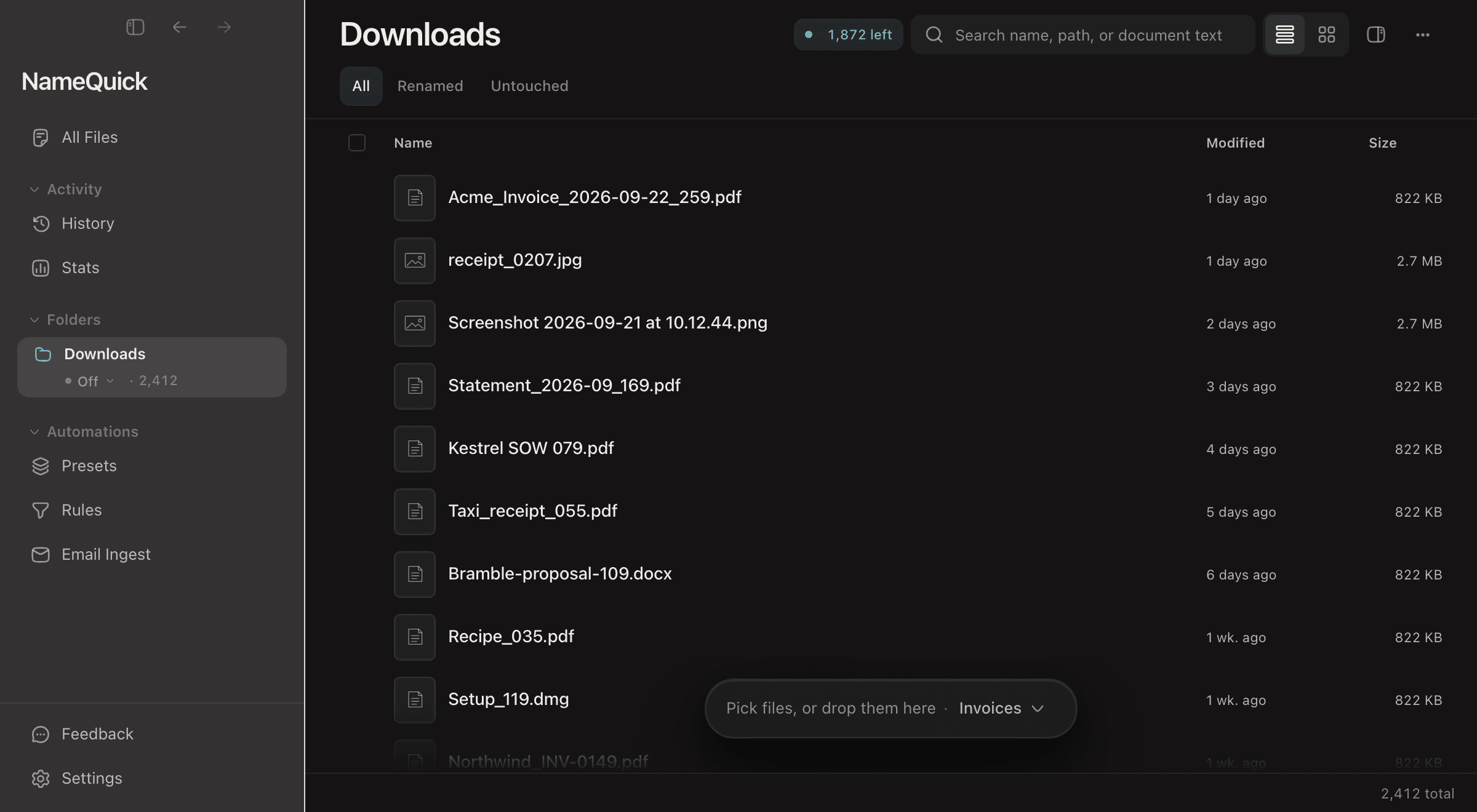
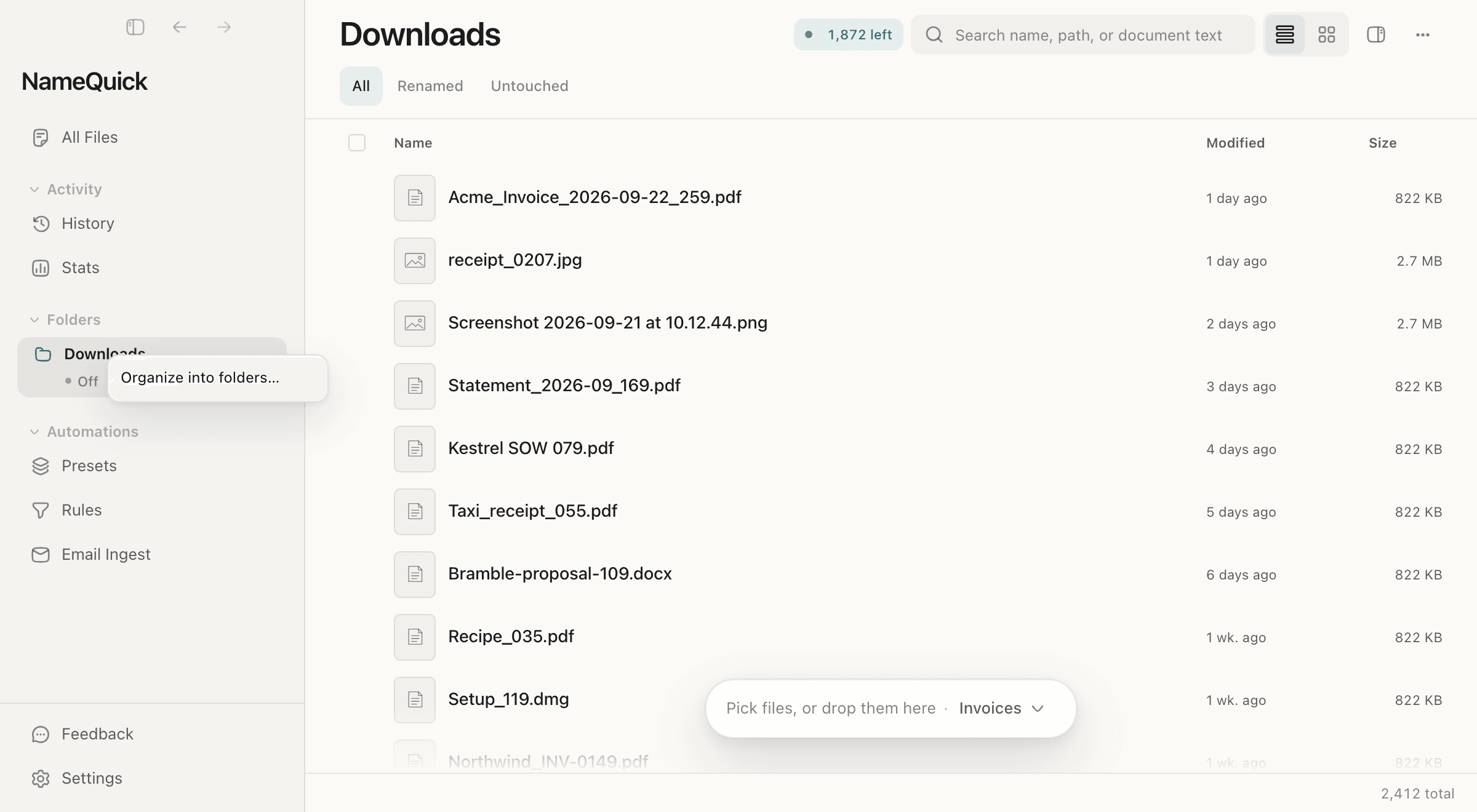
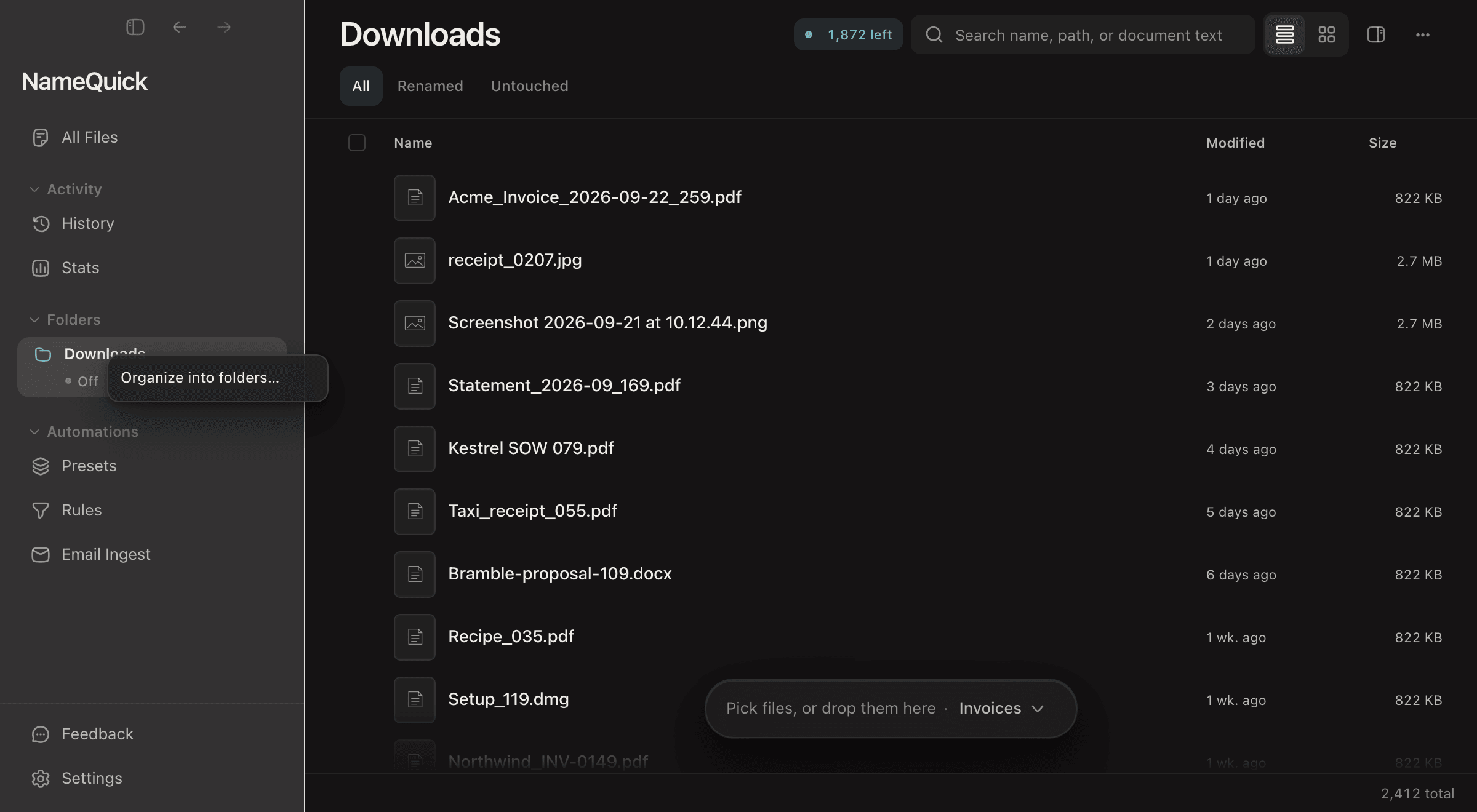
Right-click a folder in the sidebar and choose Organize into folders…. To organize only some files, select them, right-click one, and choose the same item. In a folder's view, it is also in the ⋯ menu.
Say how, if you want to
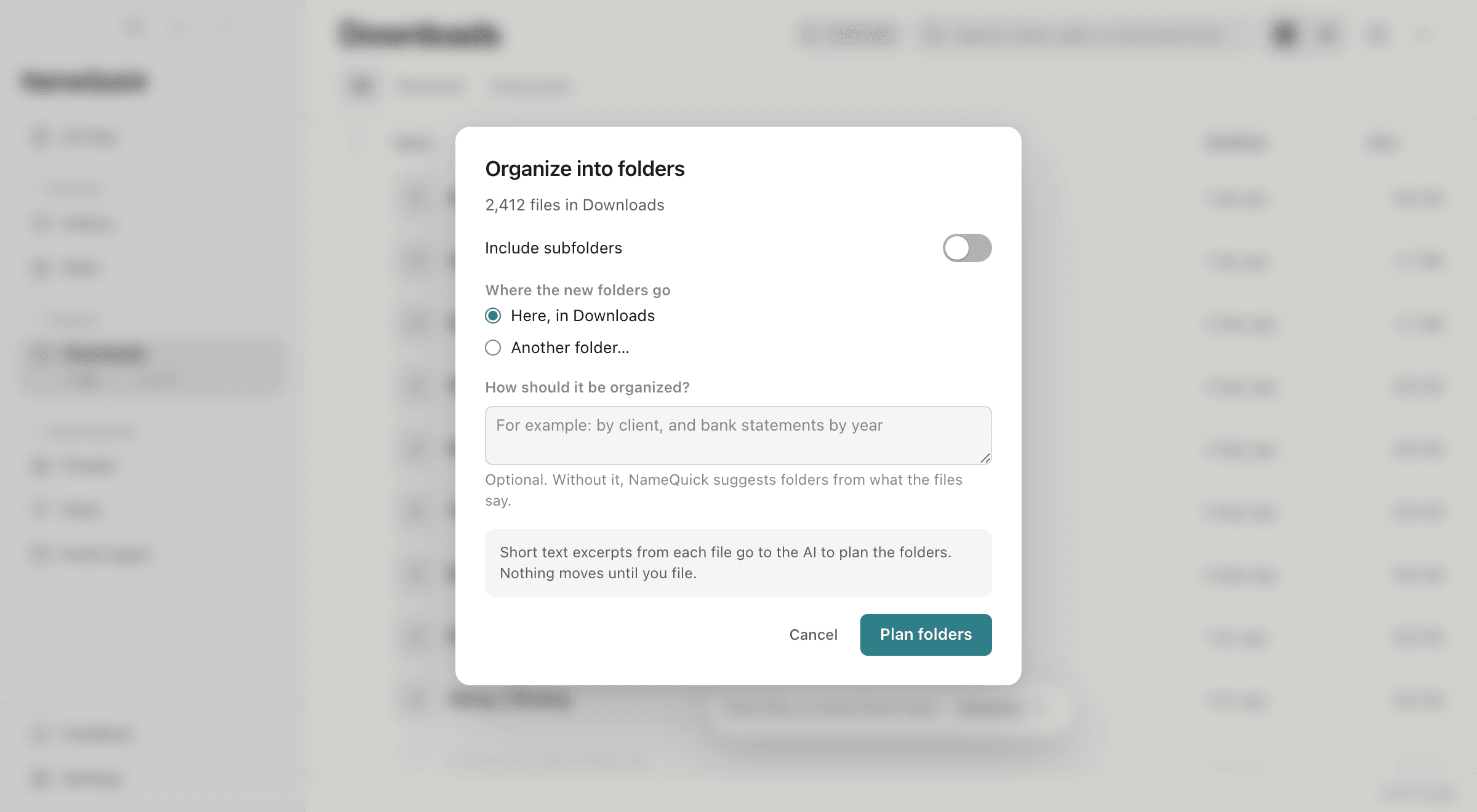
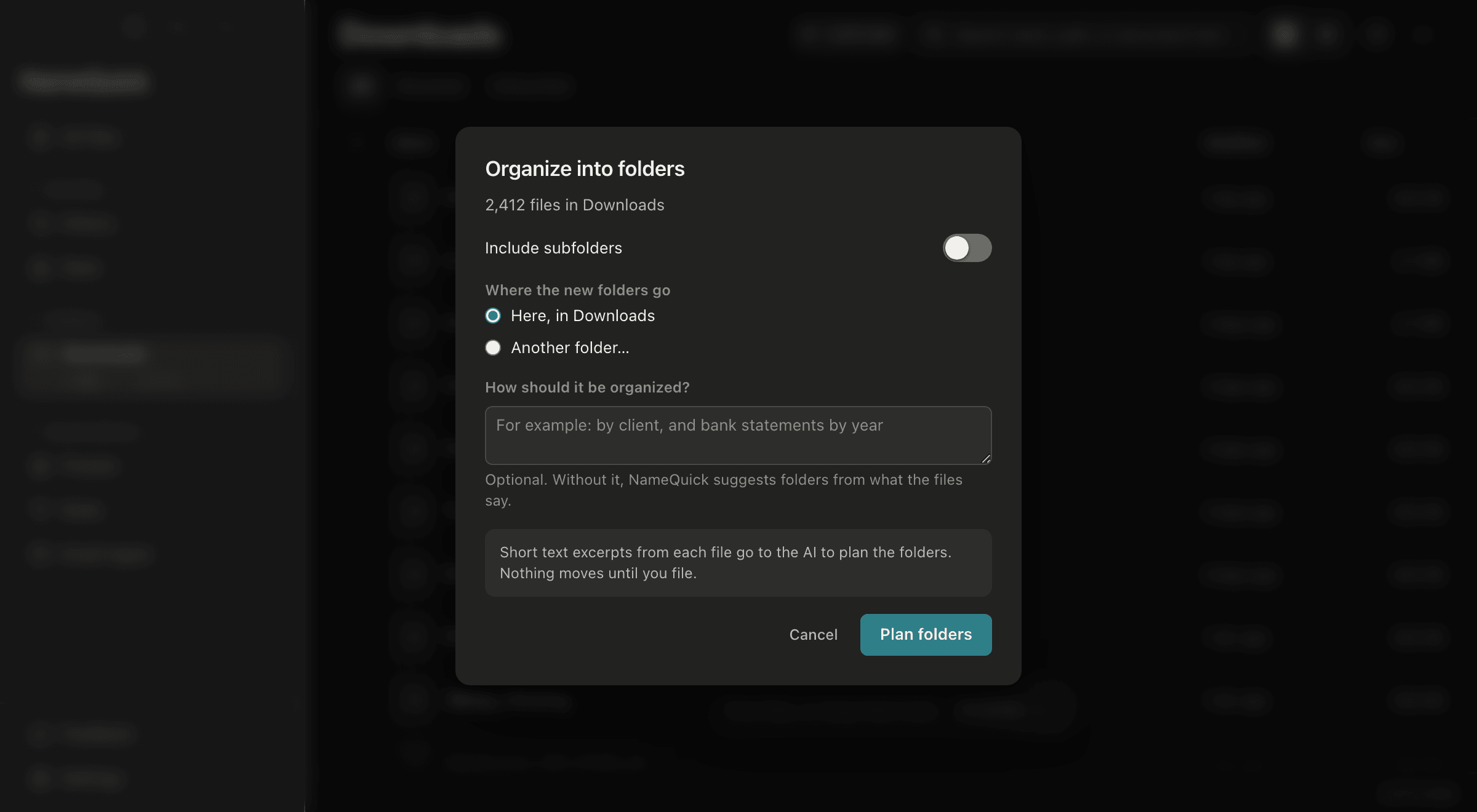
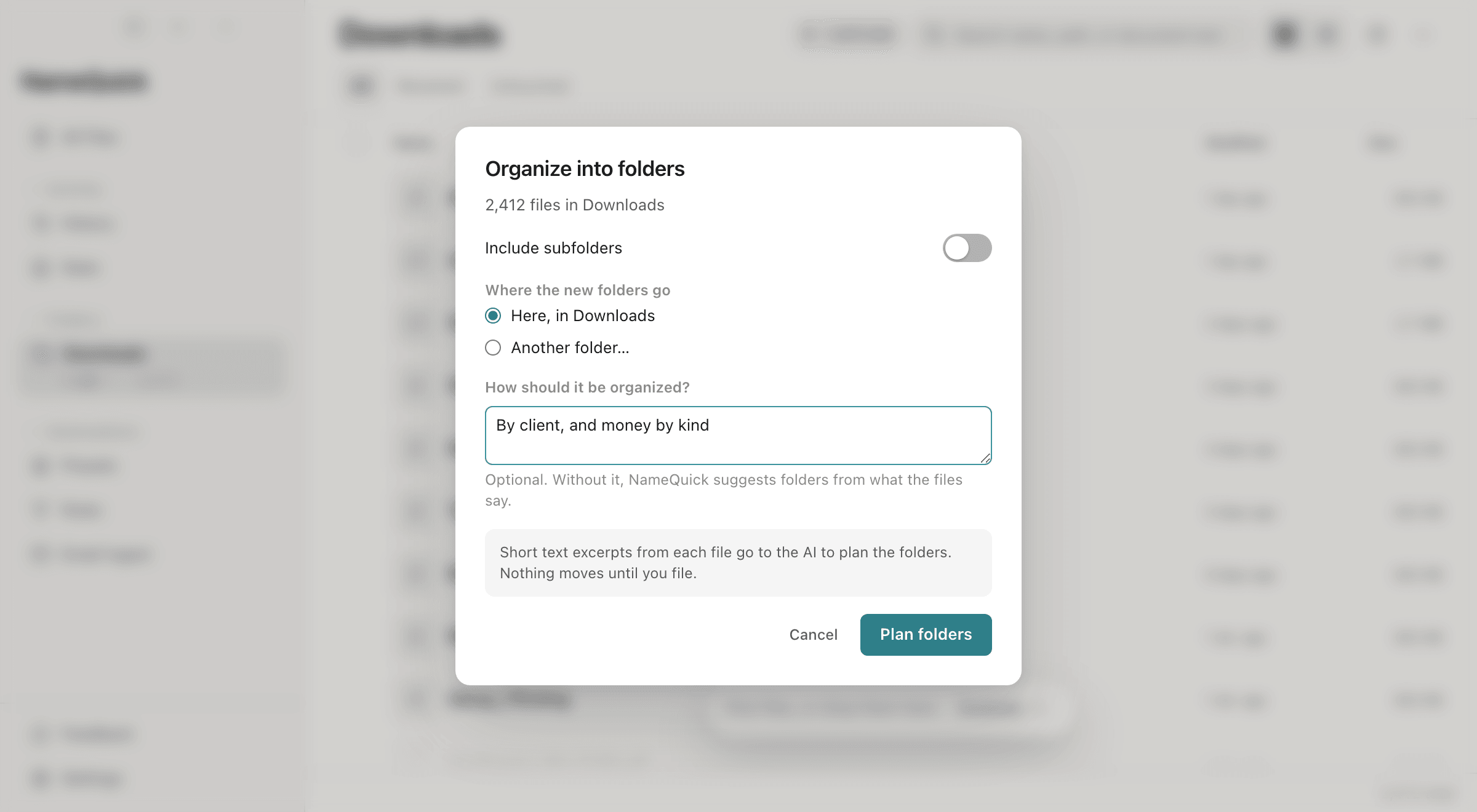
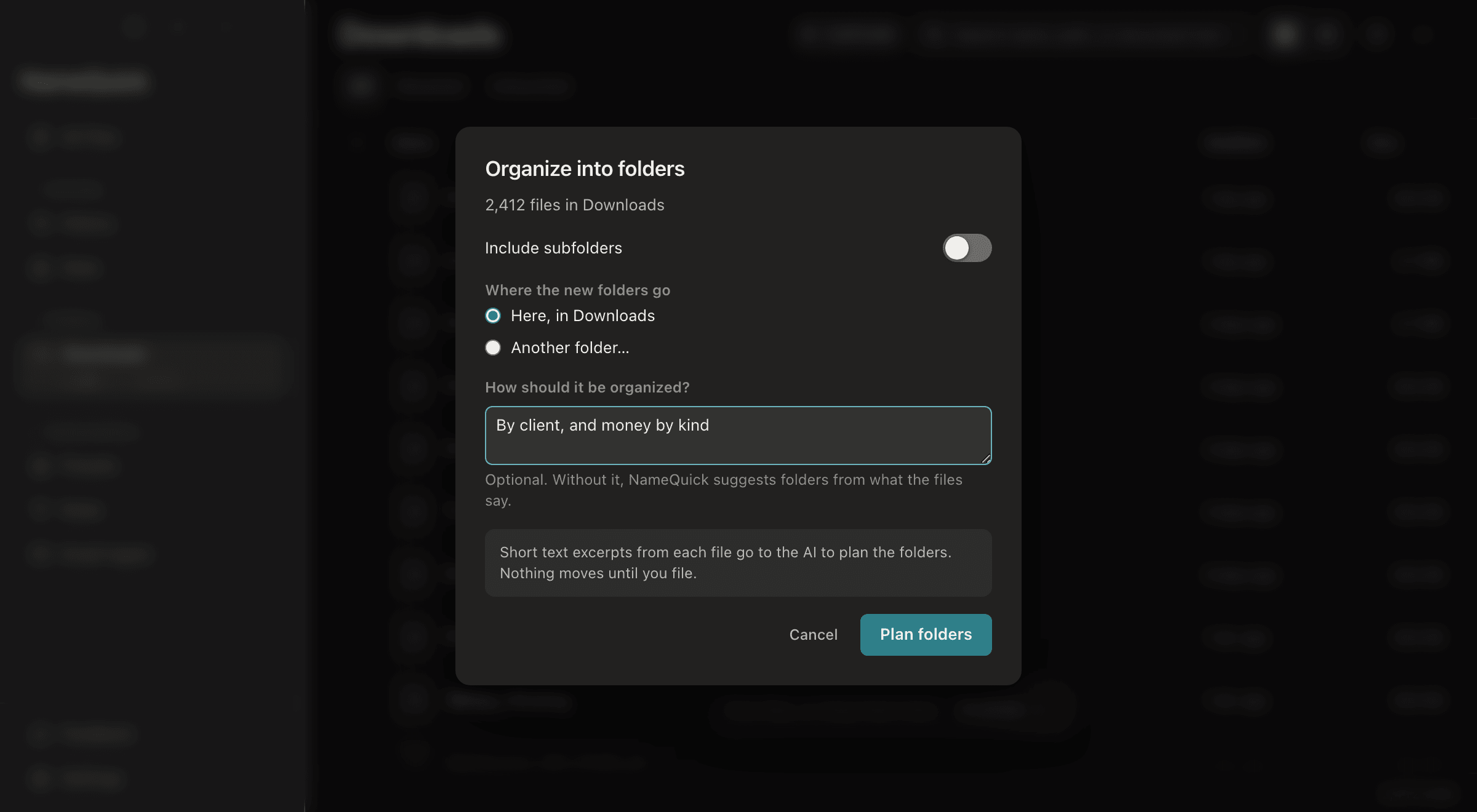
Organize into foldersInclude subfolders adds the files in the folder's subfolders. Where the new folders go is Here, in the folder, or Another folder…. Under How should it be organized?, write what you want, for example "by client, and bank statements by year". Leave it empty, and NameQuick suggests folders from what the files say. Click Plan folders.
Check the plan
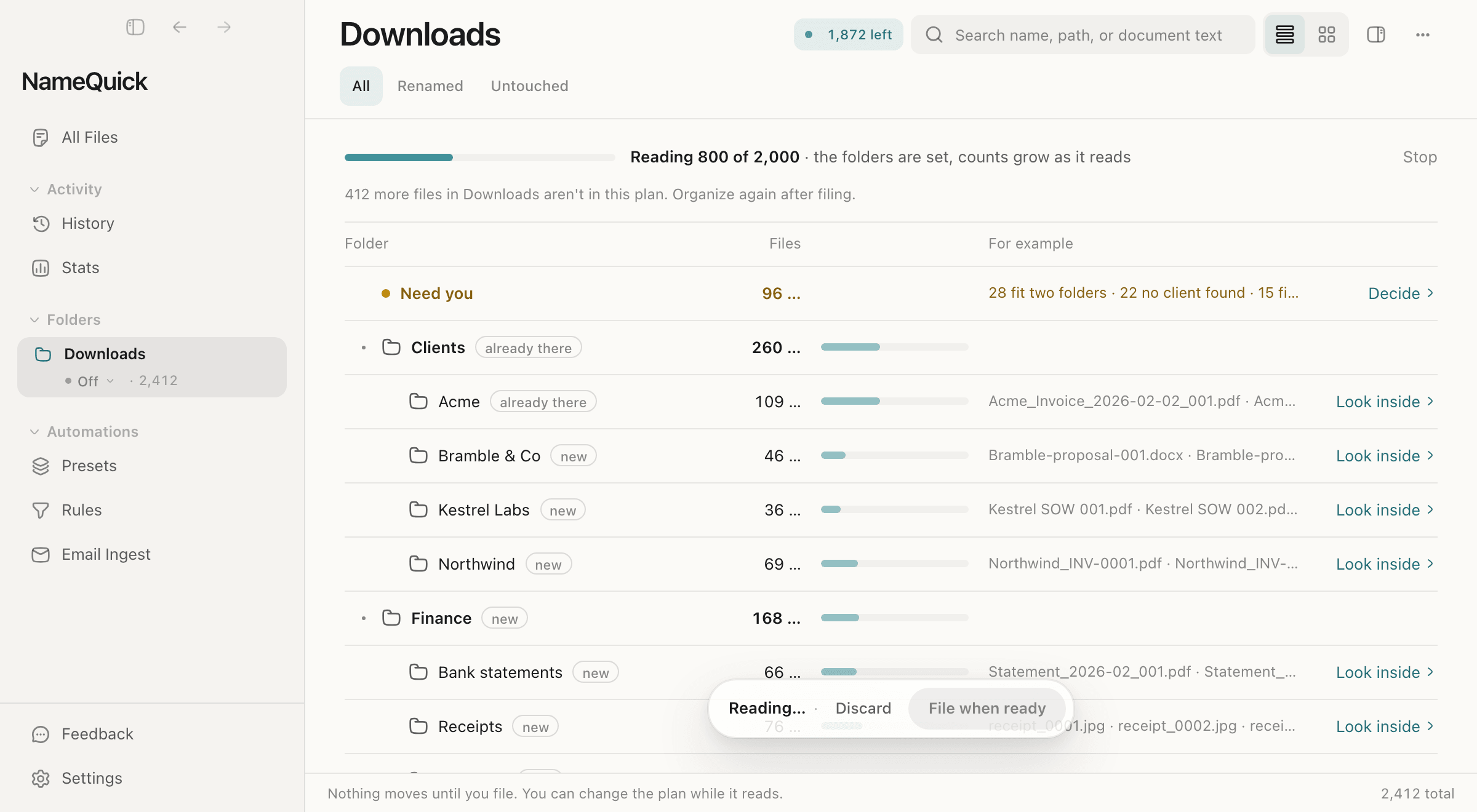
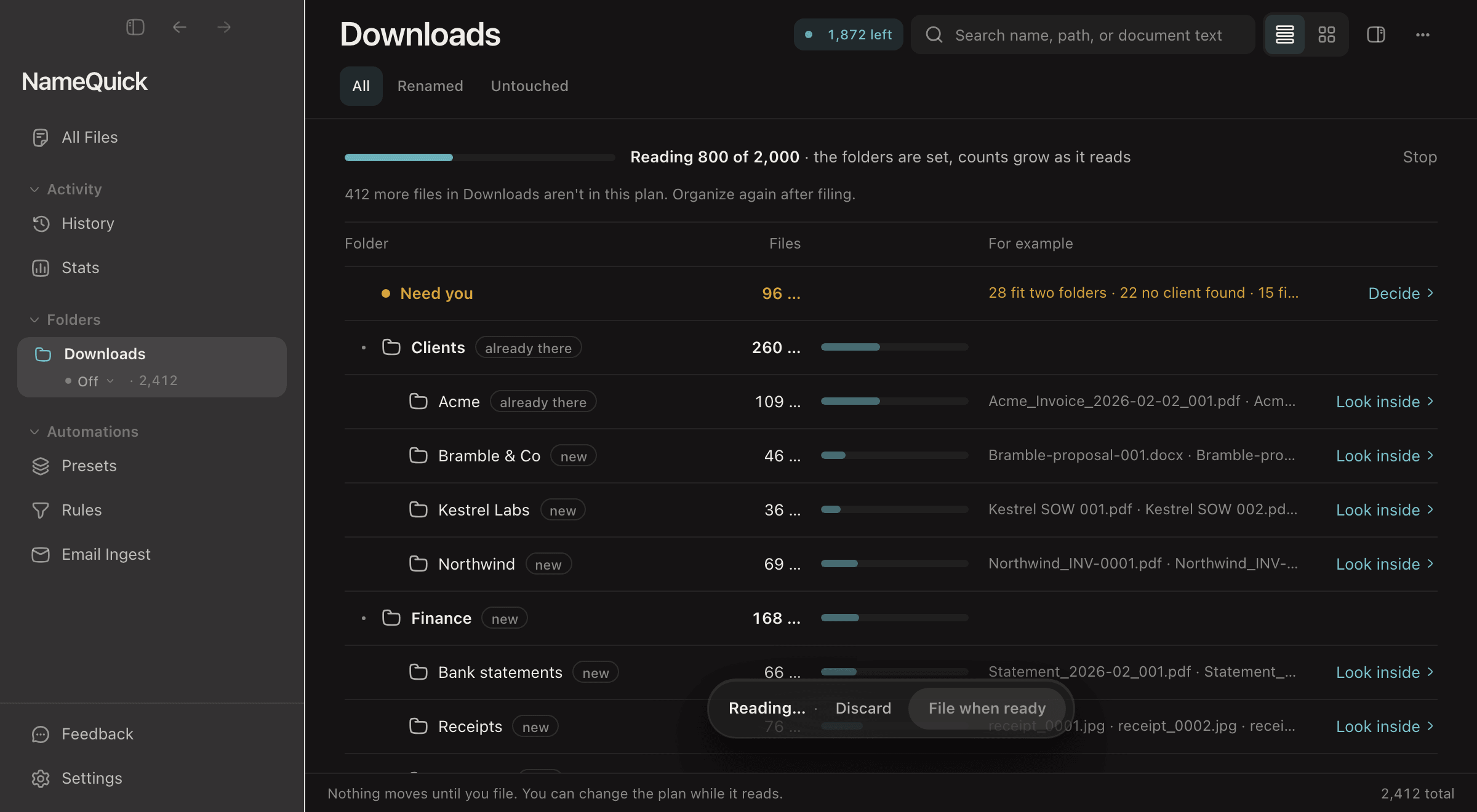
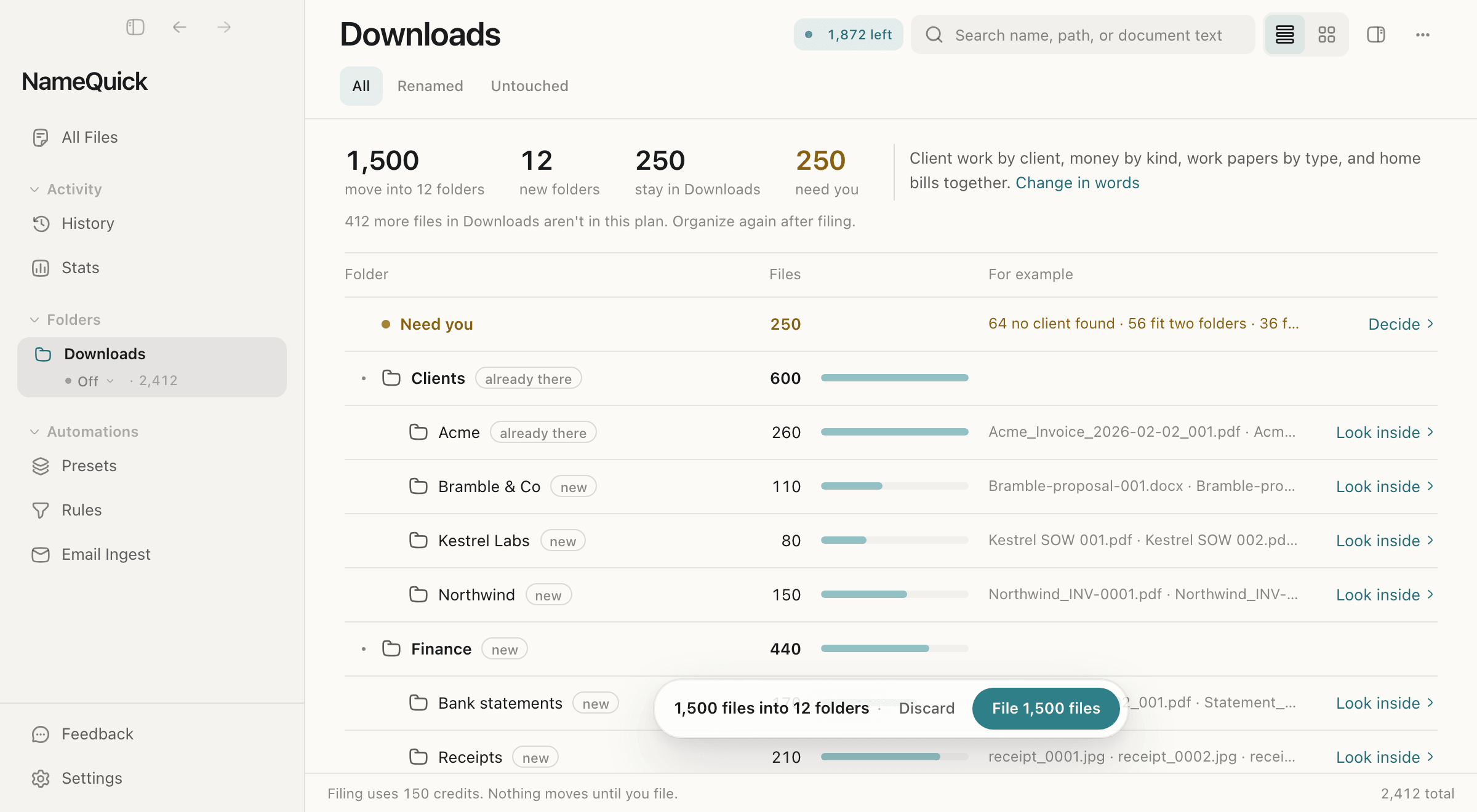
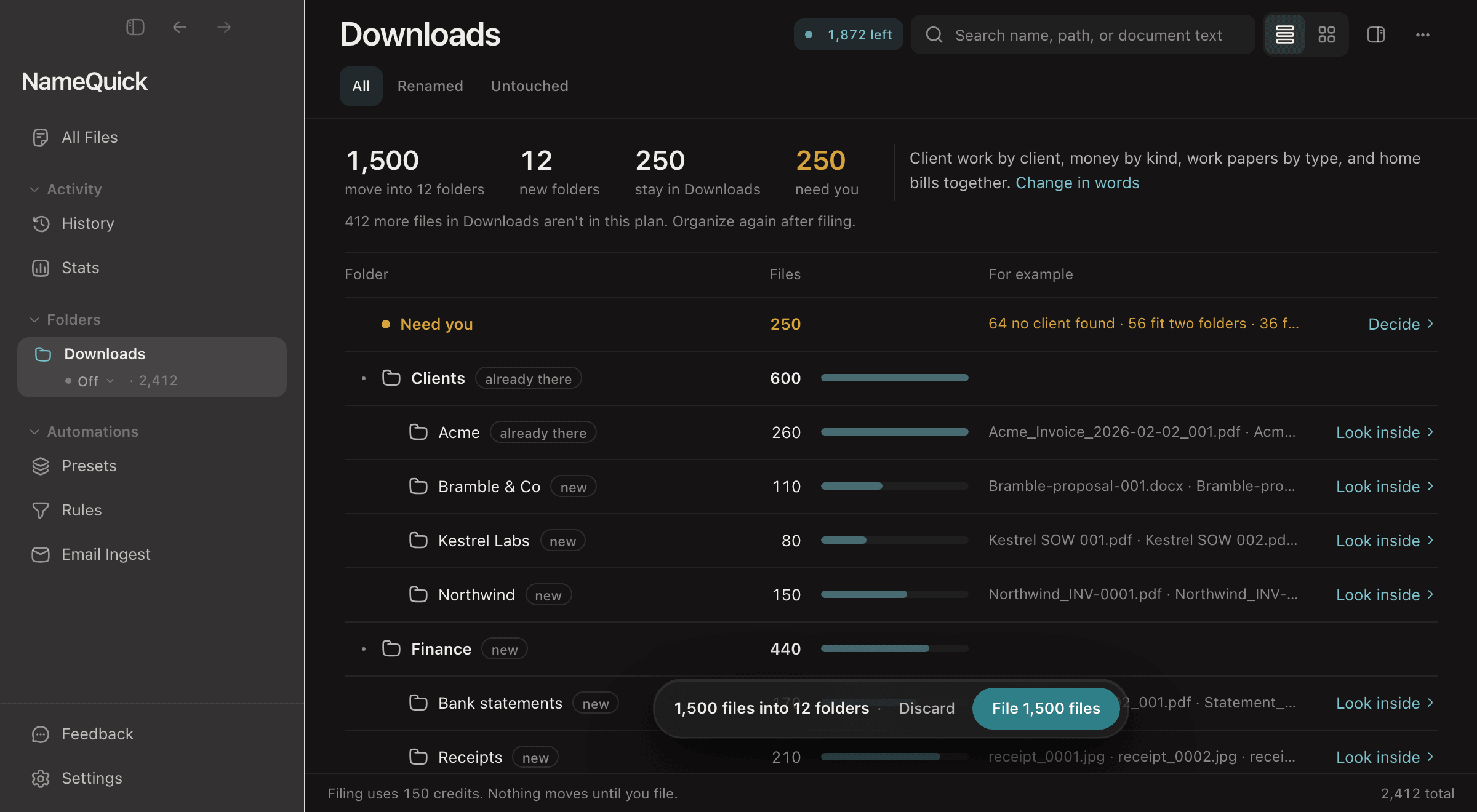
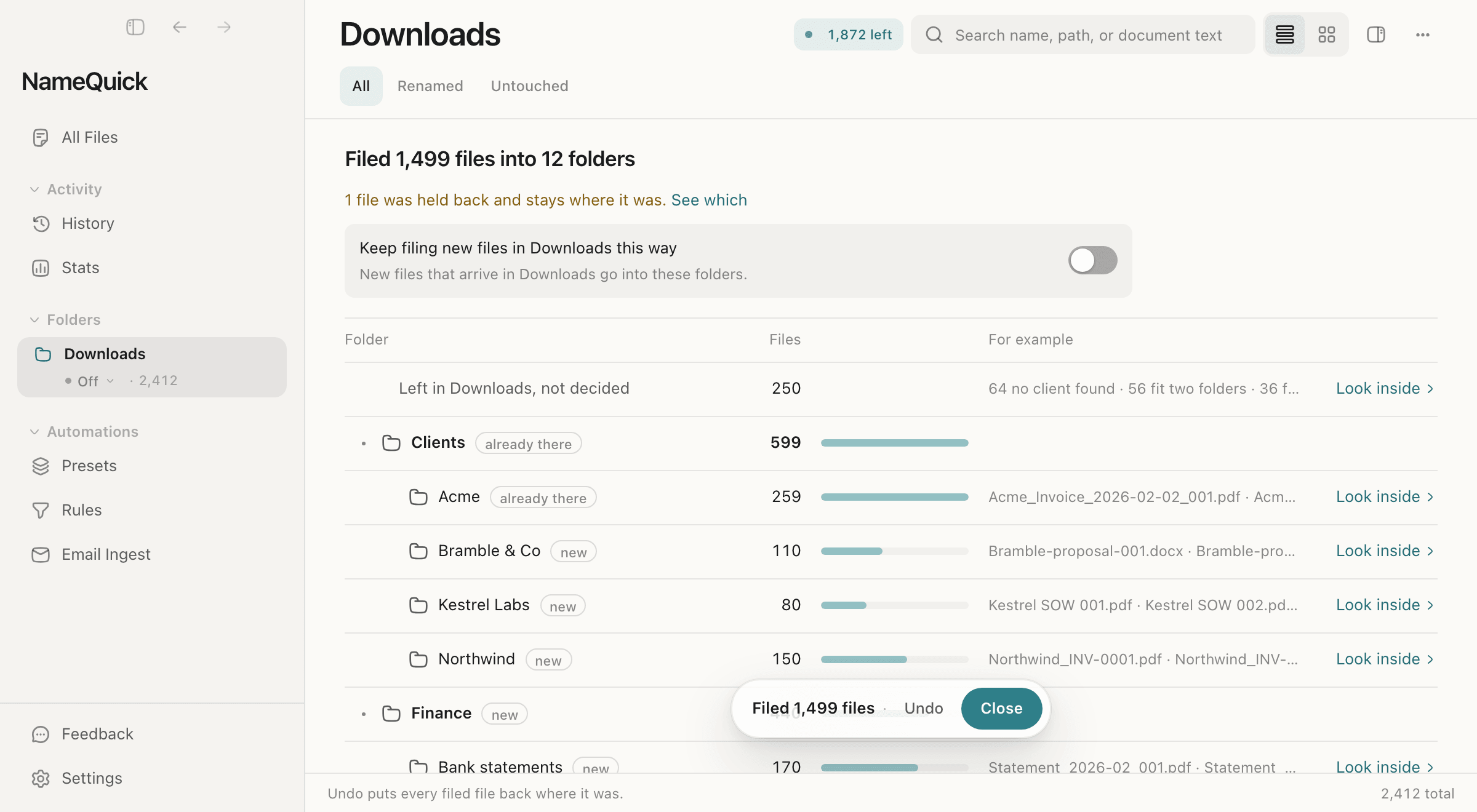
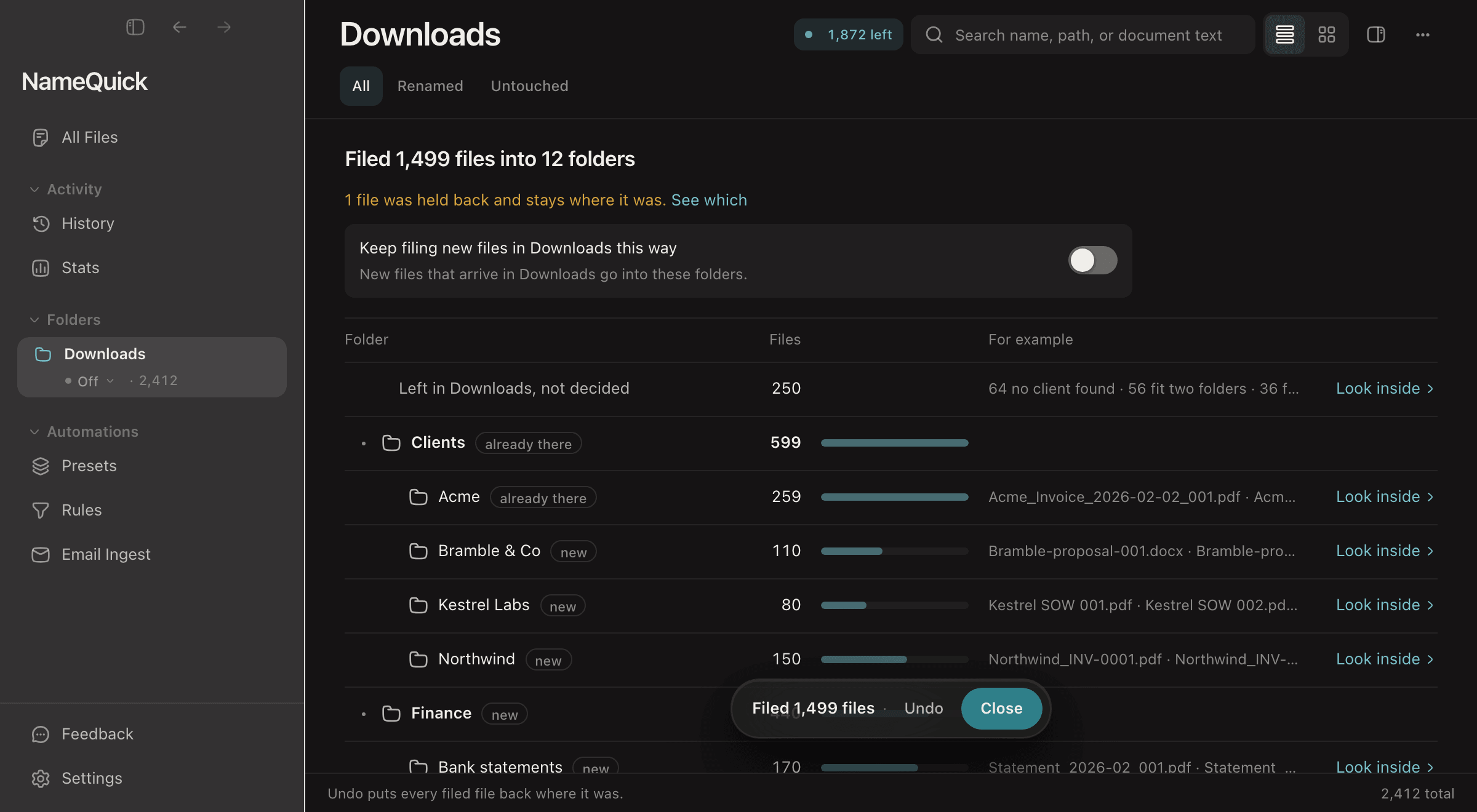
NameQuick reads the files and plans folders as it goes; the counts grow while it reads. Each folder shows whether it is new or already there, how many files go in, and examples. Look inside lists a folder's files, and Change in words lets you describe a change, such as "put the payslips under Work". You can change the plan while it reads.
Decide on the files that need you
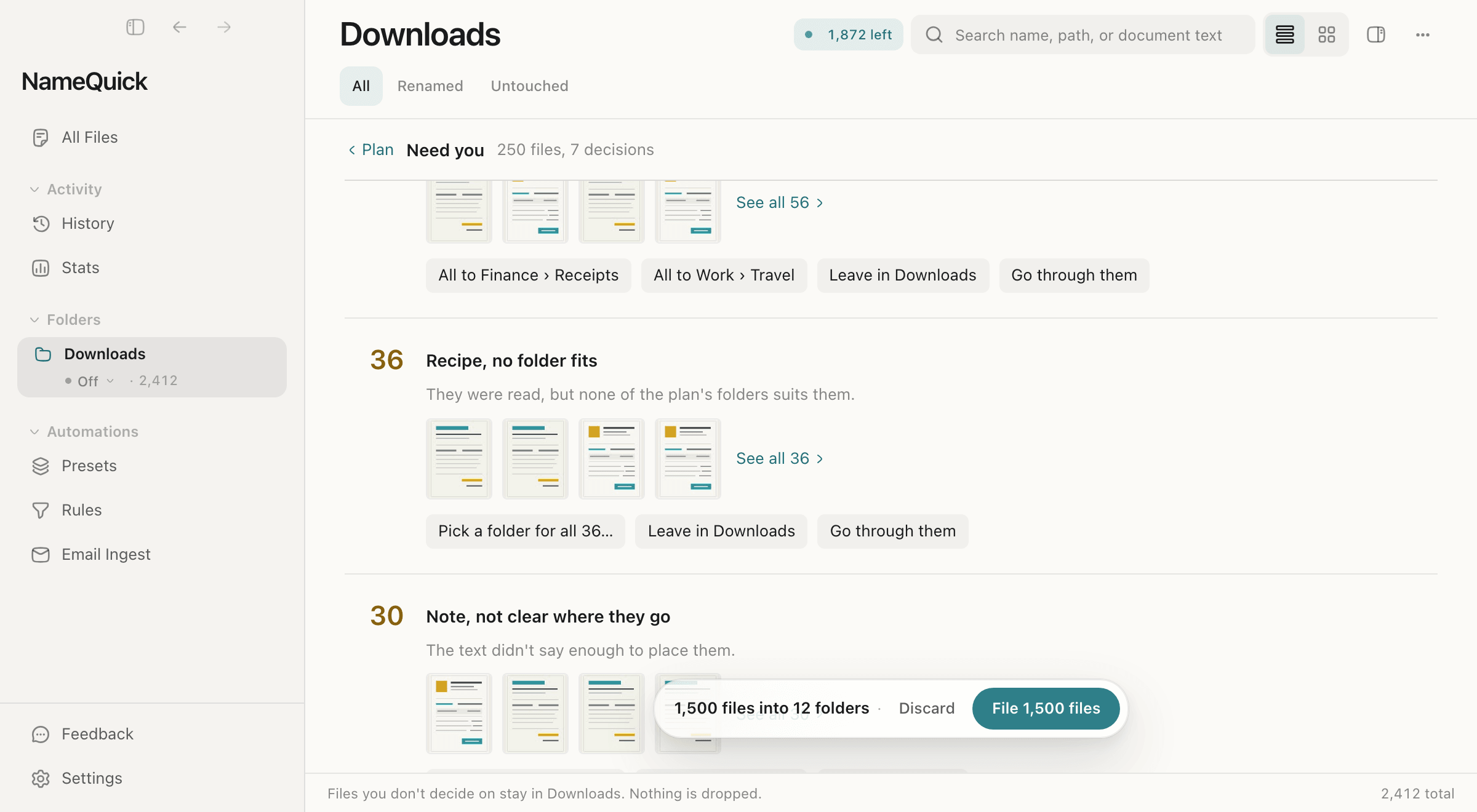
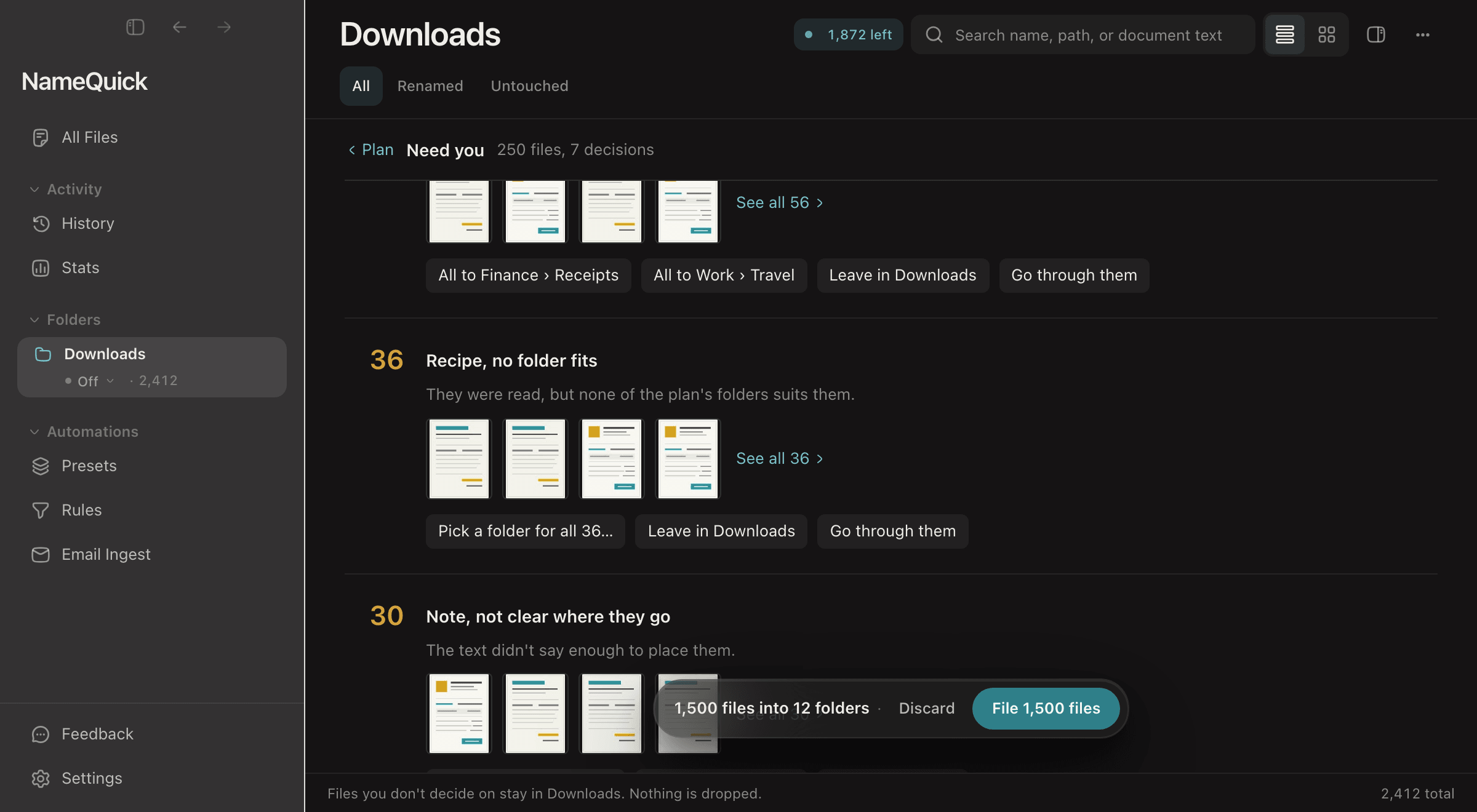
Files NameQuick can't place wait under Need you, grouped by reason, such as No folder fits or two folders that both fit. Click Decide. For each group, pick a folder for all of them, leave them where they are, or go through them one by one. Files you don't decide on stay where they are.
File
Click File (the button shows the number of files). The files move into the folders and keep their names. If a file with the same name is already in a target folder, the file waits under Need you; choose Keep both to file it with a number added to the end of its name.
Check, and undo if needed
The result shows how many files were filed. A file that can't be moved, for example because another app has it open, is held back and stays where it was. Undo puts every filed file back where it was and removes the empty folders the plan created. The filing is also in History as one entry.
What goes to the AI#
To plan the folders, NameQuick sends each file's name and a short excerpt of its text to the AI: up to 1,500 characters, from the first three pages of a PDF. It also sends your instruction and the names of the folders already in the destination. It doesn't send the full paths. Photos without text are planned from their name and photo details such as the date taken. Files that are only in the cloud are not downloaded and wait under Need you.
What it costs#
Planning is free. Filing uses 1 credit for every 10 files that are filed, rounded up, on Managed plans and in the Self-Managed trial. The plan's footer shows the most it will use, for example "Filing uses 150 credits"; files that are held back or not filed cost nothing. With a paid Self-Managed license, filing uses no credits, and your AI provider bills you for the planning as usual. Setapp doesn't charge credits for it.
If you don't have enough credits, NameQuick offers to file as many files as your credits cover and leave the rest.
Limits#
- One plan takes up to 2,000 files. NameQuick shows how many more are in the folder; organize again after filing to plan the rest.
- NameQuick reads up to 5,000 files a day for Quick Organize.
- New folders can be up to eight levels deep. A folder that already exists is reused.
Keep filing new files the same way#
When the folder you organized is a watched folder, the result offers Keep filing new files in the folder this way. Turn it on, and new files that arrive there go into the plan's folders. Turn it off to stop.
Without Quick Organize: rename, then sort by hand#
Keep your originals and work with a few local copies. Download files that are only stored in the cloud first. Before using work documents, check that the processing route is allowed for them. See AI providers and privacy.
Set it up before adding files
SettingsRenamingOpen Settings → Renaming. Set Files processing mode to Smart Rename for mixed documents, or to a tested preset such as
Incoming invoicesfor invoice copies. Set Apply suggestions from files you add to Review first. You can also pick the preset in Quick Rename; on Windows, Quick Rename also shows the Review first choice.Add copies
Drag the copies onto NameQuick or use Add files. On a Mac, naming starts as soon as you add files. On Windows, click Rename 3 files.
Review, then rename
Compare every suggestion with its document, including spelling, the original extension such as
.pdf, and conflicts with other names in the folder. When all are correct, click Rename 3 files on a Mac or Apply 3 names on Windows. The numbers on the buttons match your batch.
Good to know
The processing mode and apply setting are fixed when naming starts. On a Mac, picking another preset in Quick Rename names the files again and uses credits again.
If something is wrong, don't rename the batch. Wait for naming to finish and click Clear: this empties the list, and the files stay in their folder. Create or improve a preset, test it, and select it before trying again with fresh copies.
Quick Rename leaves files in their folder and doesn't add them to All Files. Afterwards, create folders such as Documents/Invoices, Documents/Contracts and Documents/Receipts in Finder or File Explorer, move the renamed copies yourself, and check names, contents and locations.
Documents/
  Invoices/
  Contracts/
  Receipts/
Keep new invoices filed with a watched folder and a Rule#
For files that keep arriving, a watched folder renames each new file with a tested preset, and a Rule moves it once it is renamed. Use a tested invoice preset that puts the word Invoice into every name, and don't mix other documents into the same inbox folder.
Before
NameQuick-Inbox-Test/
  scan_001.pdf

NameQuick-Archive-Test/
  Invoices/
After
NameQuick-Inbox-Test/

NameQuick-Archive-Test/
  Invoices/
    2026-09-01_Cedar_Invoice_1843.pdf
A fictional example, not a test result.
Set up a test folder#
Create two empty folders
Create an empty folder
NameQuick-Inbox-Testand, separately,NameQuick-Archive-Test/Invoices. The destination must be outside the watched inbox. Keep the copies outside the inbox until setup is complete. Don't start with a full Downloads folder.Add the empty inbox
SettingsFoldersAdd folderOpen Settings → Folders, click Add folder and select the empty inbox.
Choose the invoice preset
In that folder's row, choose your invoice preset as the processing mode. Choosing a preset turns processing on immediately.
Choose Review first right away
In the same row, choose Review first before adding files. This choice can't be changed while the mode is Off, which is why you choose the preset first on the empty folder. Changes save automatically.
Settings → Renaming → Watched-folder approval sets the default for watched folders, and each folder can override it in Folders. It is separate from Apply suggestions from files you add, which doesn't control a watched folder.
Create the move Rule#
Start a Rule for renamed files
Open Rules. If you already have Rules, click + Add a Rule for renamed files under After a file is renamed. If the list is empty, click Write a Rule.
Switch it off first
A new Rule starts on. Turn off the switch next to Running before changing anything else, so the Rule is saved switched off.
Make it run after renaming
If you started with Write a Rule, click added in the When row and choose renamed. Name the Rule
File invoices.Choose the folder and the condition
In the When row, click any watched folder and choose
NameQuick-Inbox-Test. Under If, keep all, click Add a condition, choose name contains, and enterInvoice.Choose the destination
Under Then, keep move it into a folder. Click the destination, choose Choose destination folder and pick
NameQuick-Archive-Test/Invoices. Empty Relative path pattern; otherwise files go into year and month subfolders such asInvoices/2026/09.Check, then switch it on
Check the Proof pane, check that no other Rule that is on could match the same inbox, and turn the switch on so it reads Running.
Valid changes save automatically. The Rule needs the folder to match and the finished name to contain Invoice. It checks the name after renaming and keeps the new name.
Test it with one copy#
A fictional example, not a test result:
This name uses the issue date 2026-09-01, the issuer Cedar and the invoice number 1843, not the due date, the recipient or the scanner's sequence number.
Add one copy
With the Rule on, put one invoice copy into
NameQuick-Inbox-Test.Check the suggestion
Open All Files and choose the 1 new name filter. Compare the name with the real PDF, then click Apply, or Keep original. Don't invent missing details.
Check the result
Open the destination folder in Finder or File Explorer and check that the file is there, with the right name and content. Check History too.
Only then test more
Only after a correct result, test two or three more copies.
Caution
NameQuick plans the move when it makes the suggestion. Applying the name also moves the file, and switching the Rule off or editing it afterwards doesn't change that file's move.
This Rule follows new renames in the watched folder; it doesn't reorganize files you renamed earlier.
AI providers and privacy#
- Managed: file content is processed on cloud infrastructure in the EU and is not used for AI training.
- Self-Managed with a cloud API key (API keys): content goes directly to the provider you chose.
- Self-Managed with a local model (Ollama, LM Studio, or MLX): analysis runs on your device. Quick Organize doesn't run on a local model.
Quick Organize sends file names and short excerpts, as described in What goes to the AI. Rules use no AI: they check file properties and the finished name. See Privacy & Your Data.
FAQ#
Can NameQuick propose folders for an existing pile and move everything for me?
Yes, on a Mac with NameQuick 3.0.35 or later from namequick.app or Setapp: right-click the folder and choose Organize into folders…. Nothing moves until you click File. On Windows, in the Mac App Store version, or with a local model, rename the files and move them yourself.
Does Quick Organize rename my files?
No. It moves files into folders and keeps their names. The one exception: if a file with the same name is already in the target folder and you choose Keep both, the moved file gets a number at the end of its name. To rename files, use Smart Rename or a preset.
Why don't I see Organize into folders…?
Quick Organize is only in NameQuick 3.0.35 or later for Mac, from namequick.app or Setapp. It isn't in the Mac App Store version or the Windows app. If you see the item but NameQuick says it needs a cloud AI, switch from a local model to Managed AI or your own cloud API key.
Can I undo Quick Organize?
Yes. Undo on the result puts every filed file back where it was, and you can also undo the filing later in History. A file you moved again after filing stays where you put it, and NameQuick tells you which files it couldn't put back.
What if no suggestion appears, or the name is wrong?
Wait for naming to finish. Check the folder's processing mode, the preset and your AI setup. Don't apply incomplete names; test corrected instructions on copies.
Why wasn't the file moved?
Check that the Rule was on before the file arrived, that you applied the name, that the folder matches, that the finished name contains Invoice, and that the destination is reachable.
How do I stop the automation?
Set the folder's processing mode to Off to stop new automatic renames, and turn off the Rule's switch to stop new moves. Files already suggested keep their planned move.
It pairs well with Smart Rename, which names the files, and Rules, which keep new files filed automatically. Have a workflow in mind? Tell us on the roadmap.