
Watch Folders
NameQuick names each new file in a folder you choose, such as Downloads or your scanner's output, on Mac and Windows. You choose whether to check each new name before it's applied.
A watched folder is an ordinary folder on your computer. When a new file lands in it, NameQuick names the file for you. You don't add files by hand, and you don't connect a cloud account.
Good folders to watch are Downloads, your scanner's output folder, a screenshots folder and folders other people drop files into. With a tested Preset, a scanned invoice can get a name like 2026-09-22_Acme_Invoice_1042.pdf.
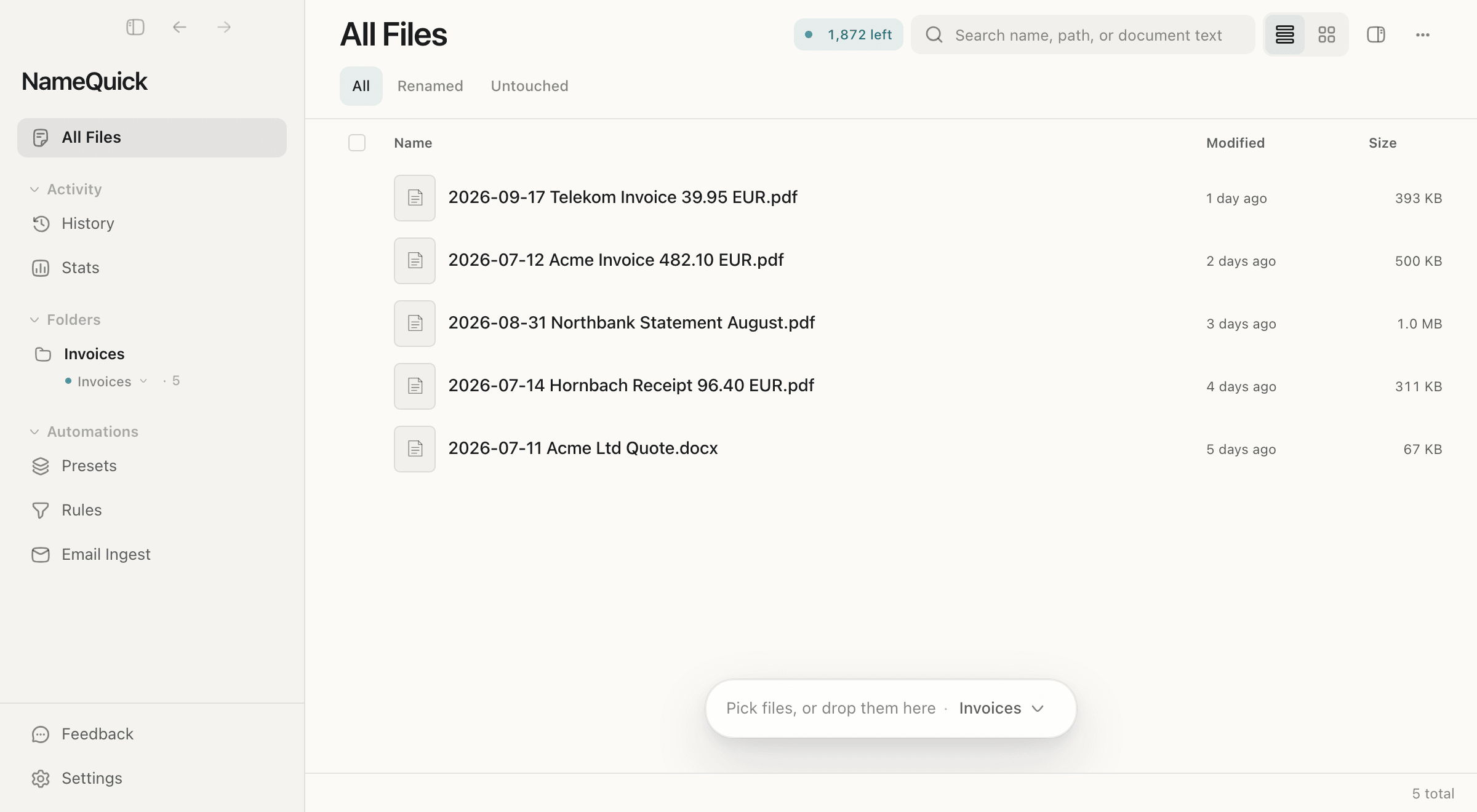
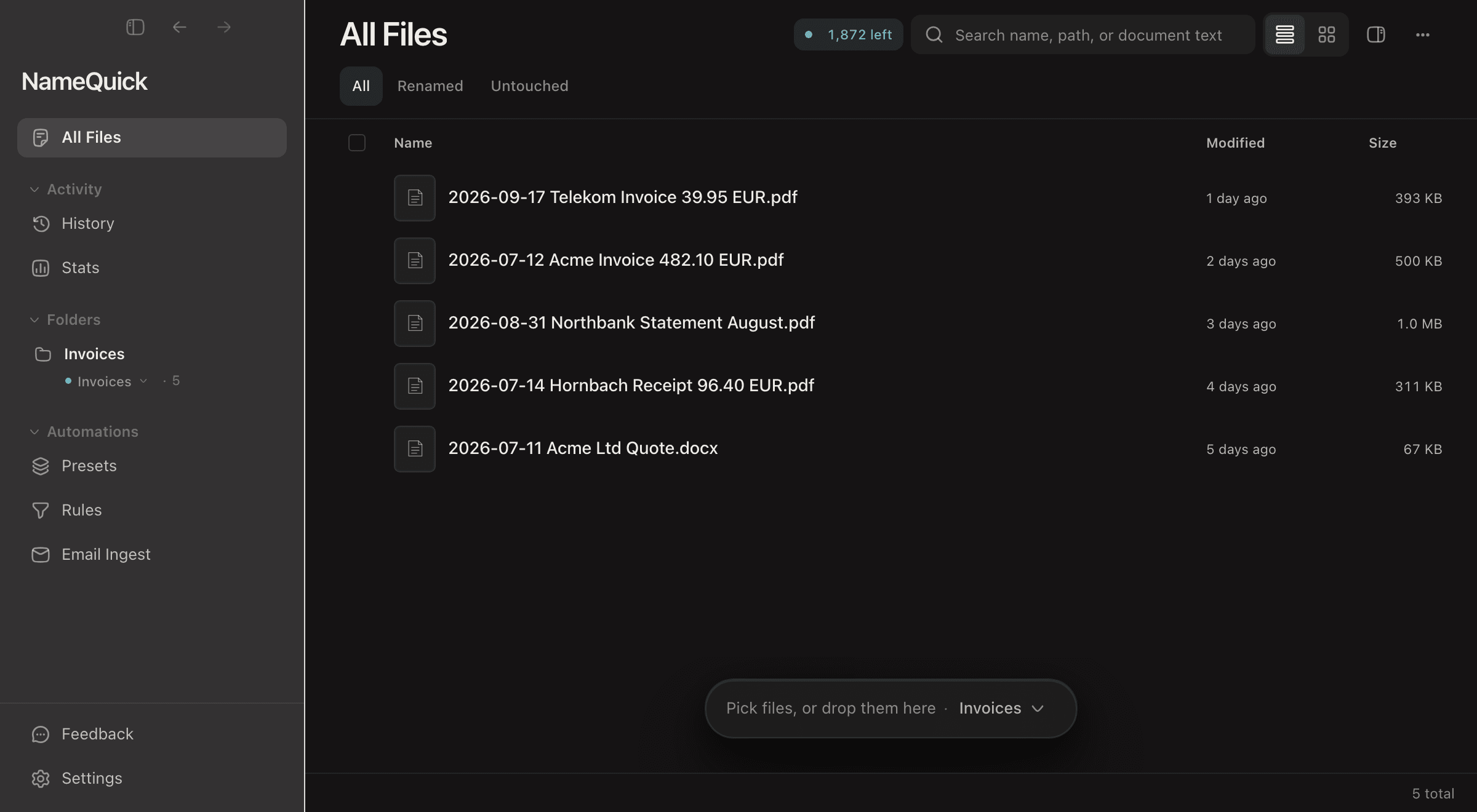
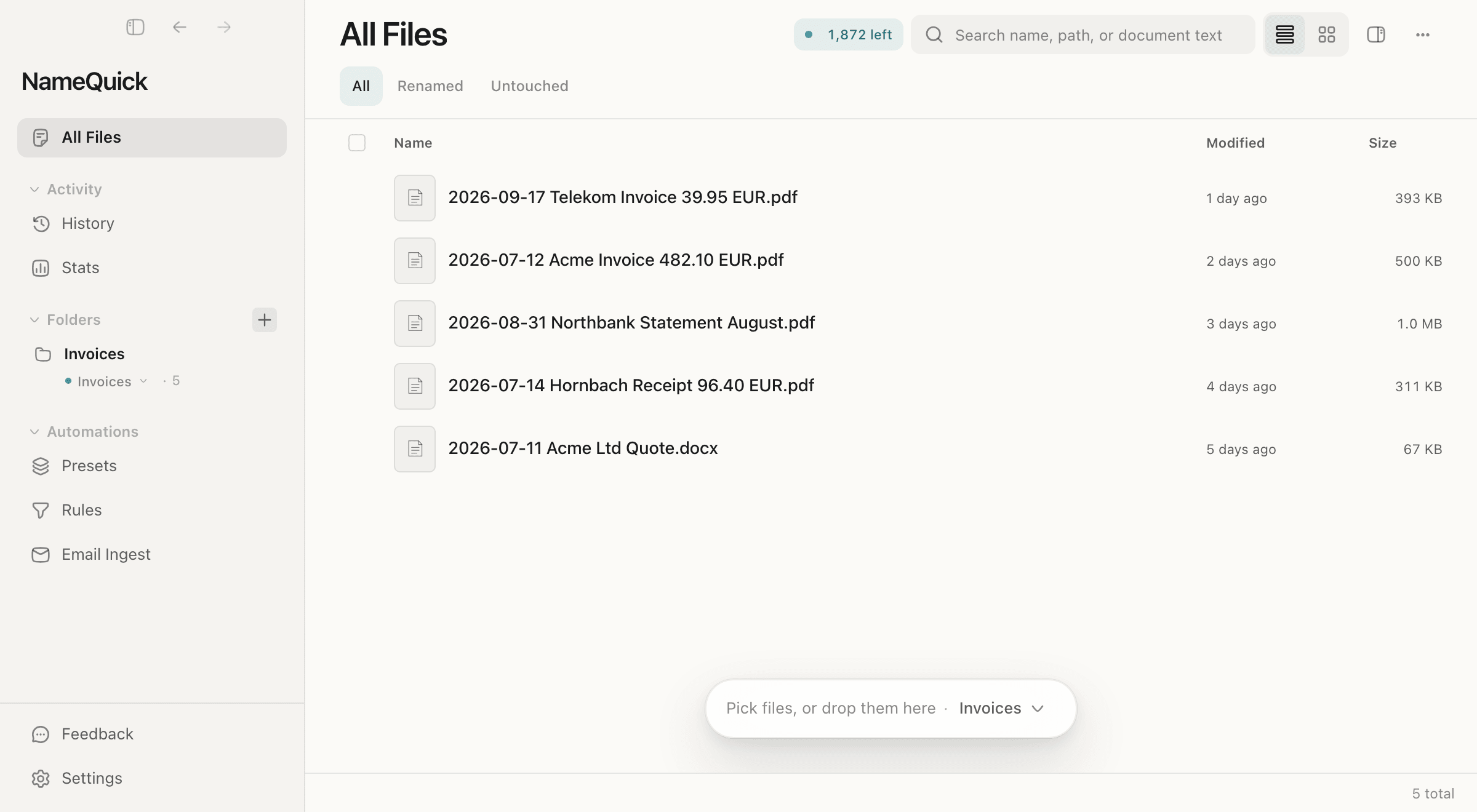
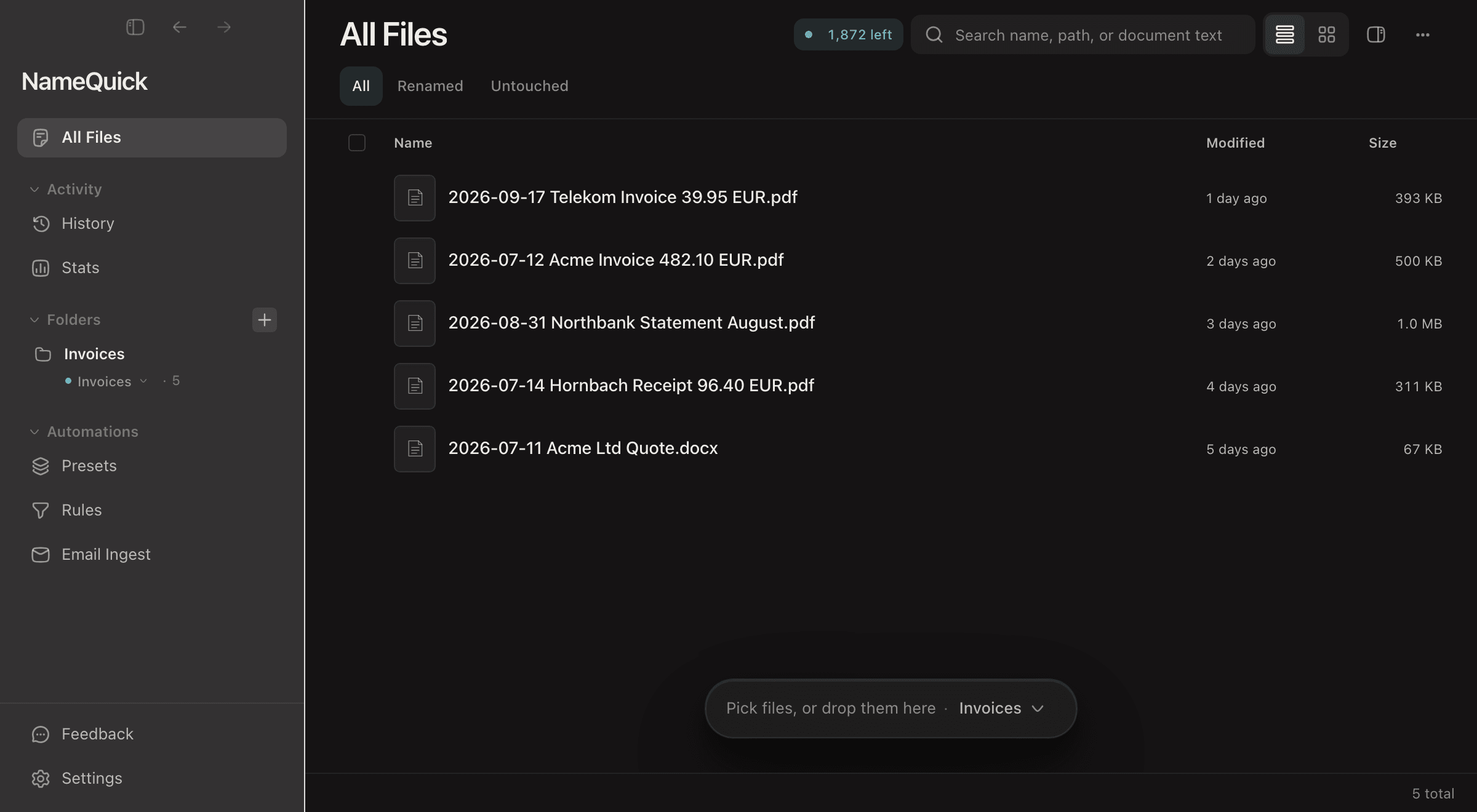
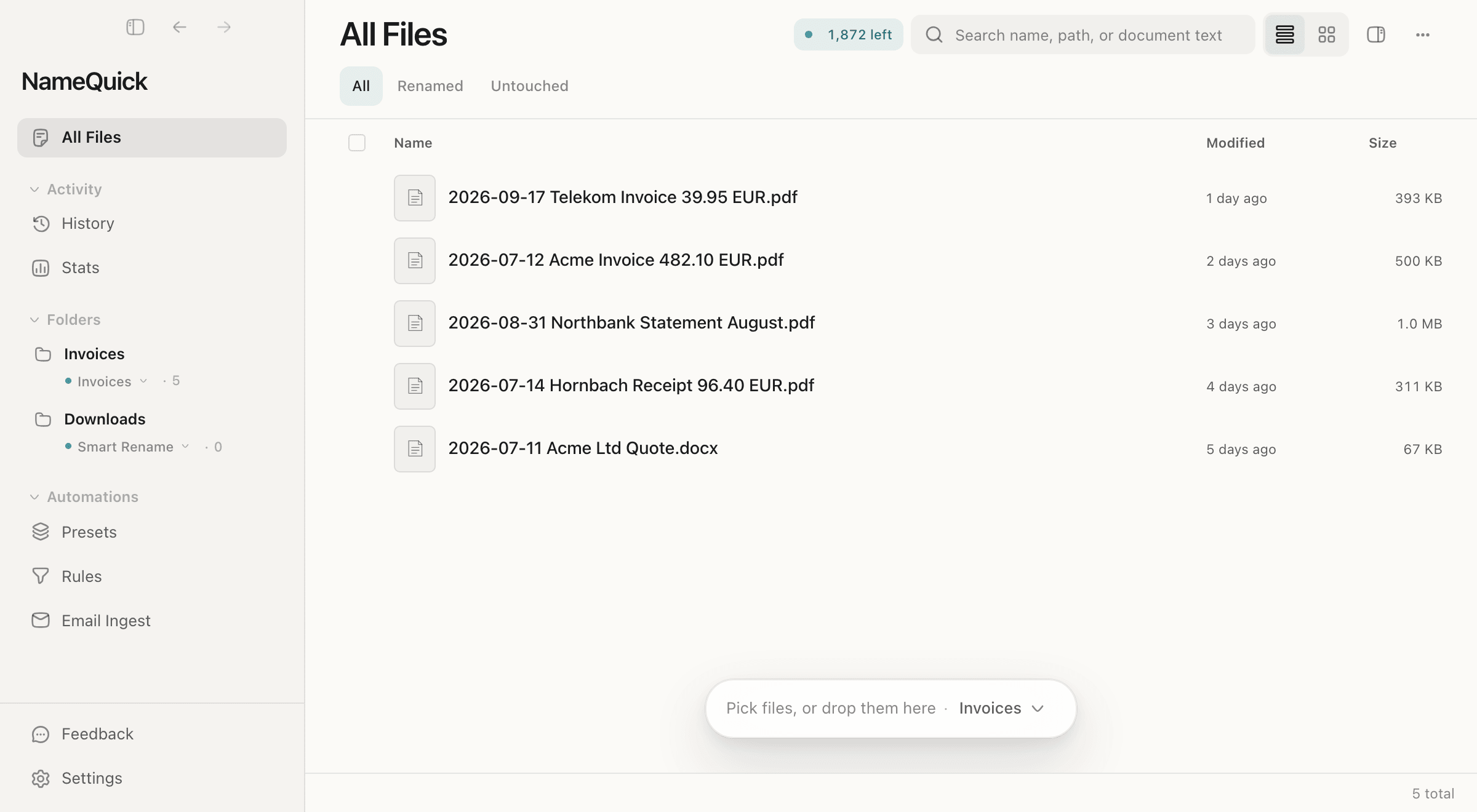
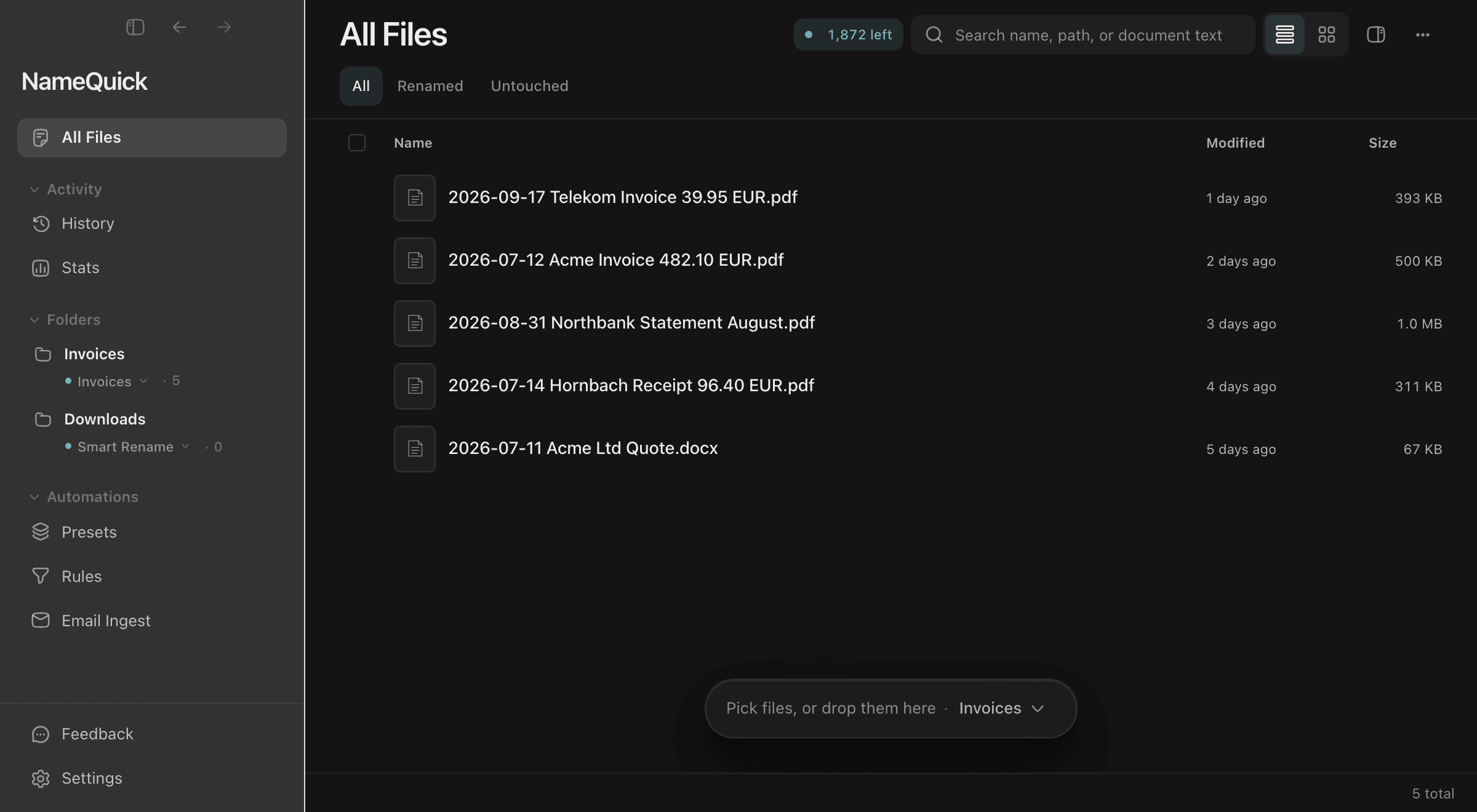
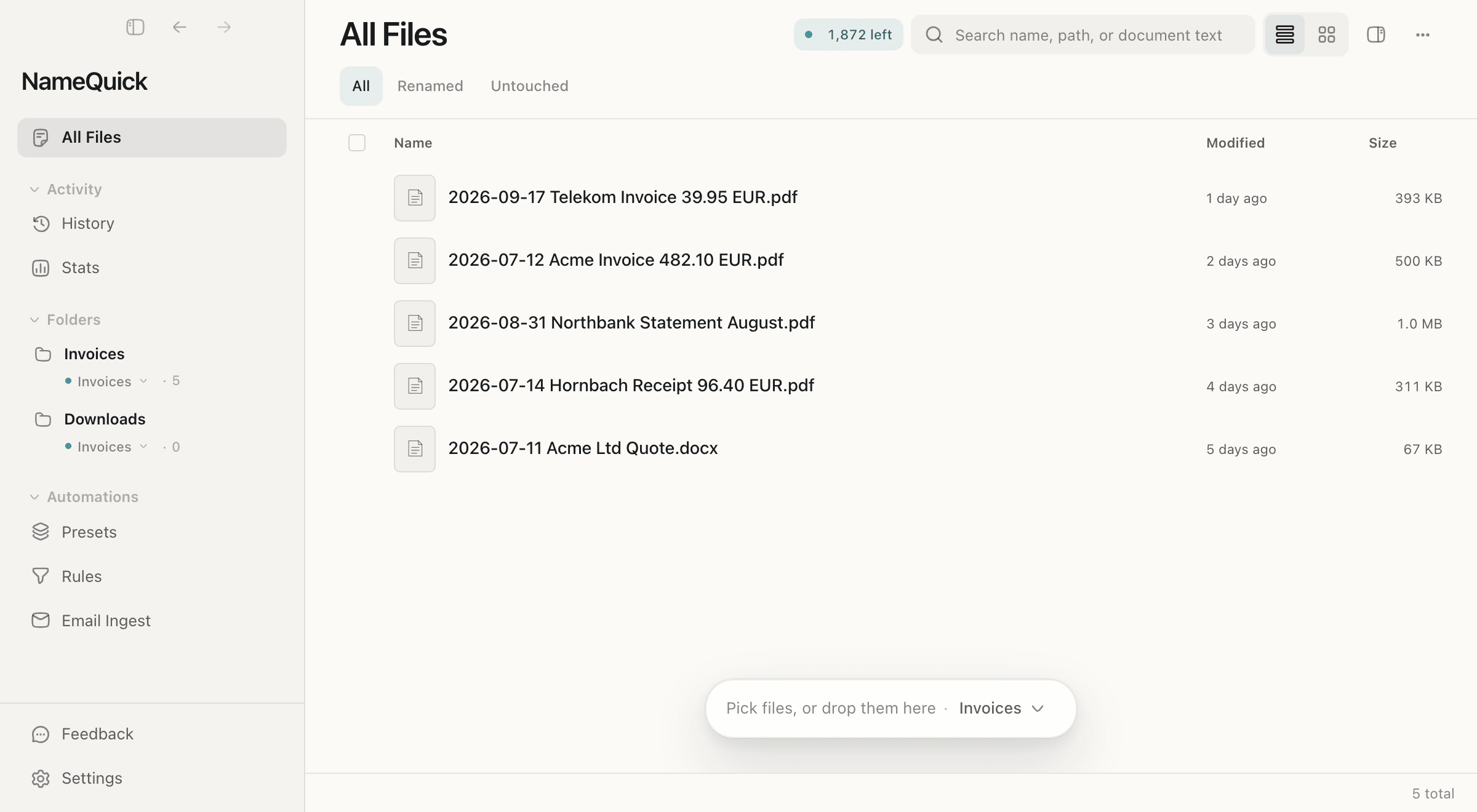
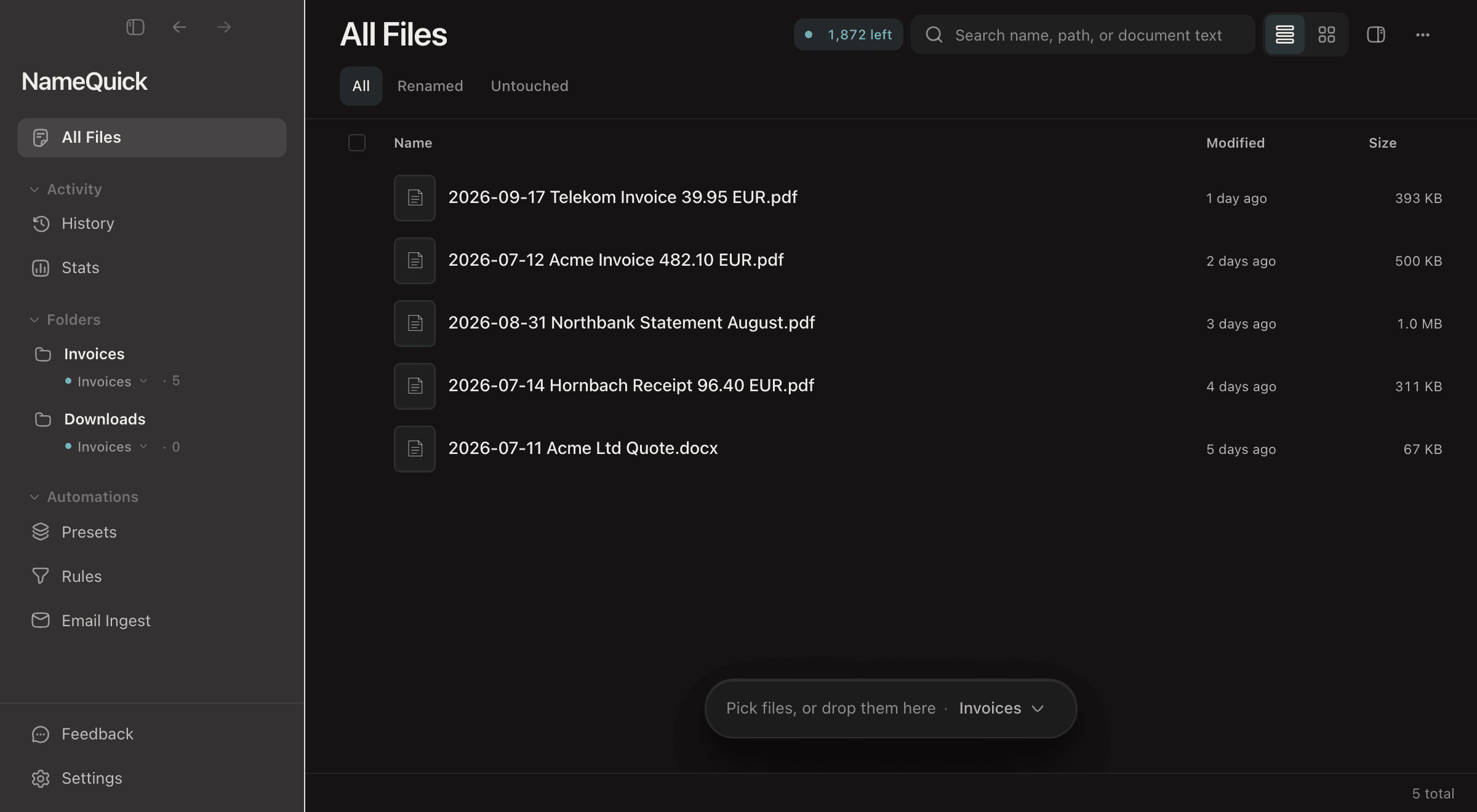
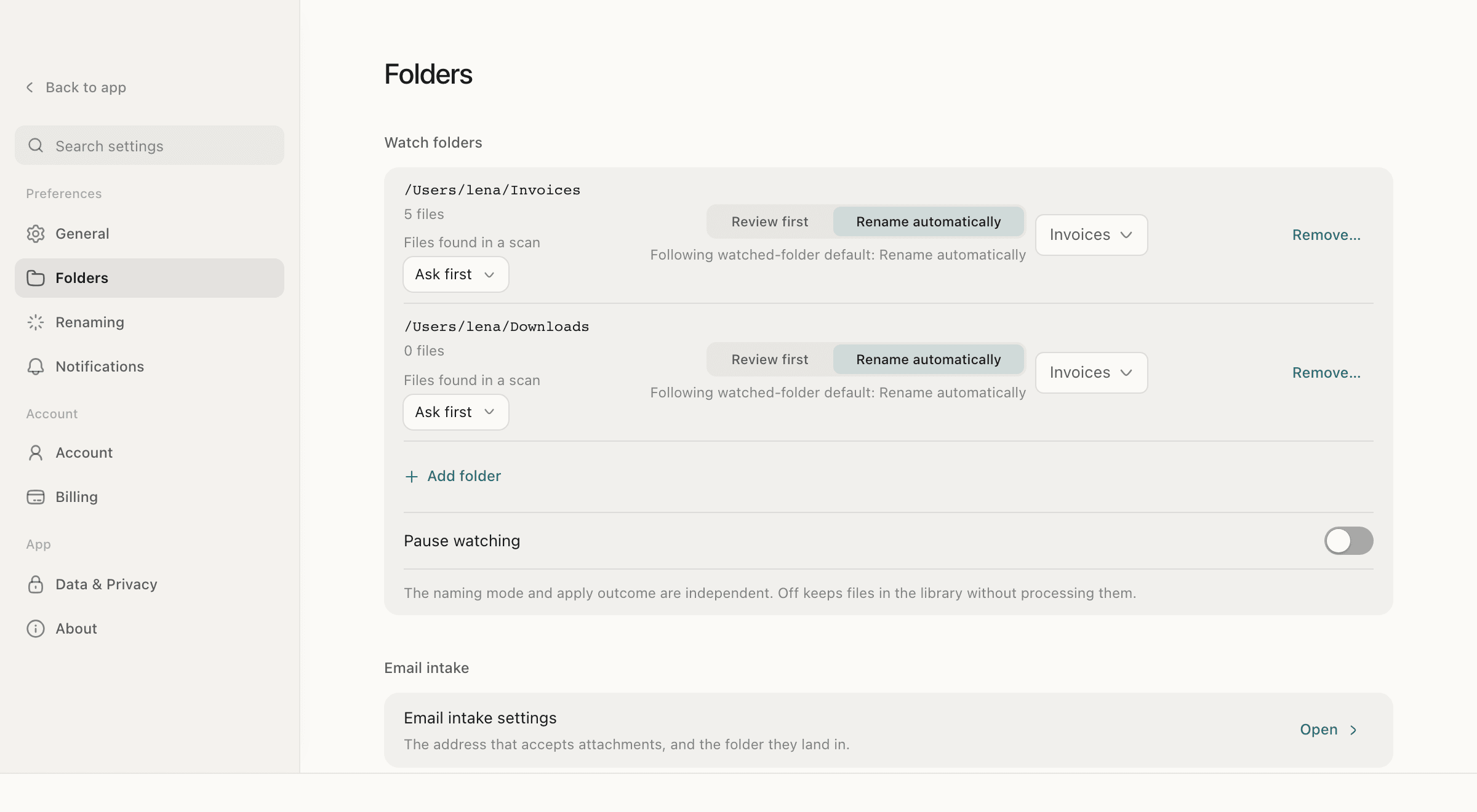
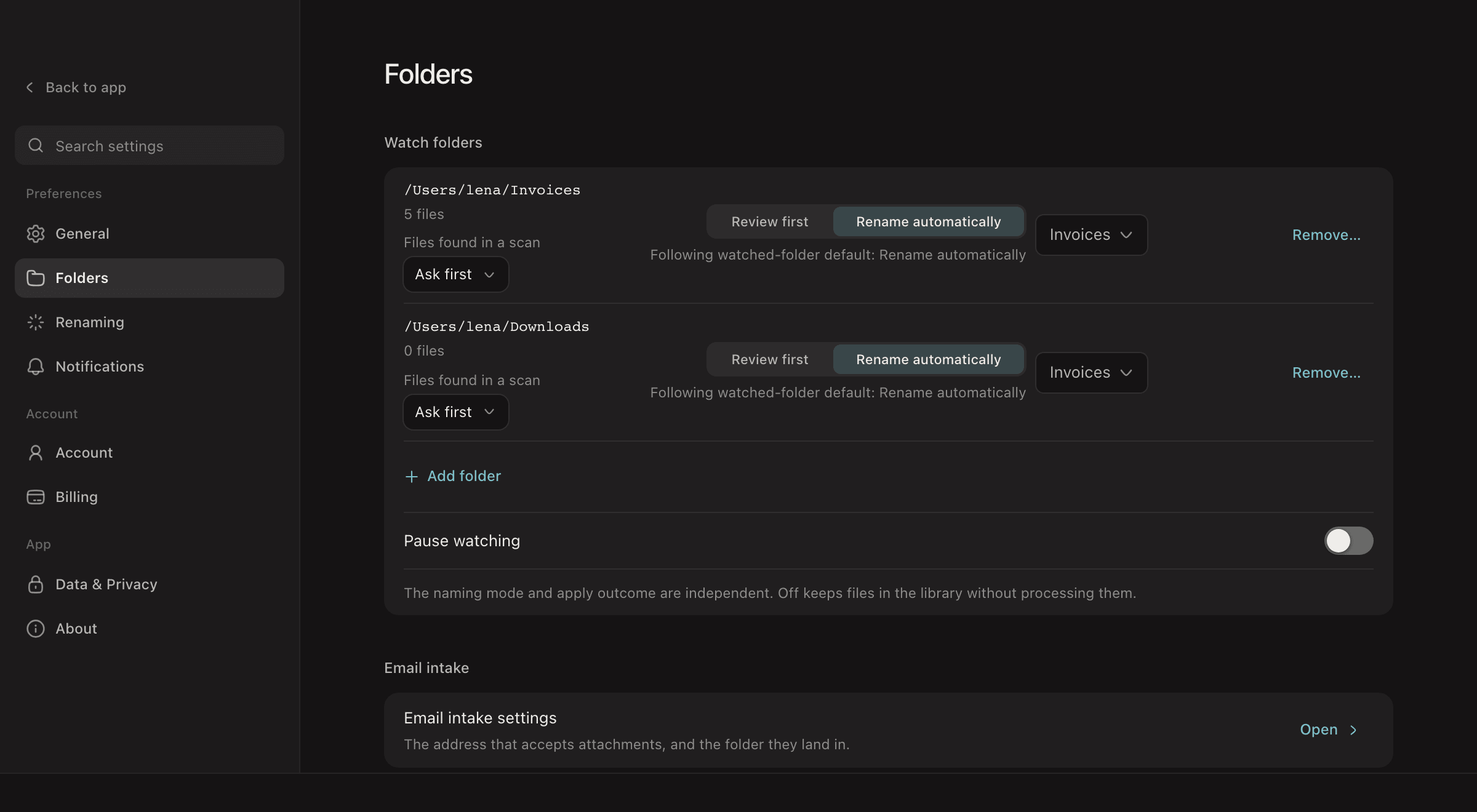
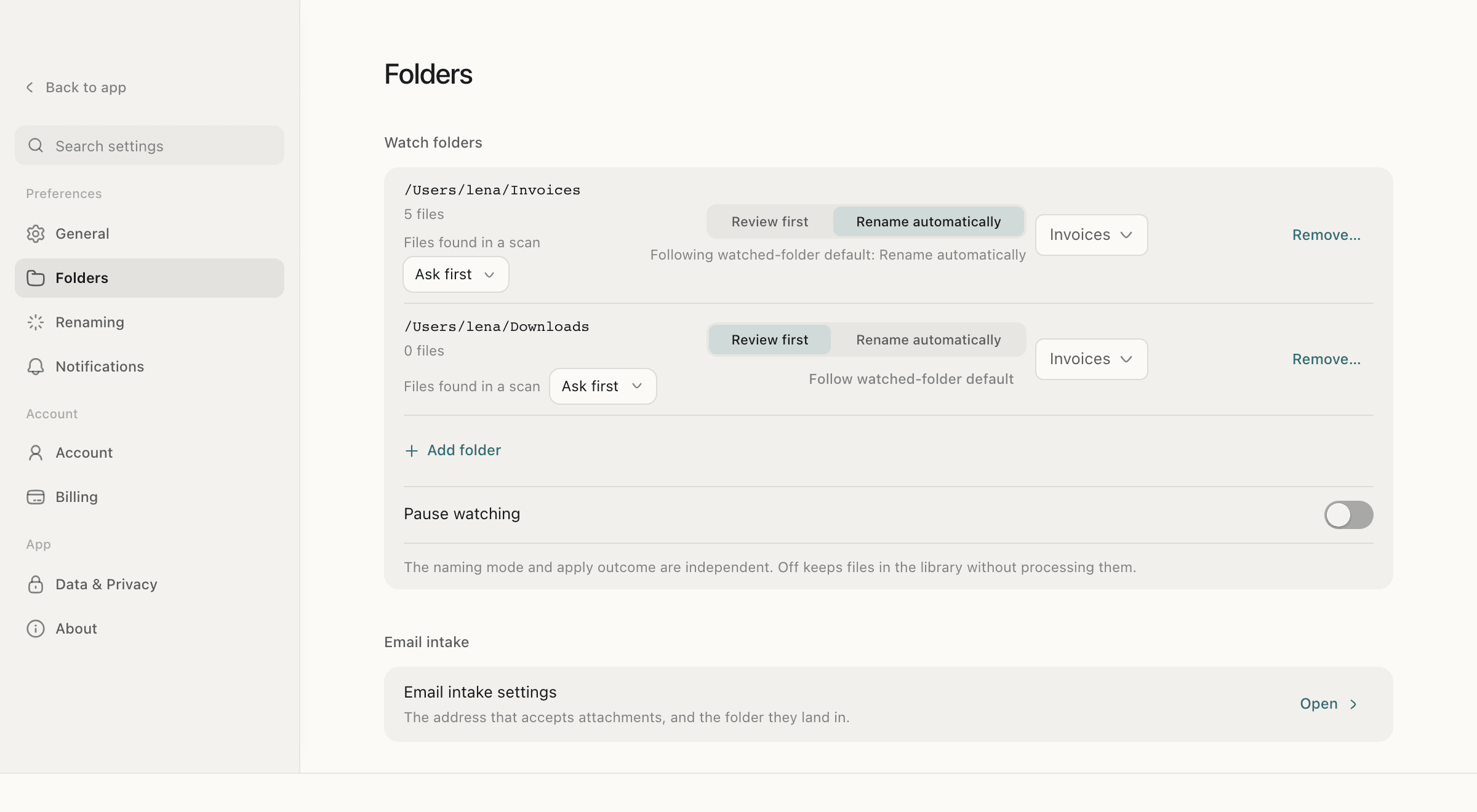
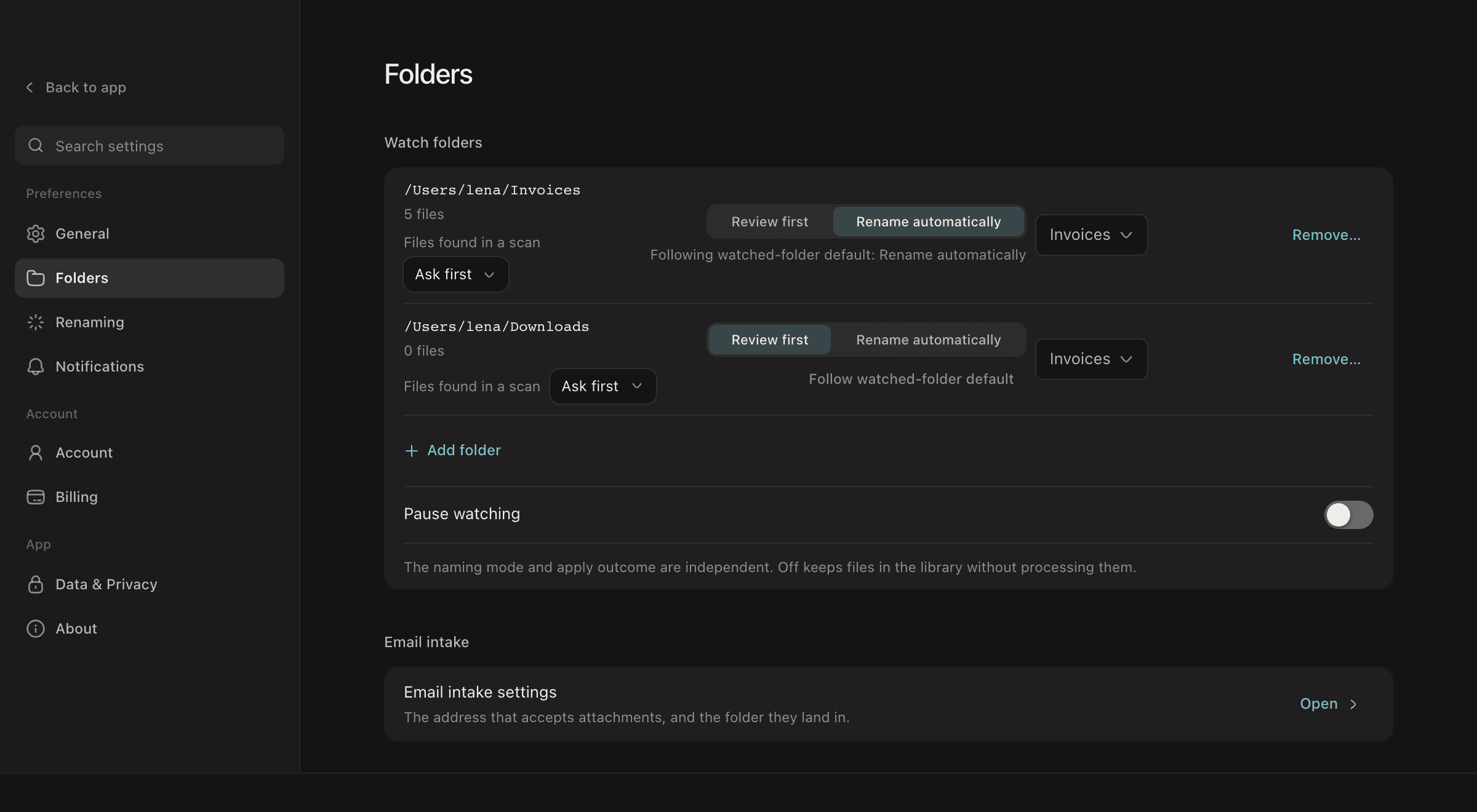
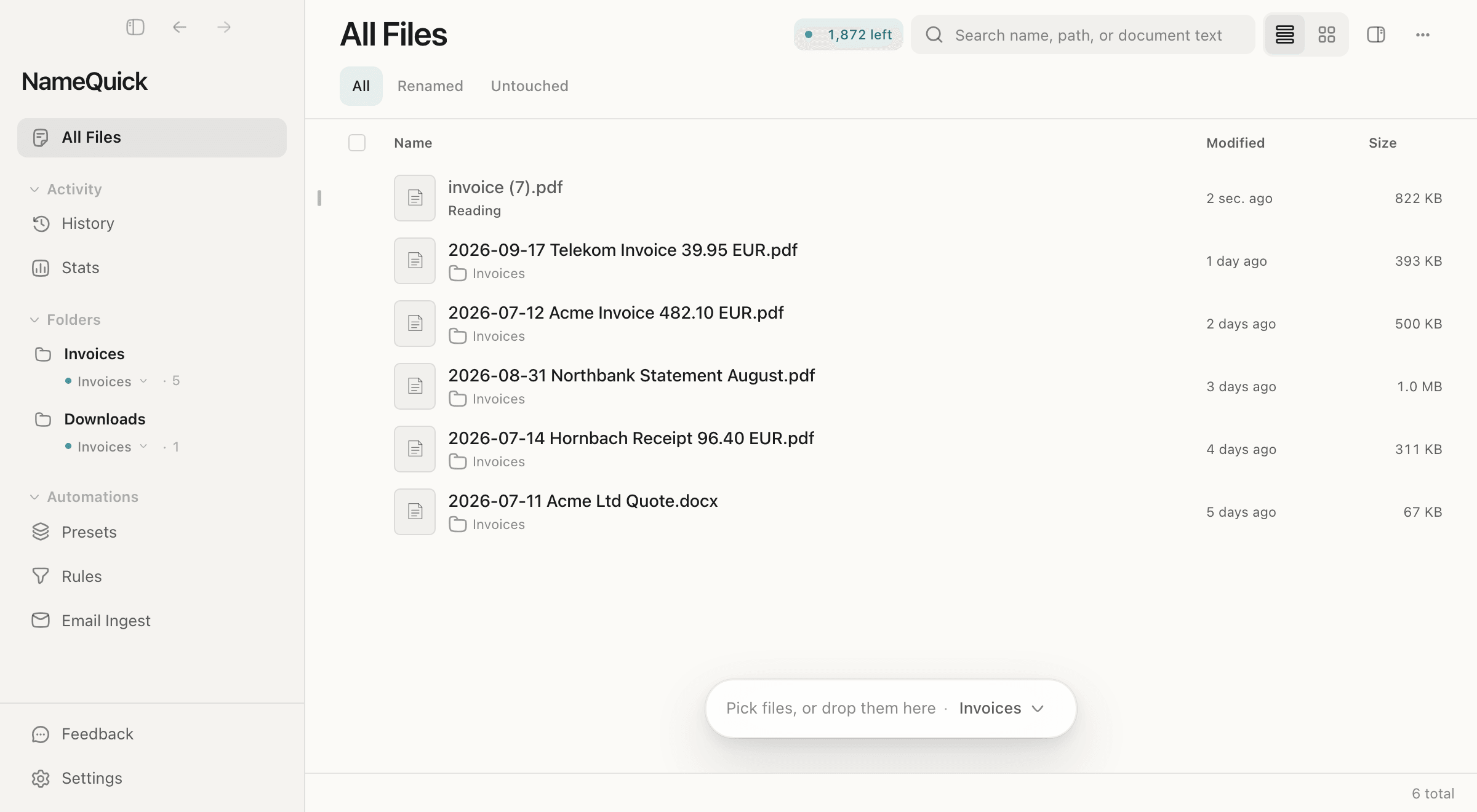
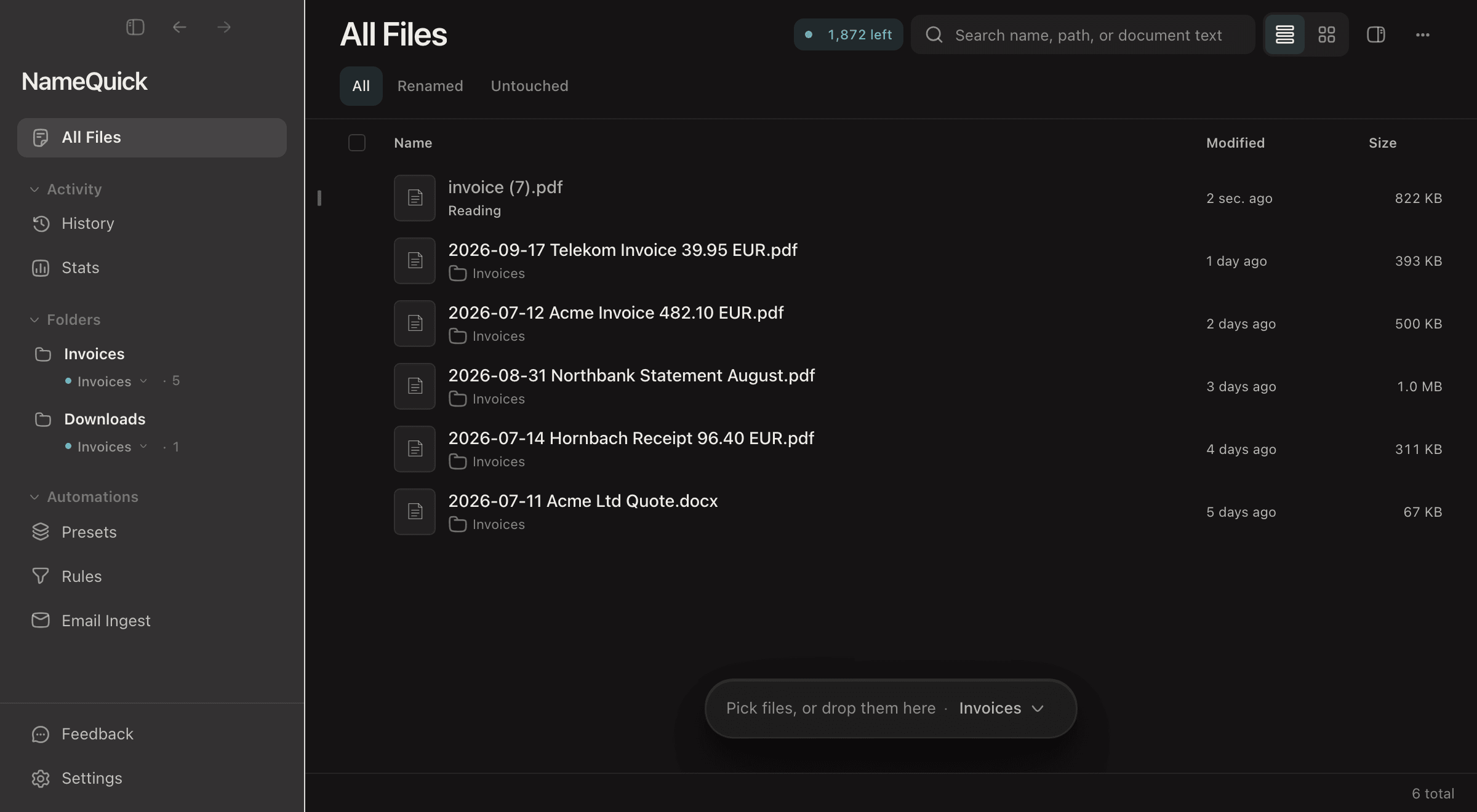
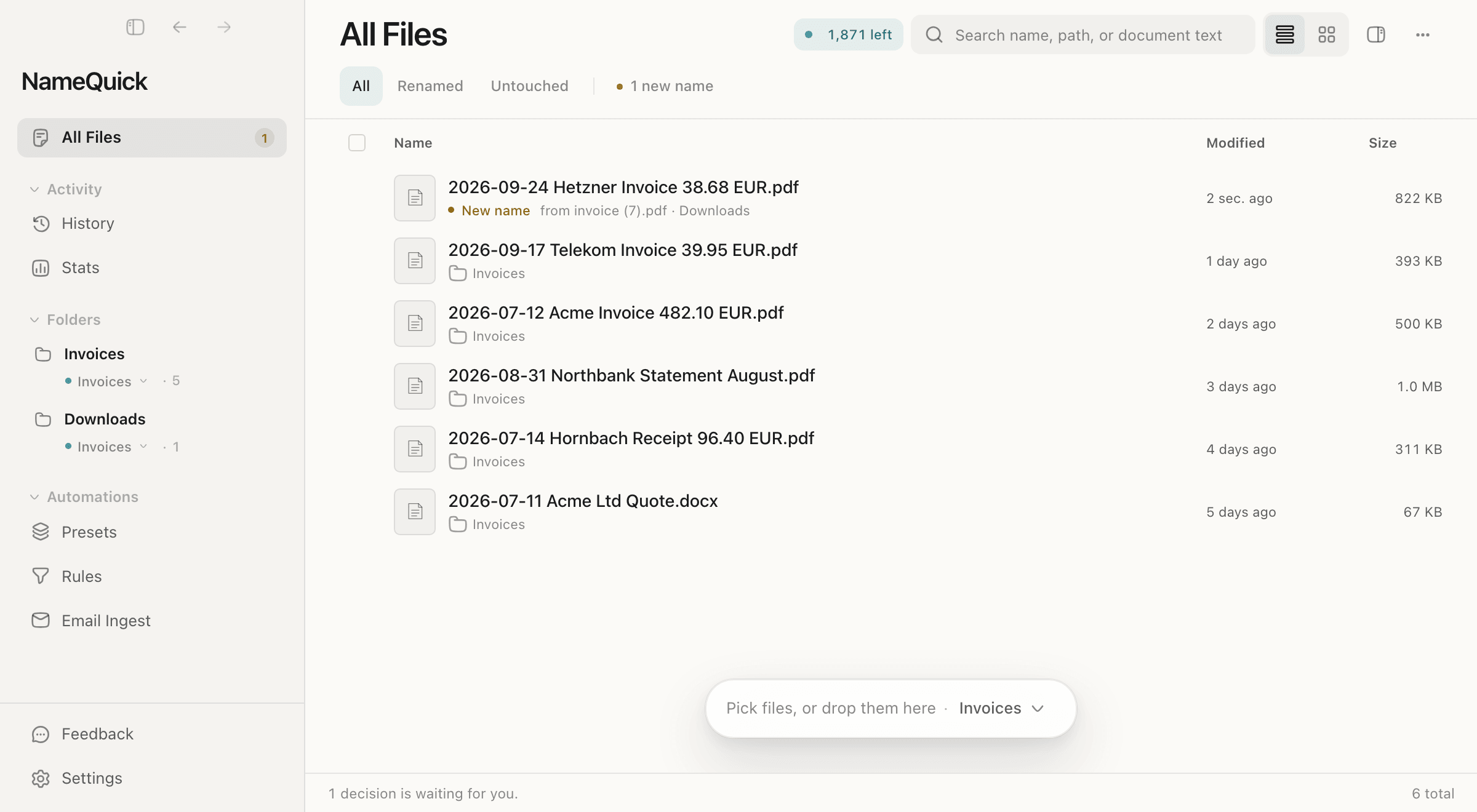
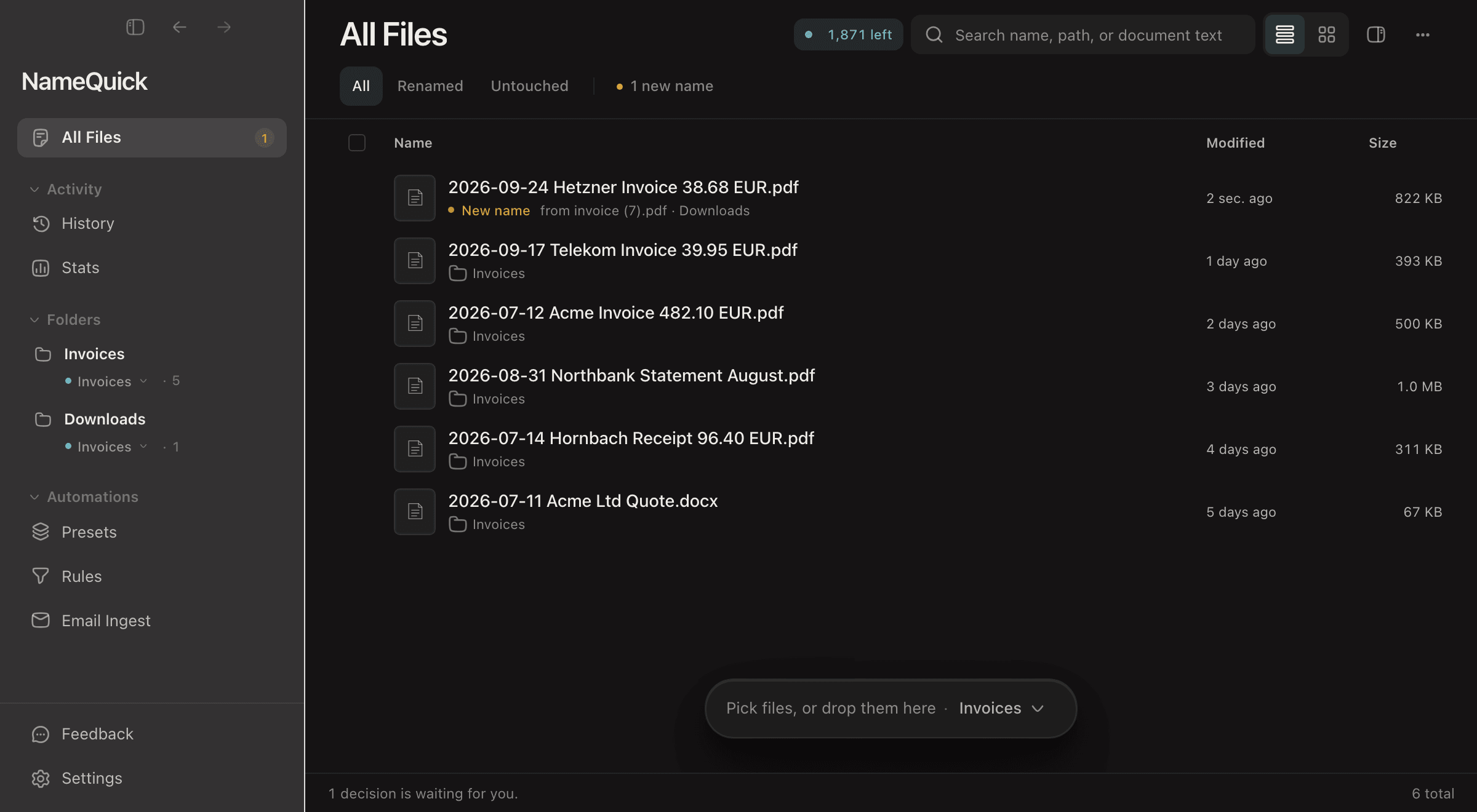
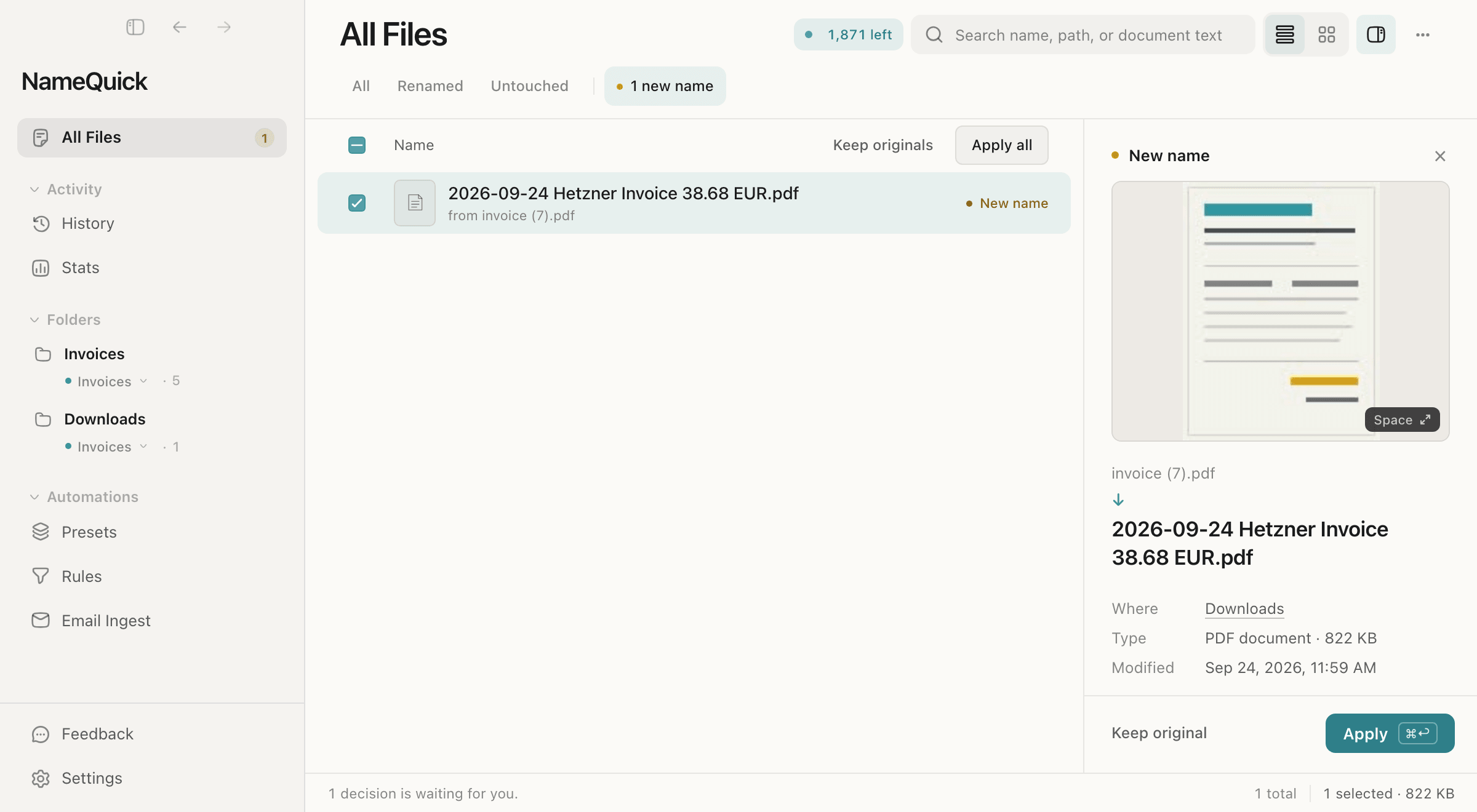
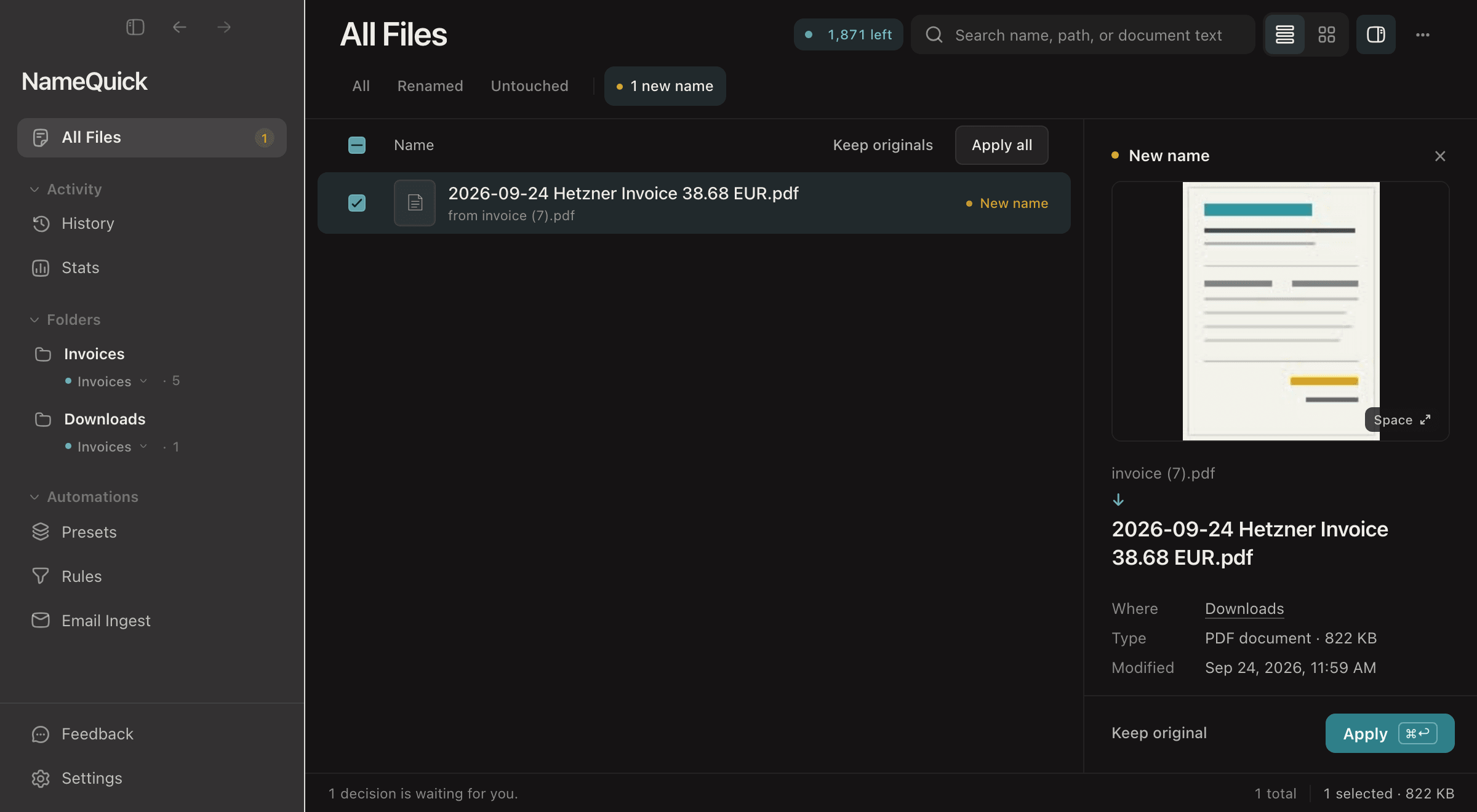
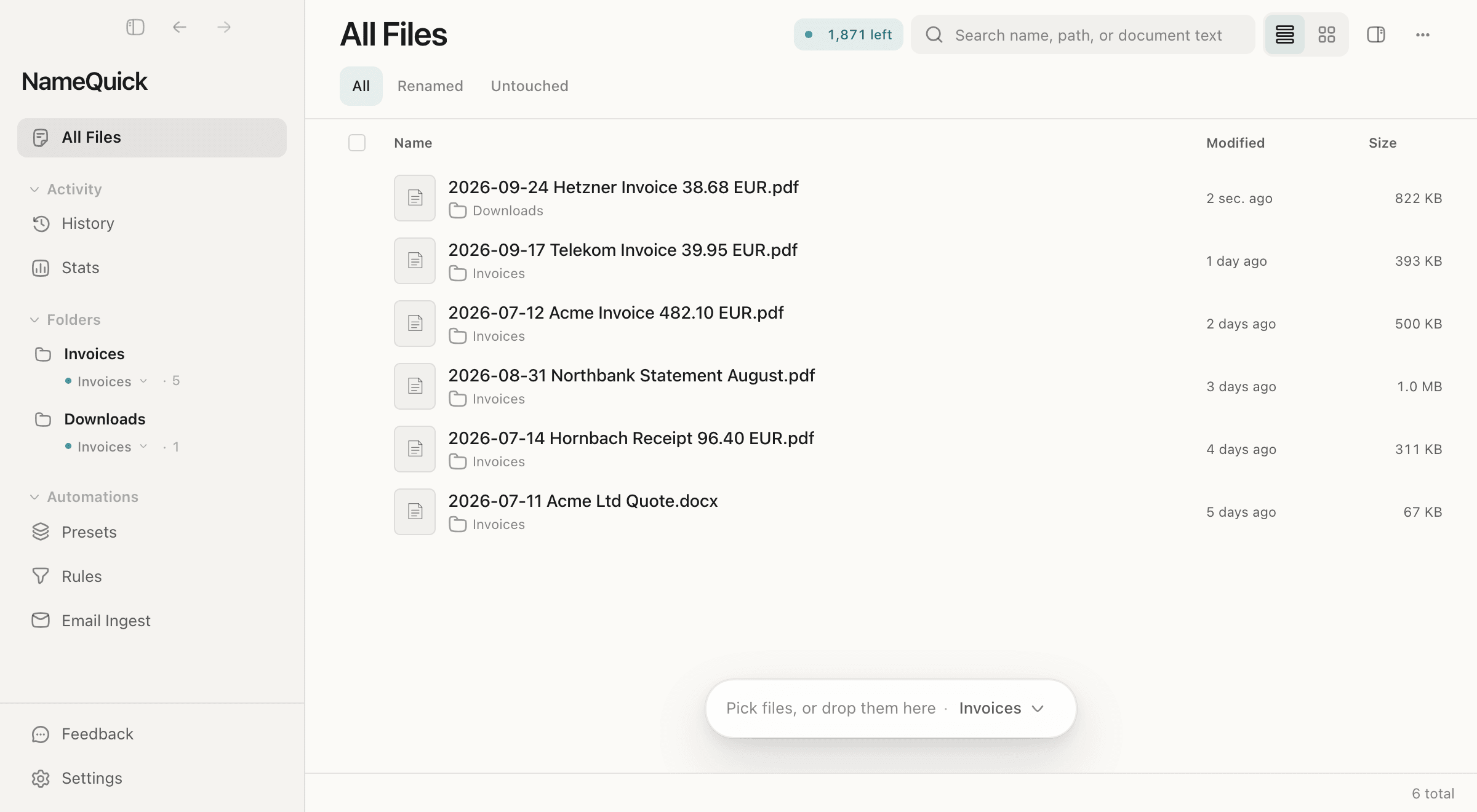
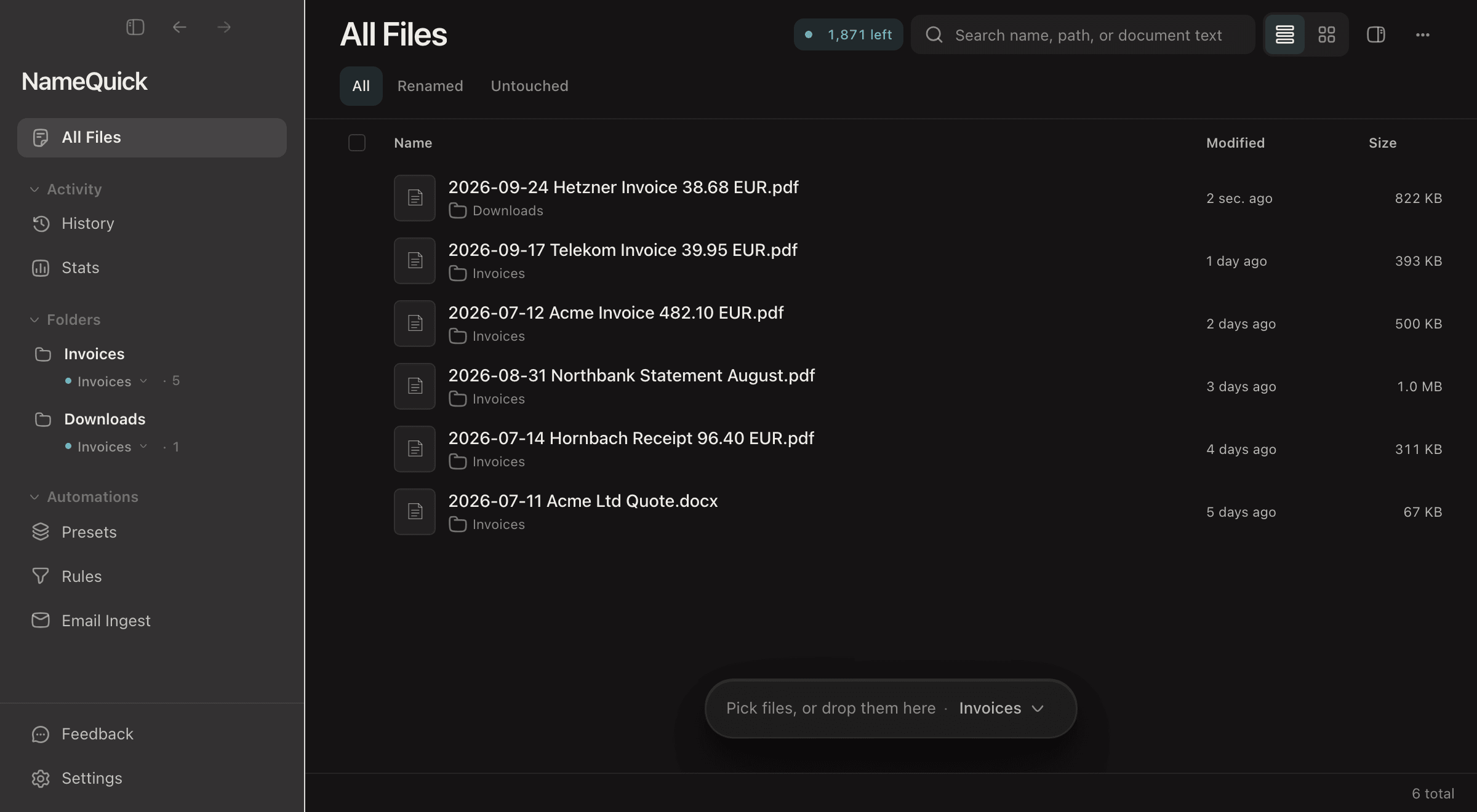
The switch above the walkthrough shows the two ways a folder can apply names: Review first, where you check each new name before it's applied, and Rename automatically, where it's applied as soon as it's ready. Start your first folder on Review first.
Set up your first folder safely#
Caution
A folder starts naming new files as soon as you add it. Start with an empty test folder, and keep your originals somewhere else.
Make an empty test folder
Have a few copies of real files ready, but don't put them in yet.
Test your Preset
If you want a Preset, test it under Presets first. See Presets.
Add the folder
Click + next to Folders in the sidebar, or click Add folder in SettingsFolders, and choose your test folder.
Choose how files are named
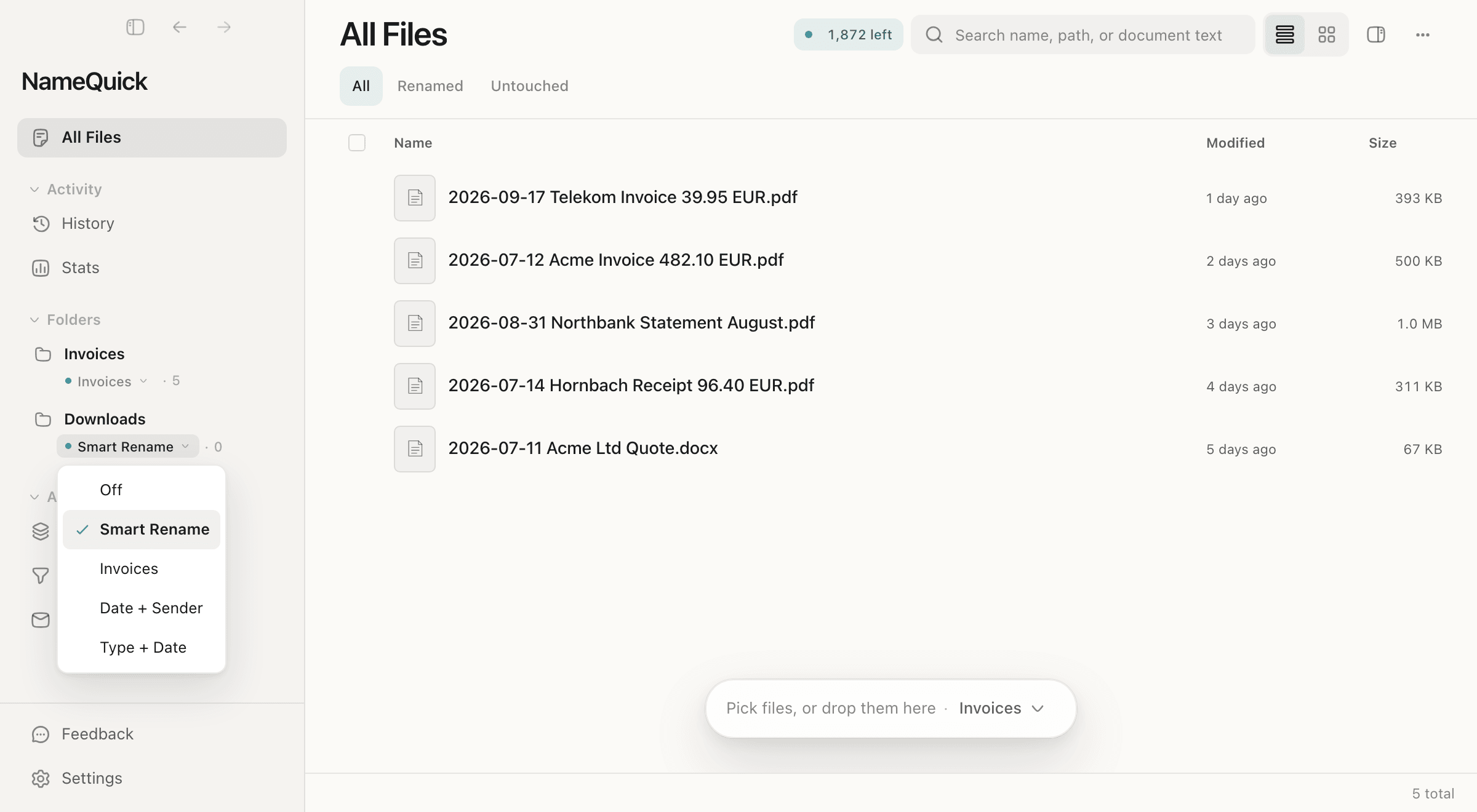
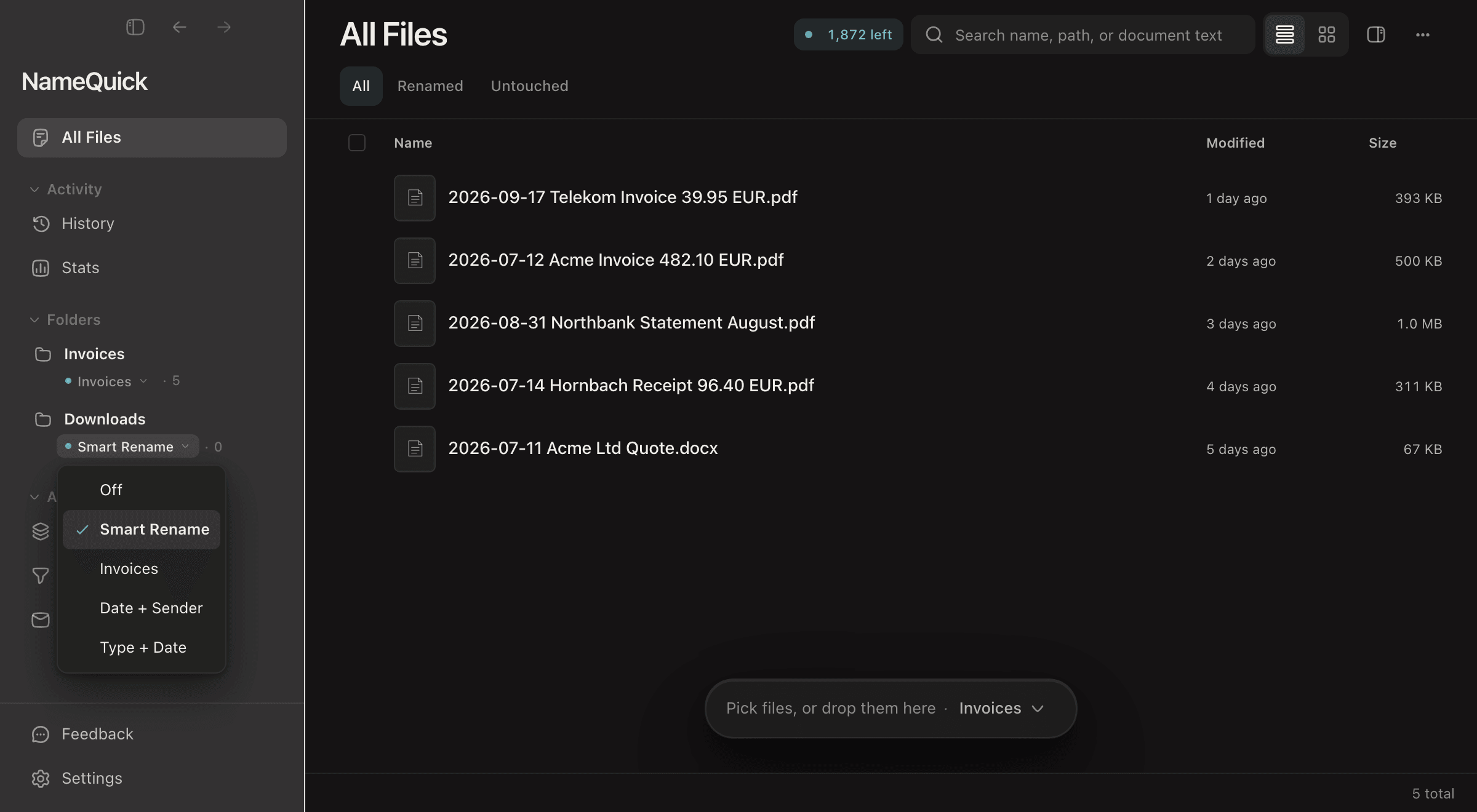
On the folder's row in the sidebar, choose Smart Rename or one of your Presets.
Choose Review first
SettingsFoldersSet the folder's switch to Review first. Then put a few test copies into the folder.
Check the new names and adjust your Preset if you need to. Before you apply them, check your Rules too: see Apply waiting names. Then add a folder you use every day.
Each folder has two settings#
You set them separately:
| Setting | Where | Choices |
|---|---|---|
| How files are named | The folder's row in the sidebar, or SettingsFolders | Off, Smart Rename or a Preset |
| When names are applied | SettingsFolders | Review first or Rename automatically |
- Off: new files aren't named. They only appear in All Files, and the folder's row says In library only.
- Review first: each new name waits in All Files until you apply it.
- Rename automatically: each new name is applied as soon as it's ready.
You can also change when a folder's names are applied from All Files. Select the folder, click ⋯ (More file actions), and make your choice under Apply outcome for followed by the folder's name.
Good to know
A folder you haven't set yet follows the default for all watched folders, Watched-folder approval in SettingsRenaming. Unless you change it, the default is Rename automatically. A choice you make for one folder overrides the default. To go back to the default, click Follow watched-folder default under the folder's switch.
A change applies to files that arrive afterwards. Files that are already being named keep the setting they arrived with.
Apply suggestions from files you add, also in SettingsRenaming, is for files you add by hand. It doesn't affect watched folders.
Apply waiting names#
When a folder is on Review first, its new files stay in All Files with their names unchanged on disk. Each one is marked New name, and a filter such as 1 new name appears above the list.
Click the filter
It lists every new name that waits for you.
Select a file and check its new name
Click Apply
Or click Keep original to leave the name as it is. Apply all applies every name in the filter at once.
Check your Rules before you apply. Applying a name can start Rules that run after a rename, such as a Rule that moves the file. Afterwards, check where your files ended up. See Rules.
Rules can also run again later. Re-run Rules when a file is edited, in SettingsRenaming, is on by default. When you save a file in a watched folder, the folder's Rules run again 3 seconds after your last change. They never archive the file or move it to the Trash, and they only move it if Allow edited files to be moved is on too.
To see what happened to a file, open History. You can undo many changes there. Some can't be undone, for example when the file has since moved again or is open in another app. See Undo & Rename History.
Which files get named#
Files already in the folder are left alone when you add it. NameQuick only names files that arrive afterwards. The one exception is first-time setup, which asks whether to rename the files already in the folder too.
Files that arrive while NameQuick is closed are found the next time it starts, but they aren't renamed straight away. Select the folder: a notice tells you how many new files showed up while NameQuick wasn't watching, and their rows say Found in a scan. To name them, click Rename n files. To keep their names, click Leave them.
To have such files renamed without asking, tick Next time, rename files like these without asking in the notice, or set Files found in a scan to Rename them in SettingsFolders. NameQuick then renames up to 50 found files at a time. If it finds more, it asks.
A folder that's already full: to sort the files already in it into folders, use Organize. After that, NameQuick names each new file as it arrives.
Keep NameQuick running#
NameQuick only watches your folders while it's running.
Closing the main window only hides it. NameQuick keeps running in the menu bar. Quitting NameQuick stops watching. To keep watching after a restart, turn on Start at login in SettingsGeneral. macOS may ask you to allow NameQuick under Login Items in System Settings.
Closing the window quits NameQuick, so minimize it instead. To keep watching after a restart, turn on Start with Windows in SettingsGeneral.
With this setting on, NameQuick starts with its window hidden. If the setting can't be turned on, NameQuick tells you.
Cloud folders#
You can watch a cloud folder that syncs to your computer, such as iCloud Drive, Dropbox, Google Drive or OneDrive. NameQuick needs a file's content to name it. When a new file is online-only, NameQuick asks the cloud service to download it and waits up to 2 minutes. If the download takes longer, NameQuick names the file once the download finishes, or lists it as Found in a scan the next time it starts.
A file in a cloud folder is read the same way as any other file. On the Managed plan, its content goes to NameQuick's service in the EU, which doesn't use it to train AI. On Self-Managed with a cloud API key, it goes to the provider you chose. With a local model, it's read on your computer.
Pause, stop or remove a folder#
| To | Do this | What happens |
|---|---|---|
| Stop naming in one folder | Set its naming to Off | New files aren't named. They stay in All Files. |
| Pause every folder | Turn on Pause watching in SettingsFolders, or choose Pause watching in the NameQuick menu in the menu bar (Mac) or system tray (Windows) | No folder is watched until you resume. |
| Remove a folder | Click Remove… in SettingsFolders, or point to the folder in the sidebar and click −. Then click Remove folder. | NameQuick stops watching the folder, and its files leave All Files. Your files aren't deleted, and Rename History is kept. New names still waiting for this folder are discarded. |
Caution
None of these stops a file that NameQuick is already naming.
Folders worth watching#
- Downloads: invoices, statements and tickets land here first. With a Preset for invoices and a Rule that moves them into an
Invoicesfolder, they don't pile up in Downloads. - Scanner output: scans arrive as
Scan_0042.pdf. A Preset turns them into names like2026-06-10_Allianz_Policy.pdfbefore you've left the scanner. - Screenshots:
Screenshot 2026-06-10 at 9.14.22.pnggets a name that says what's in it. See rename screenshots automatically. - Folders clients upload to: every file gets your project's naming convention when it arrives.
For complete setups, see invoices and receipts, the German scan-to-archive workflow and photos. PDFs from your email can land in a watched folder too: see Watch your inbox.