
Quick Start
Install NameQuick, add a folder, and run your first rename in minutes.
Get NameQuick running in a few minutes. You will install the app, add a folder, and rename your first files with Smart Rename or a Preset. NameQuick 3 runs on Mac and Windows, and this page lists the few differences.
Install and launch#
Download NameQuick for Mac or Windows and open it: Choose your download.
NameQuick works in one of two ways, on Mac and on Windows:
- Managed: NameQuick provides the AI as part of a subscription, so there is nothing to set up.
- Self-Managed: you connect your own AI, through an API key or a model on your computer, and pay once for a license.
Both start with a free trial:
| Trial | How it starts | Limit |
|---|---|---|
| Managed | In the app; no email or card needed | 30 free renames with no time limit; add a card for 70 more and 14 days of your plan |
| Self-Managed | Register with your email in the app, using your own API key or a local model | 30 renames, no card, no time limit |
If Windows shows a warning
NameQuick for Windows isn't code-signed yet. The first time you open the installer, Microsoft Defender SmartScreen shows a blue Windows protected your PC screen, because Windows doesn't recognize the publisher. To continue:
- Click More info under the message.
- Click Run anyway. Setup then starts as normal.
If there's no Run anyway button, your PC is set to block apps from unrecognized publishers, and NameQuick can't be installed on it yet. Write to support@namequick.app if you need help.
Add a folder#
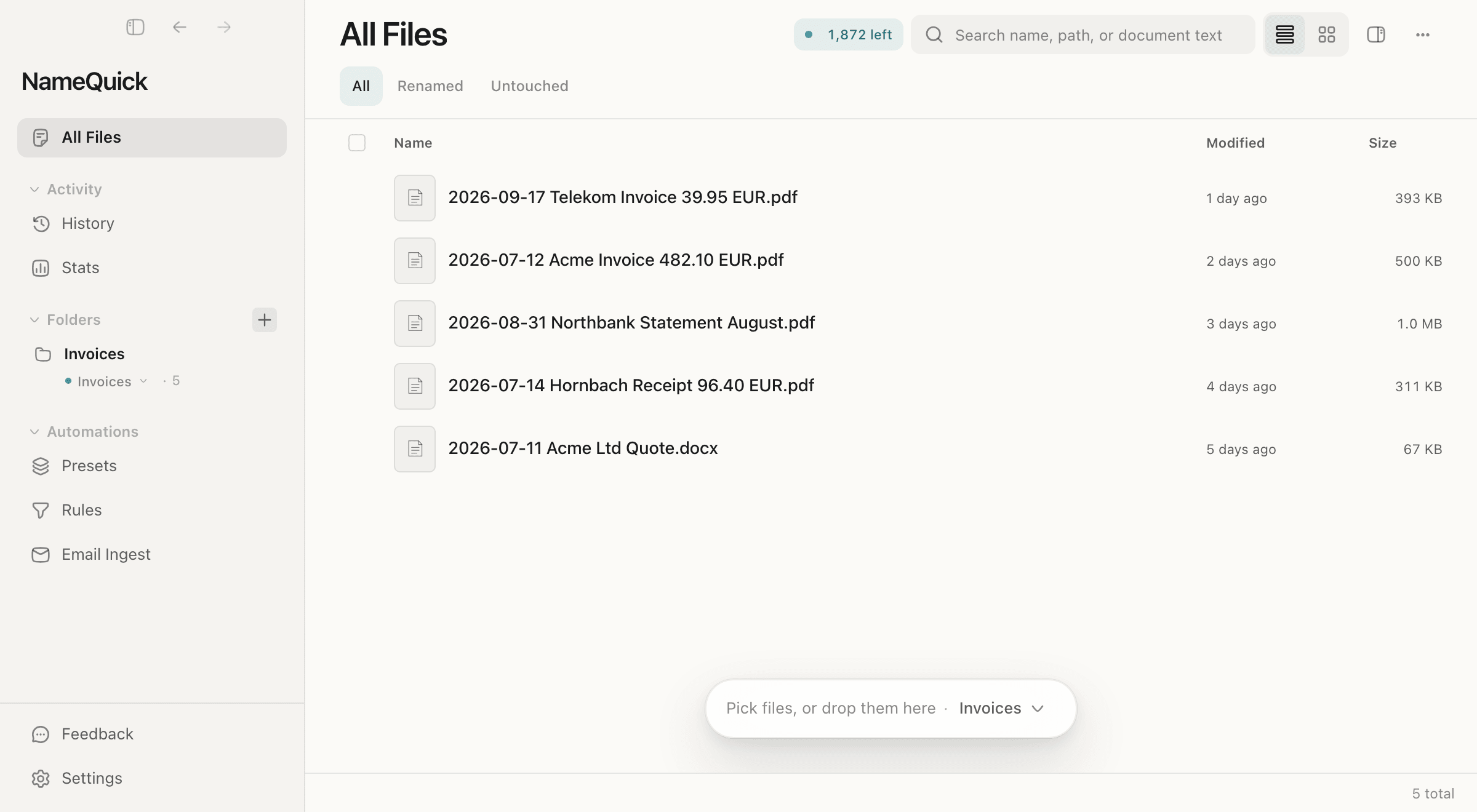
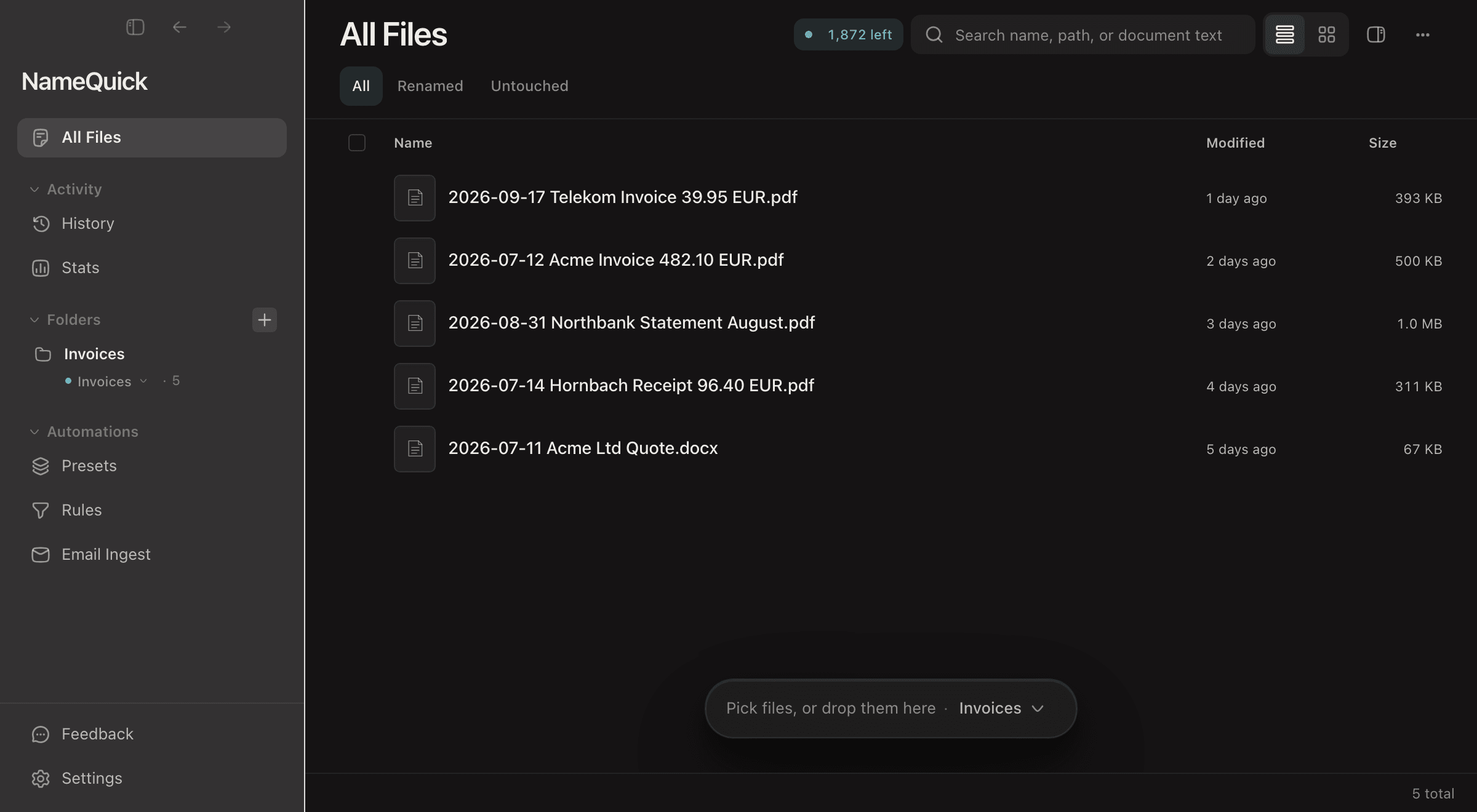
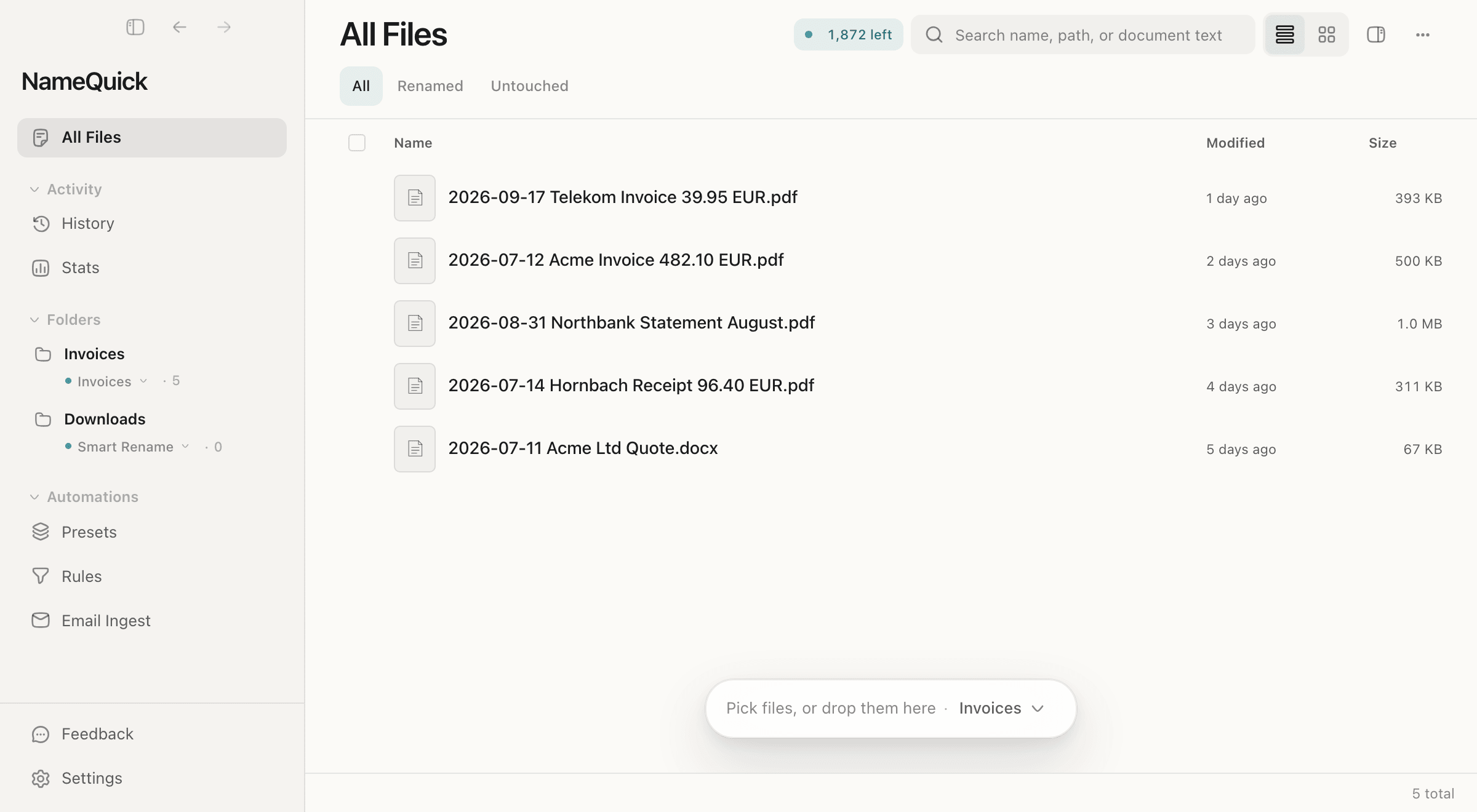
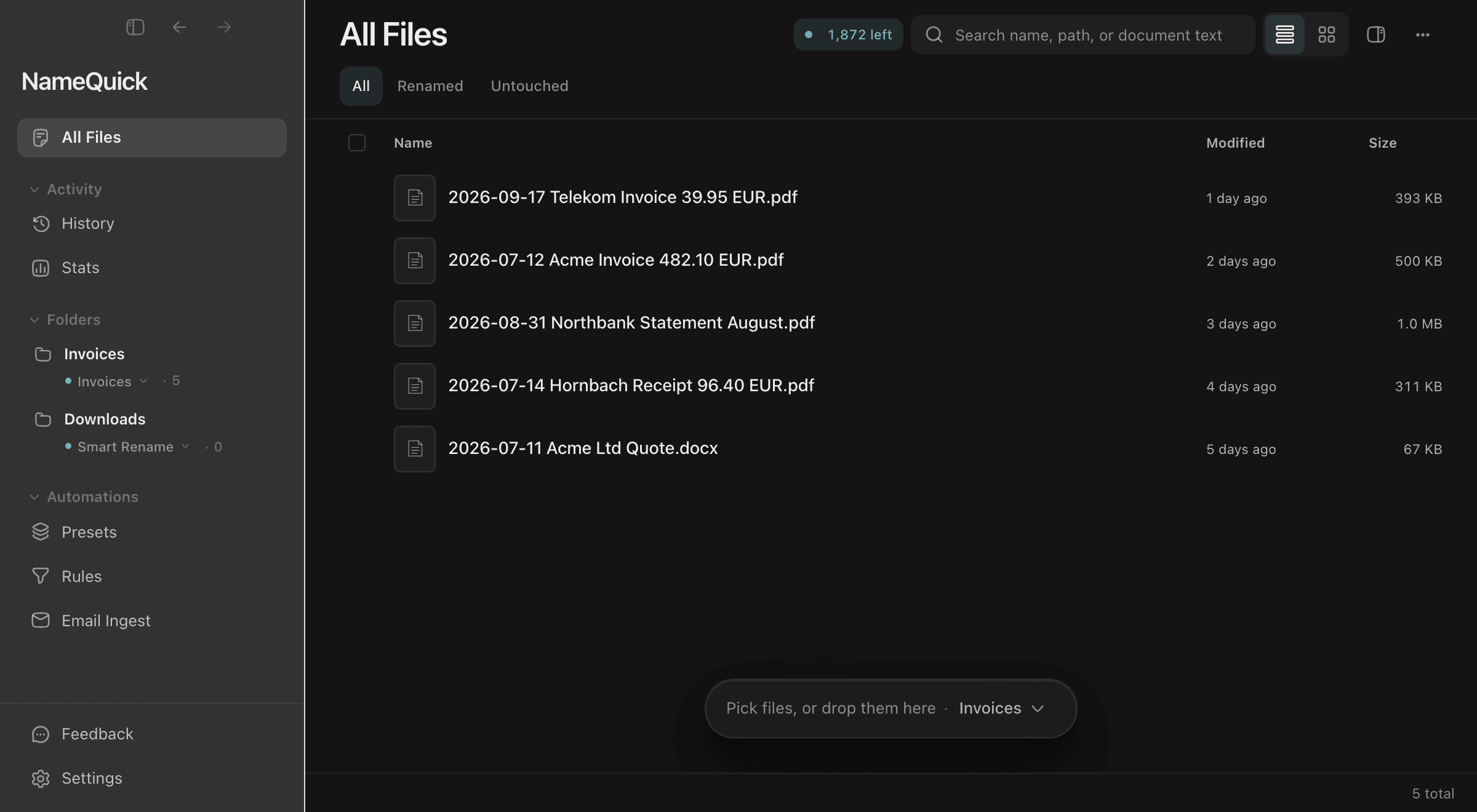
Click + next to Folders in the sidebar and pick a folder with files you want to rename. Its files appear in All Files. Adding a folder doesn't rename the files already in it. You choose which ones to rename in the next steps.
Caution
From now on, NameQuick watches the folder: new files that arrive in it are renamed automatically. To check those names before they're applied, set Watched-folder approval to Review first in SettingsRenaming before you add the folder. Automate with Watch Folders below has the details.
Choose how names are made#
NameQuick makes names in one of two ways. The app calls this the processing mode:
Presets
Your own naming convention, the same for every file of one kind. Build the name from parts such as date, vendor and amount, or describe it in your own words. Choose this when you know how you want your files named.
Smart Rename
No setup: NameQuick gives each file a clear name on its own, such as Scan_0042.pdf → 2026-03-15 Amazon Invoice.pdf. Choose this to tidy up mixed files without deciding on a naming scheme.
NameQuick comes with three Presets: Invoices, Date + Sender and Type + Date. To make your own, open Presets and click New Preset, or start from a template such as Receipts or Contracts. Use Test this Preset to try it on a sample file first. See Presets and Smart Rename.
Run your first rename#
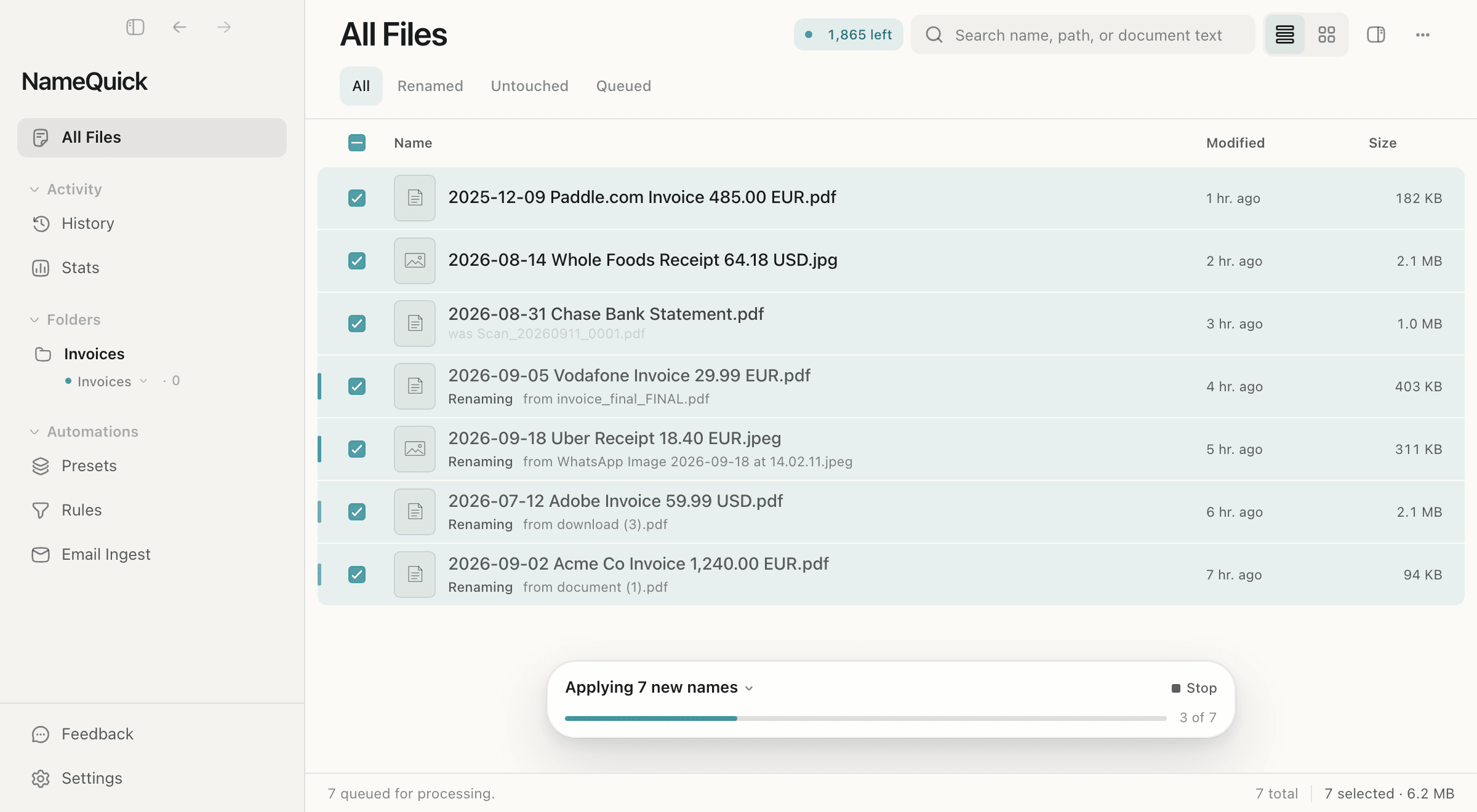
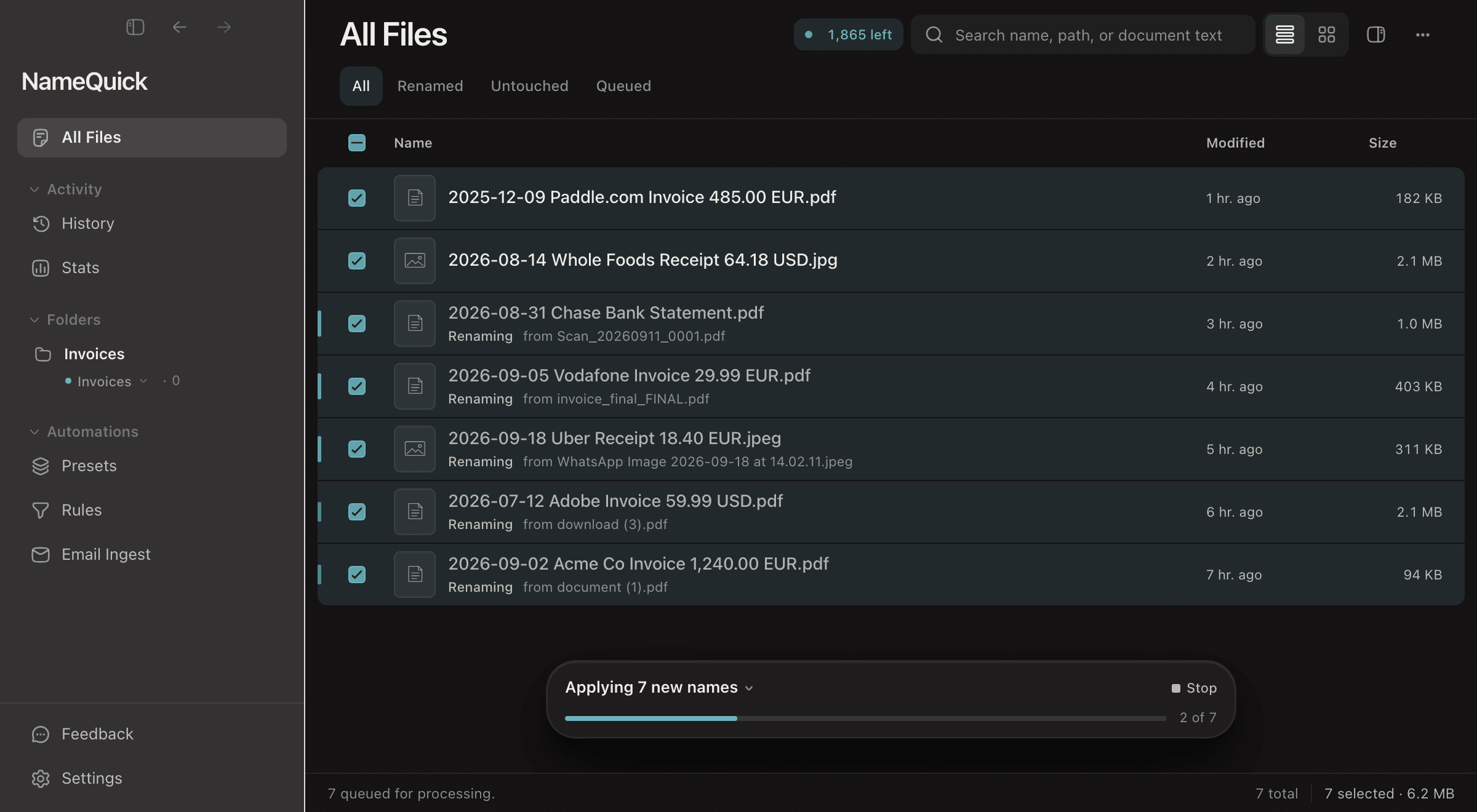
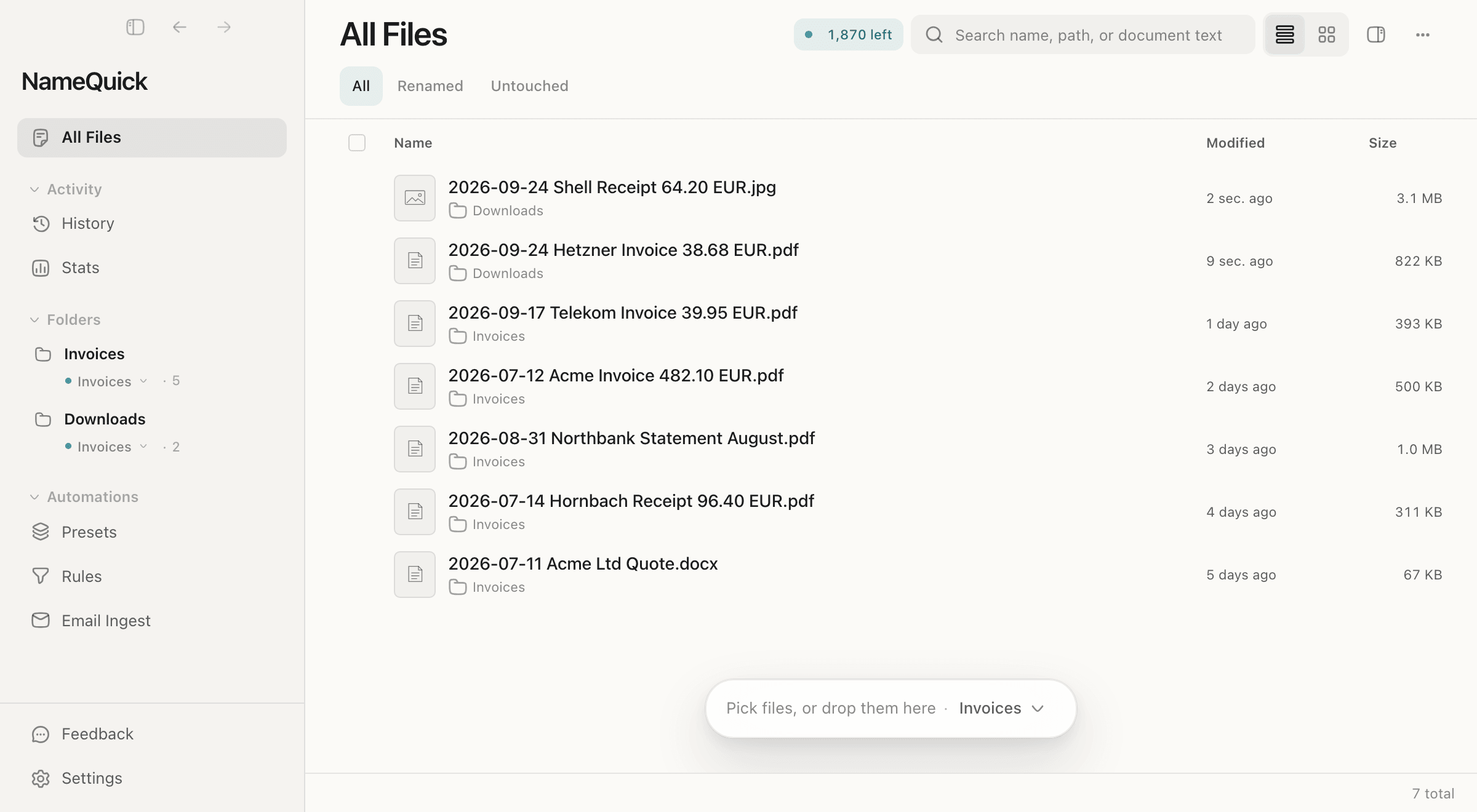
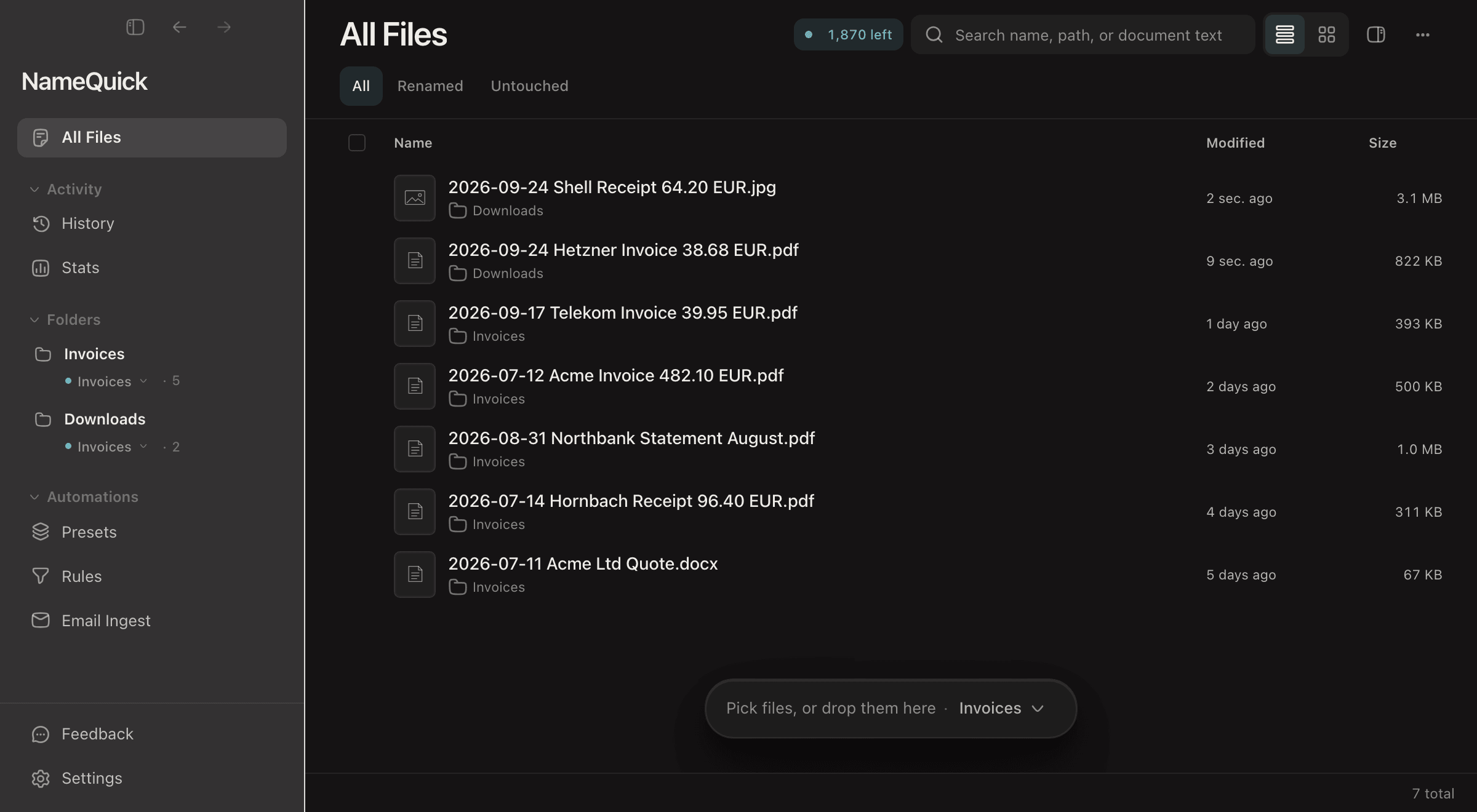
This walkthrough renames seven files in All Files with the Invoices Preset:
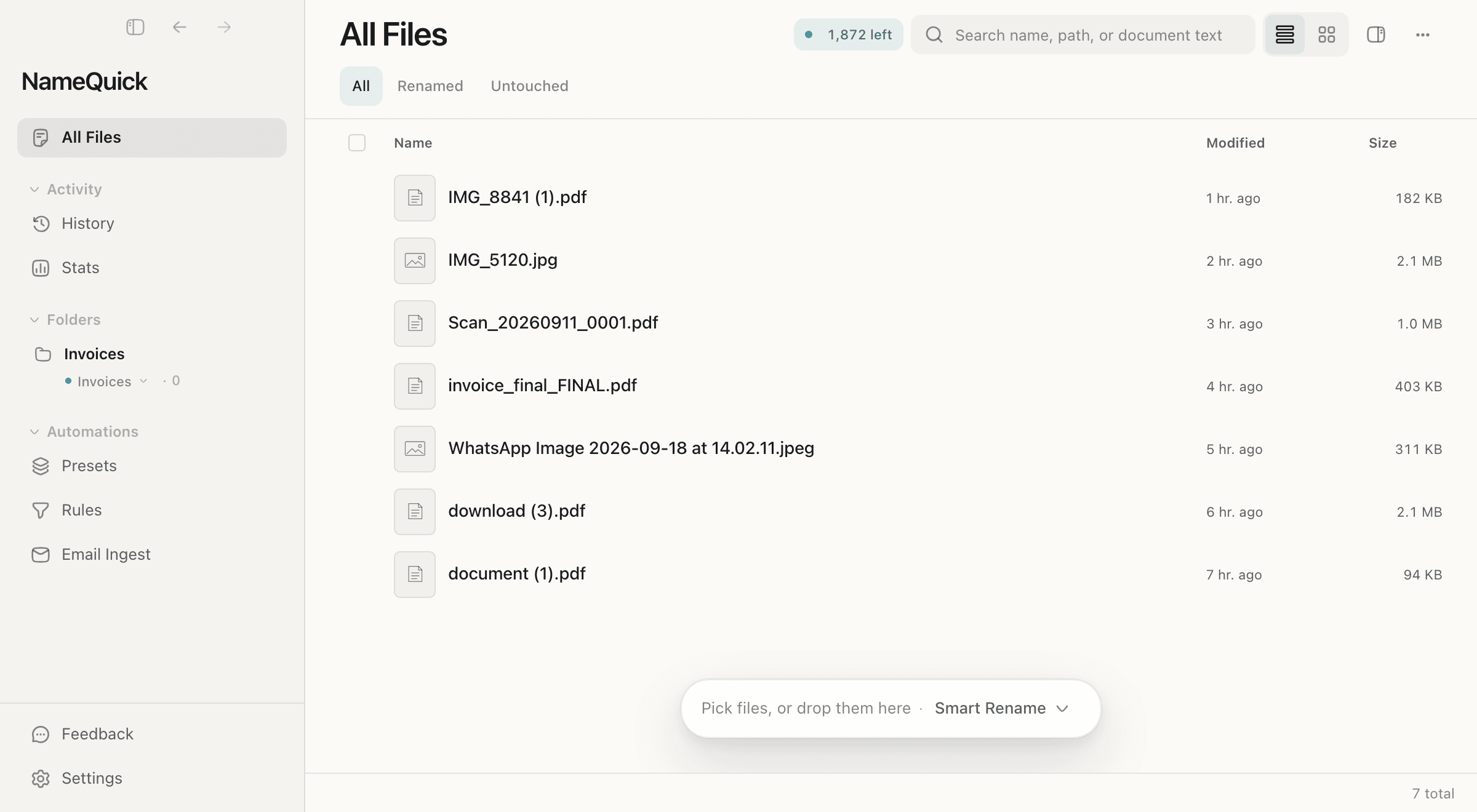
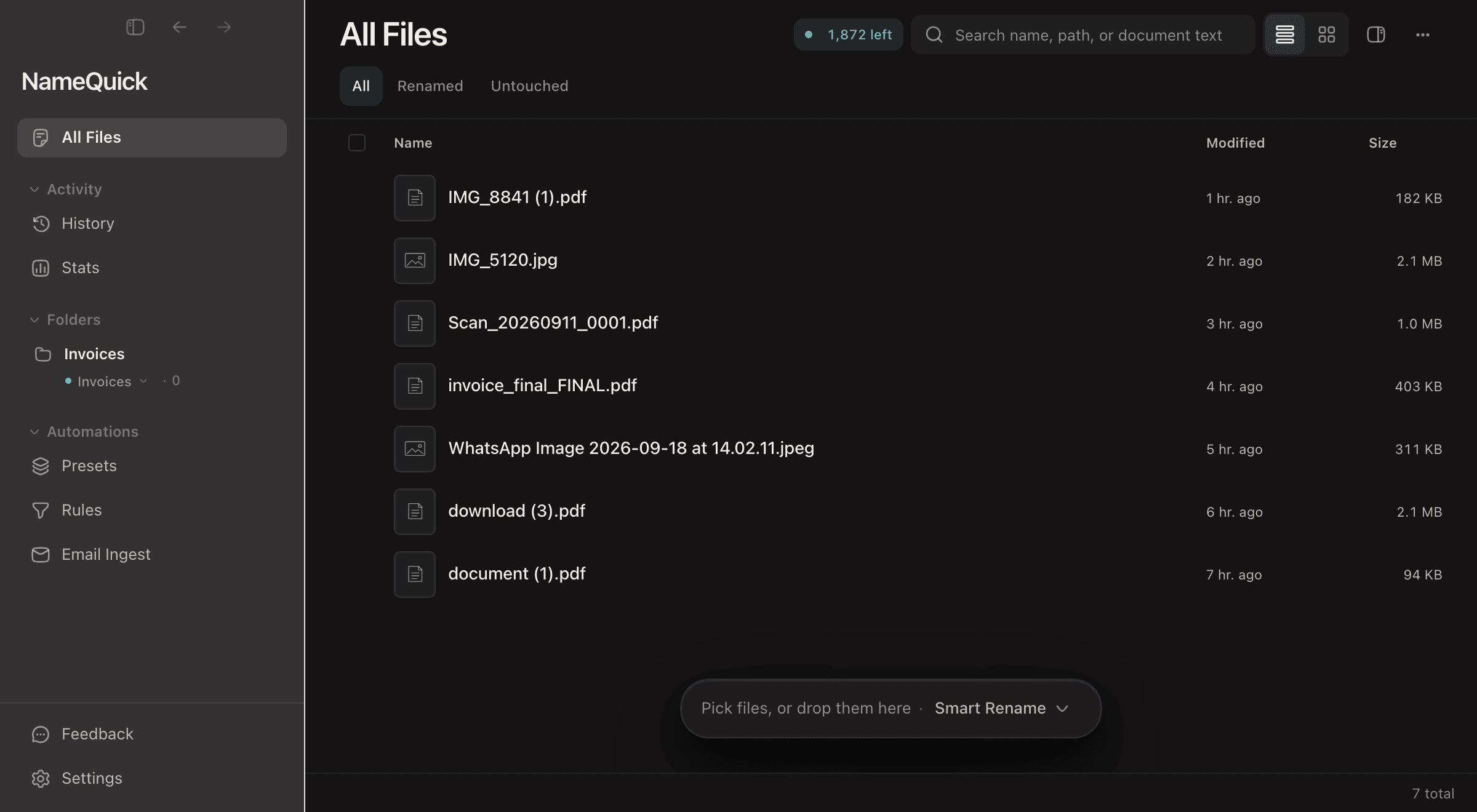
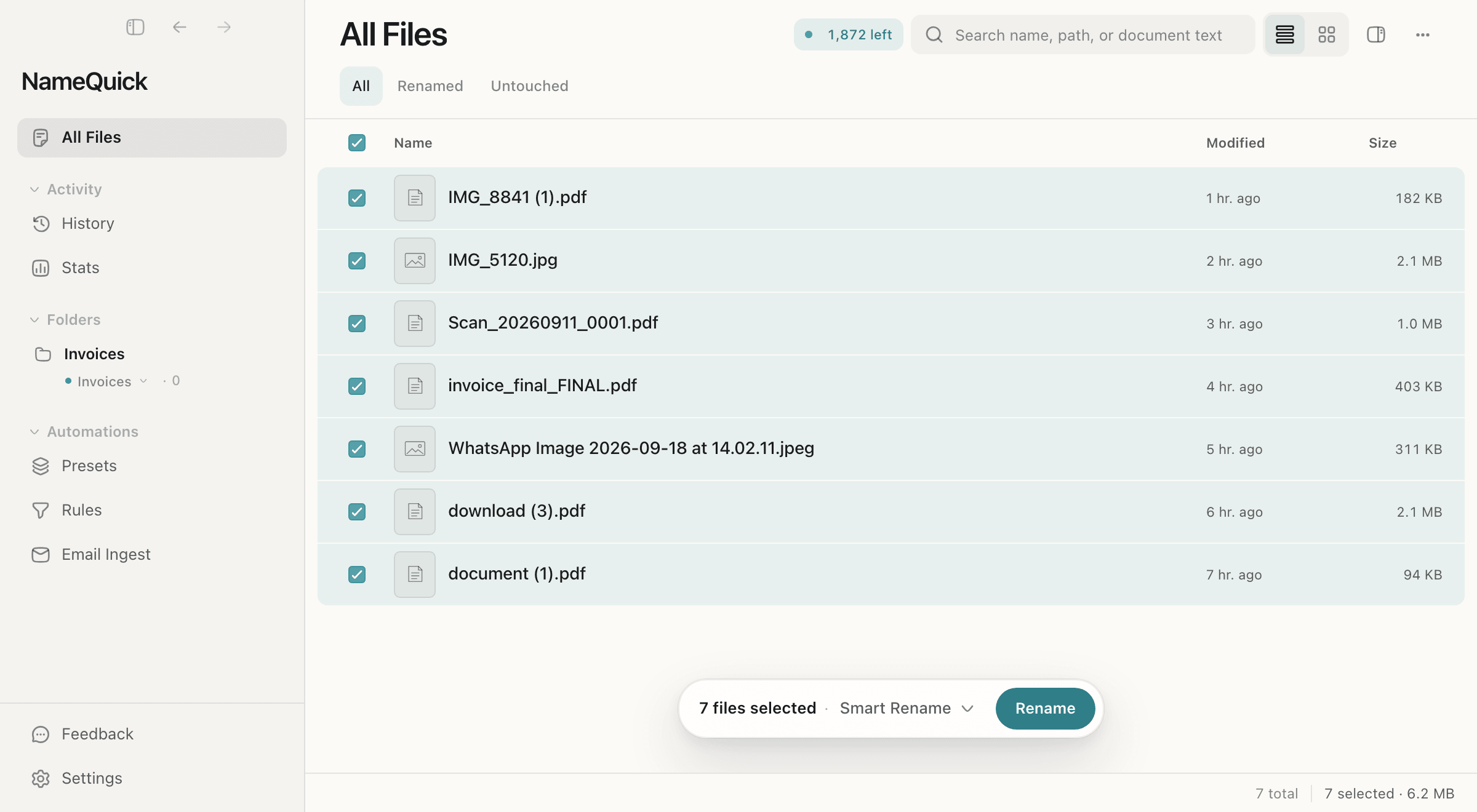
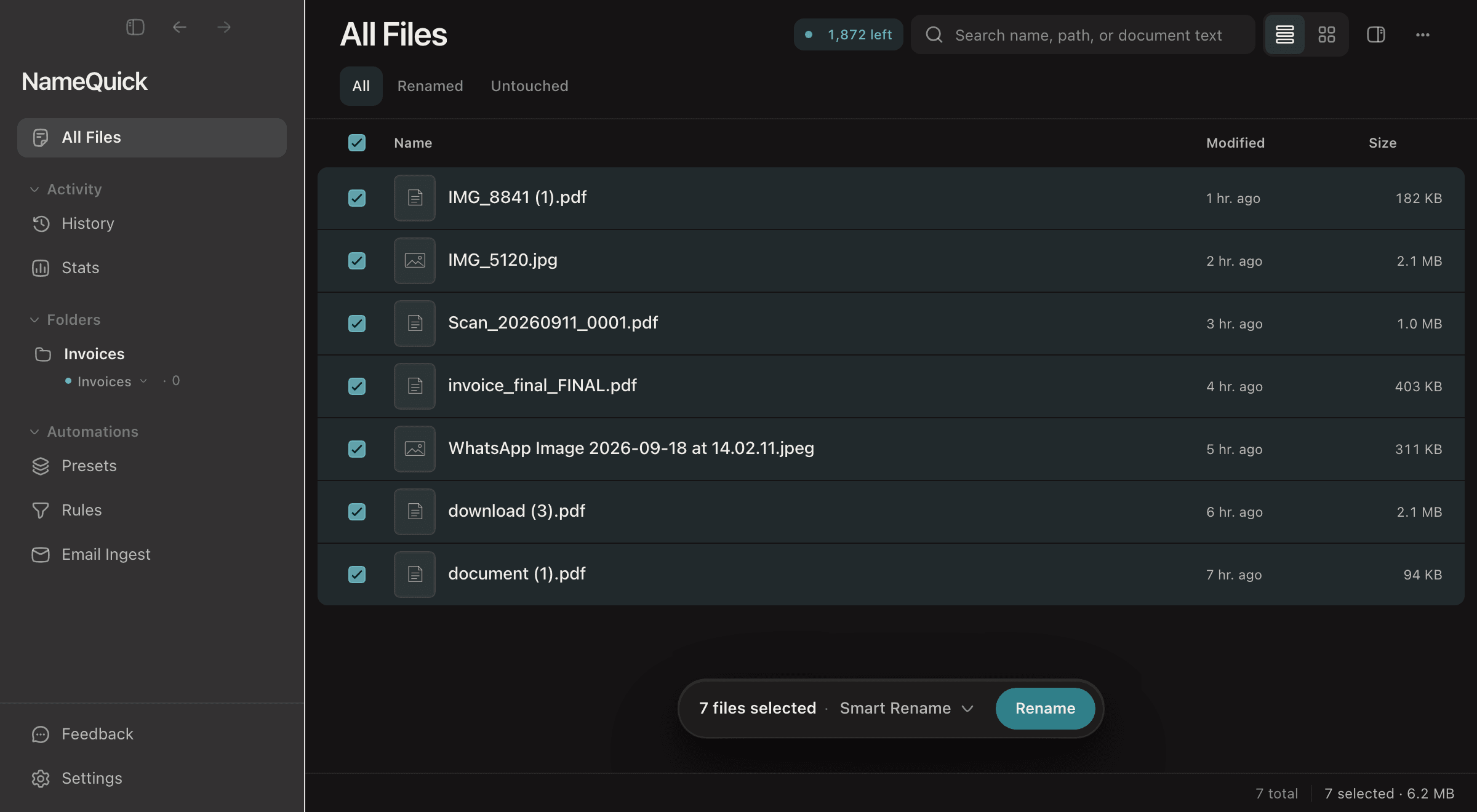
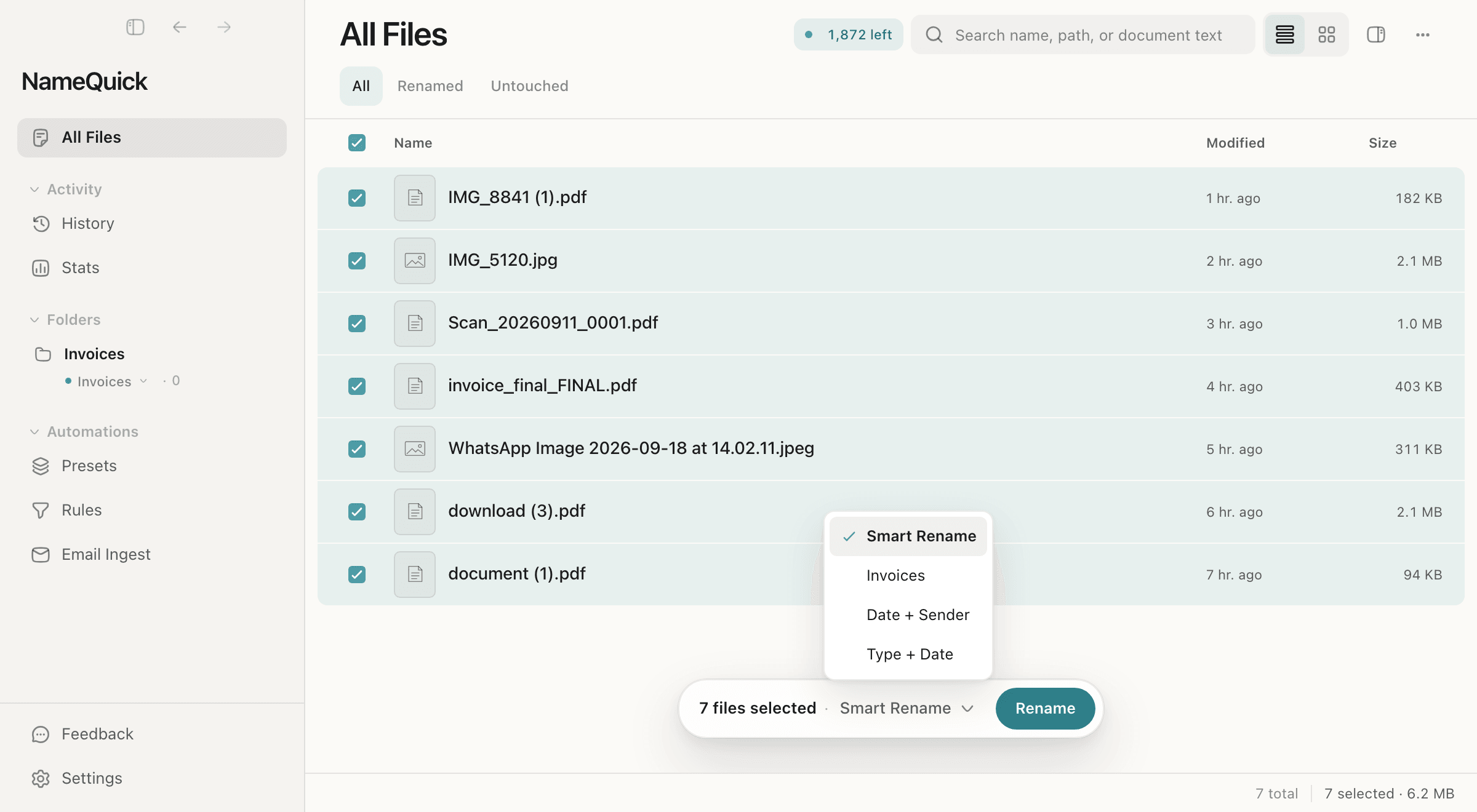
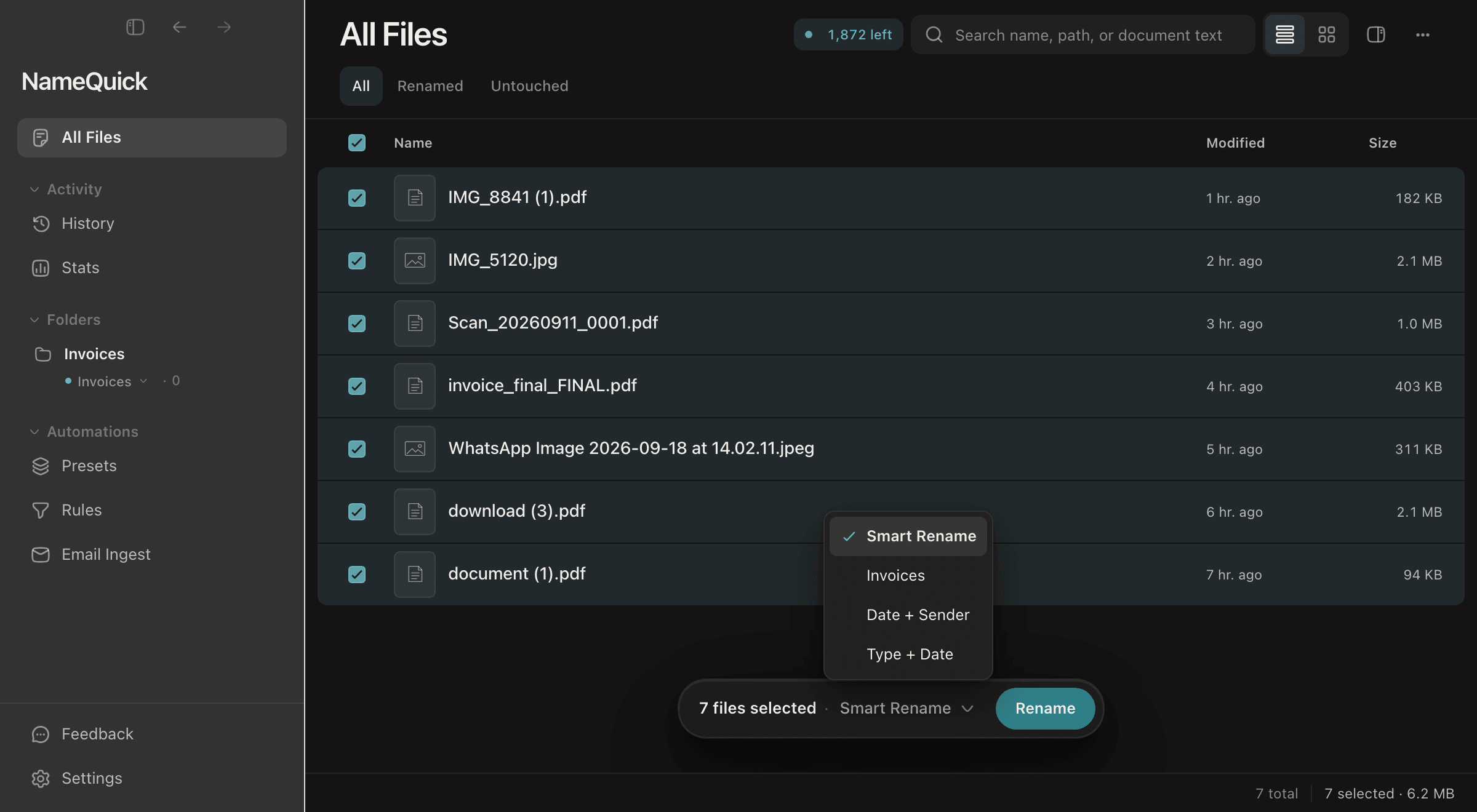
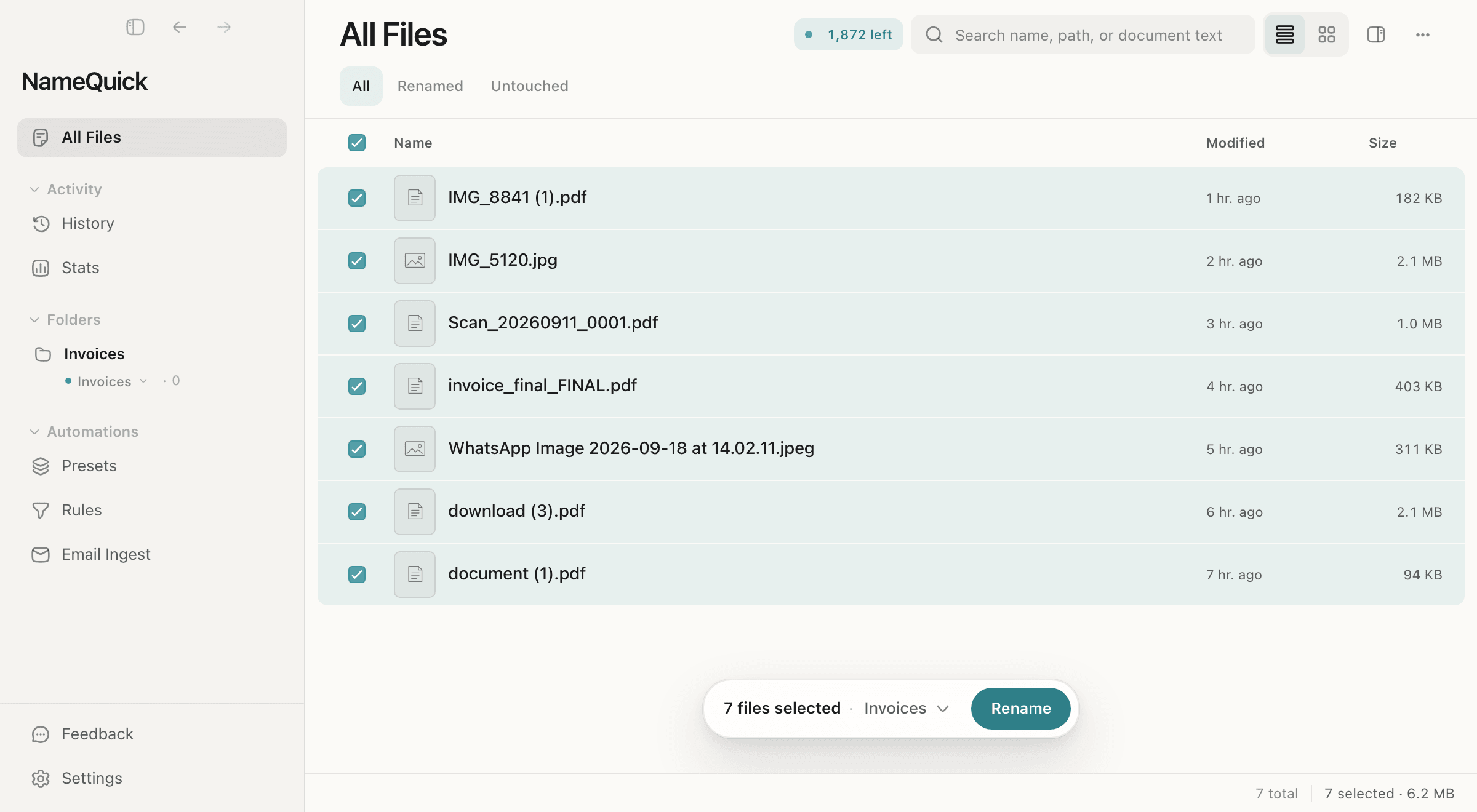
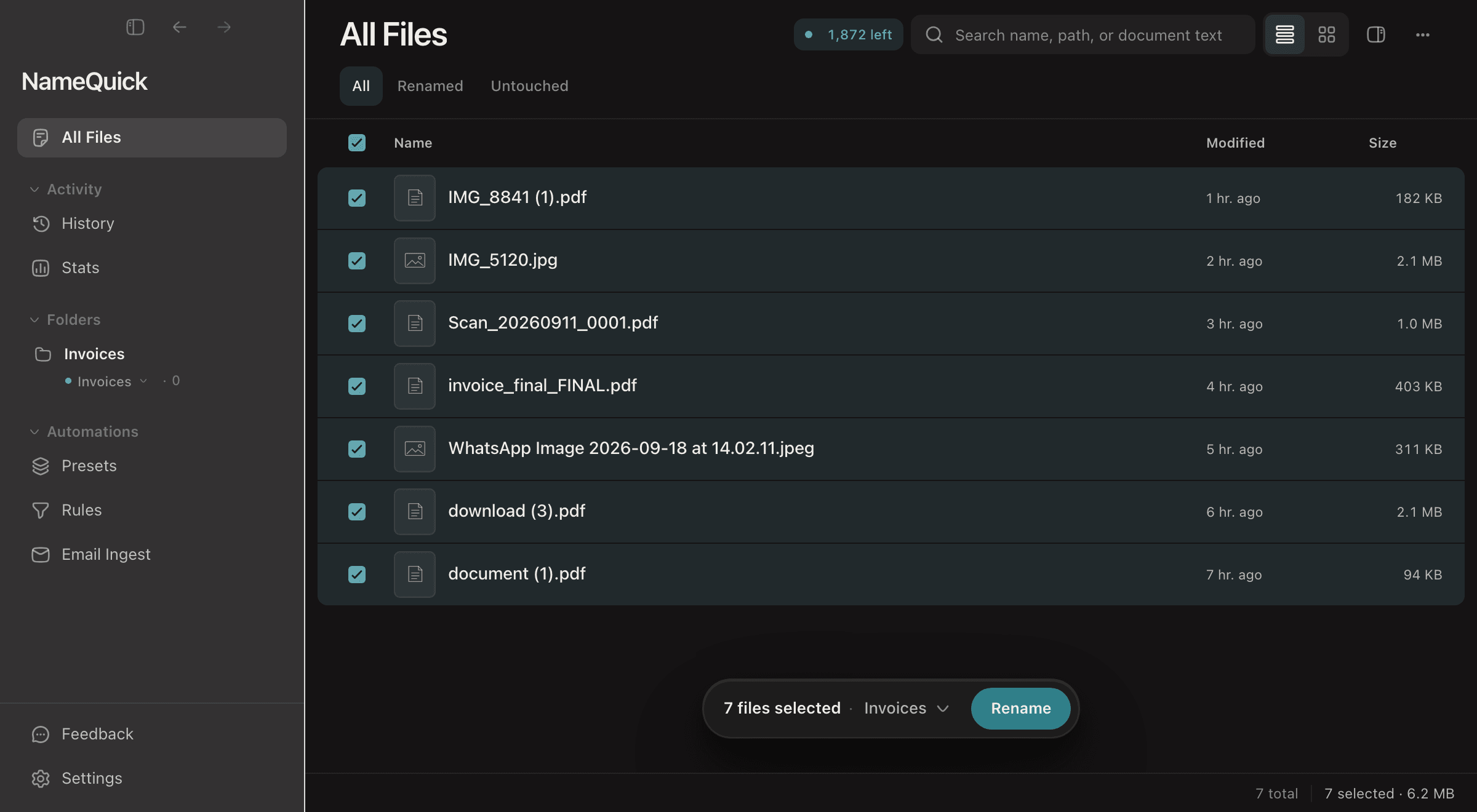
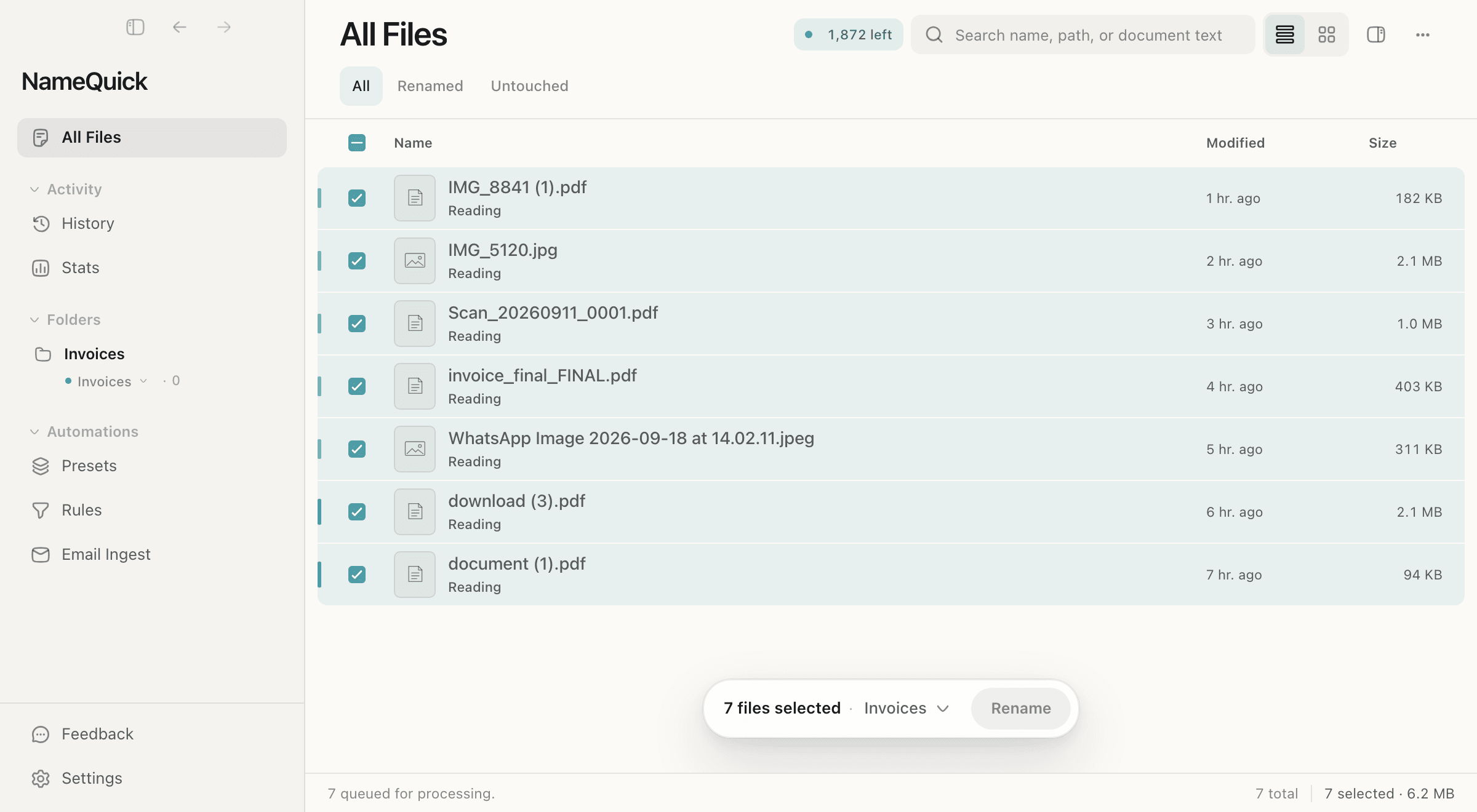
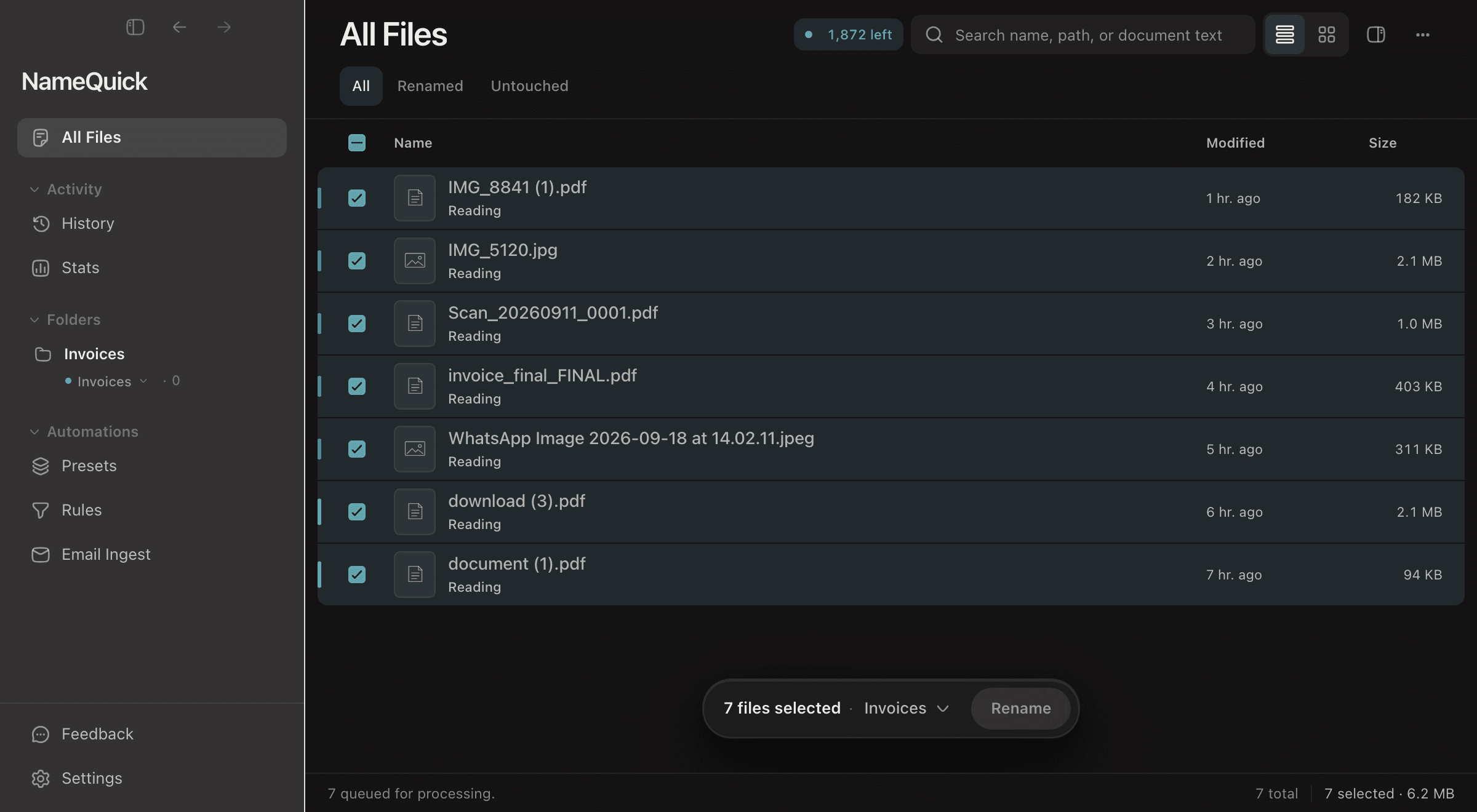
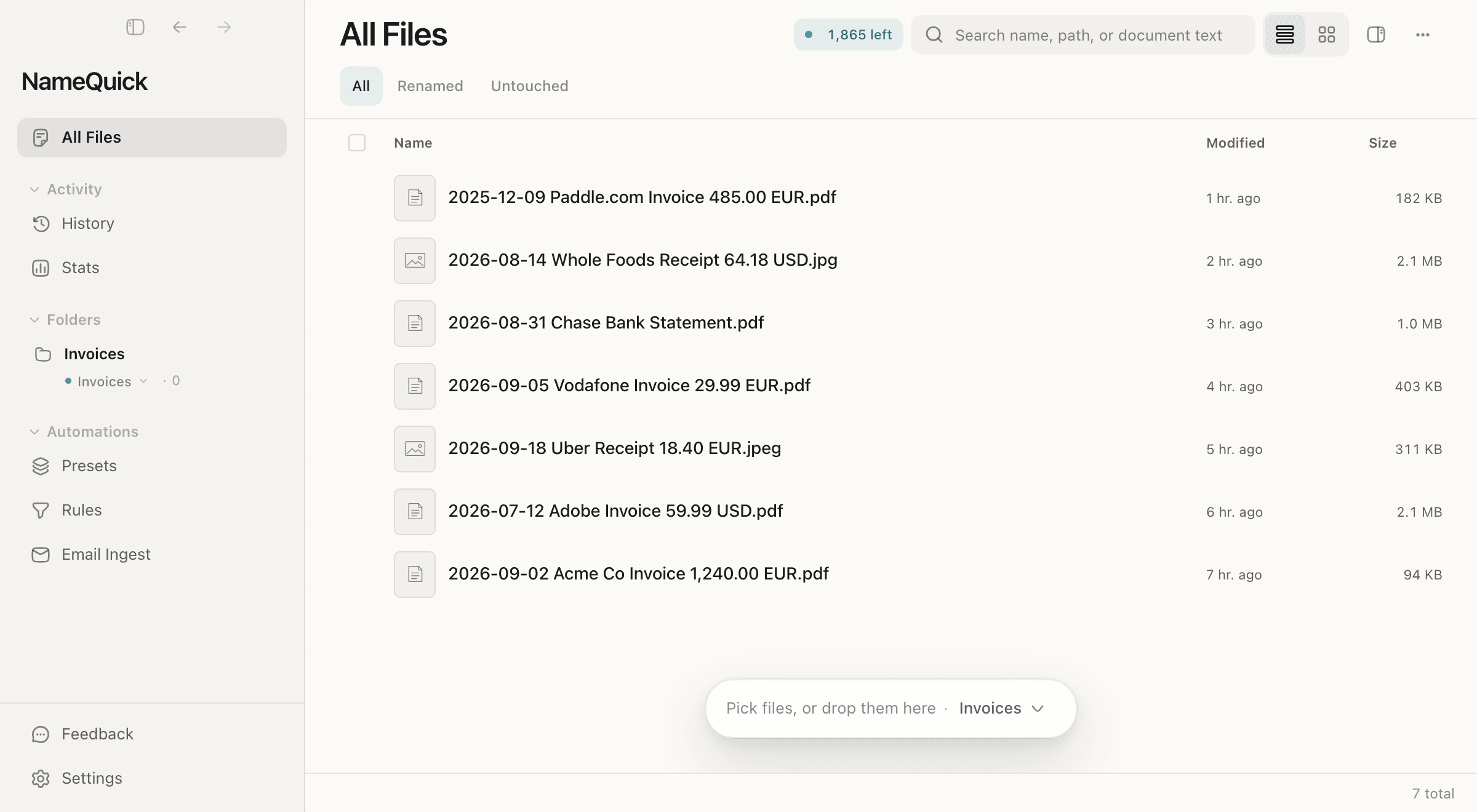
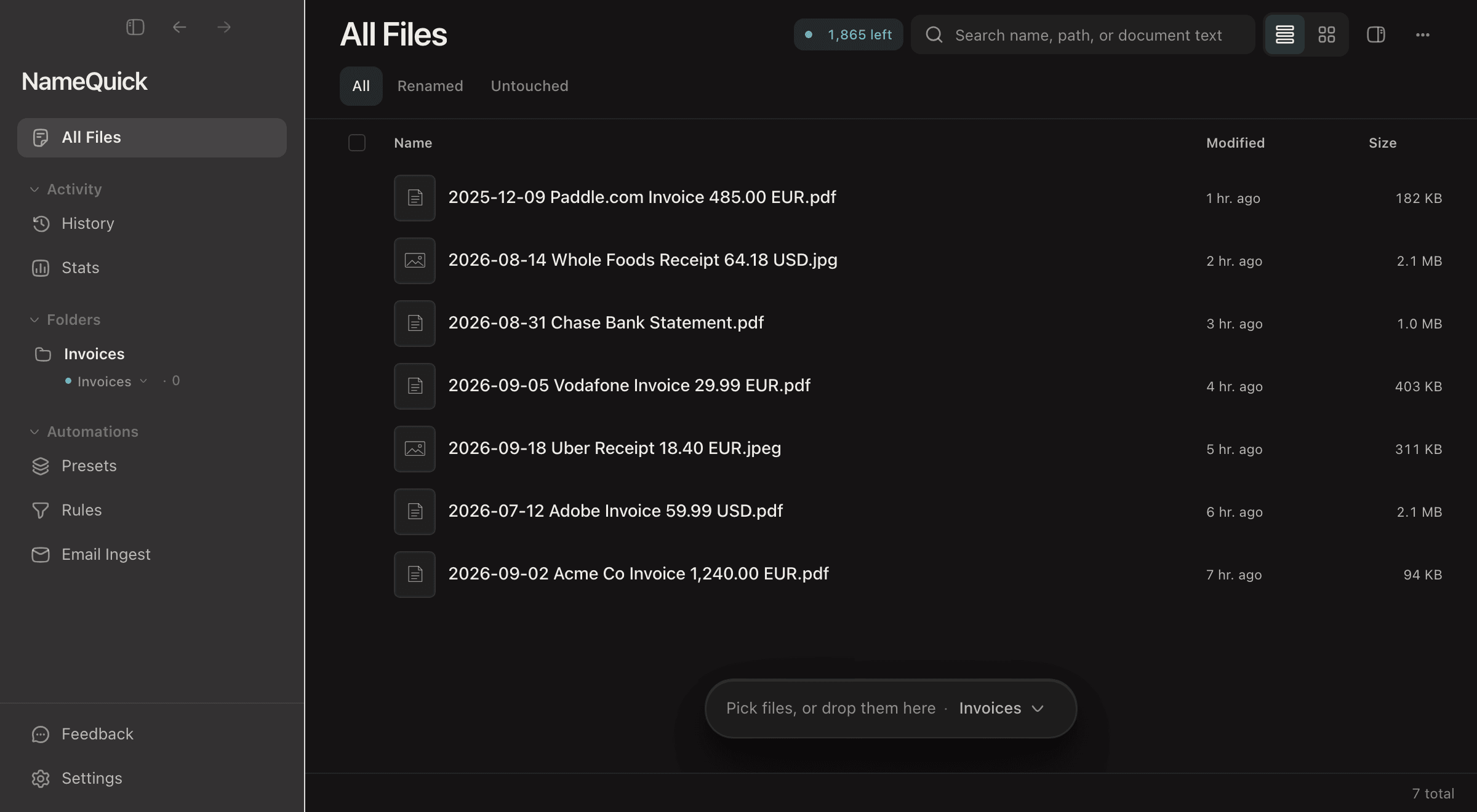
Select a few files in All Files
Choose the processing mode
Smart Rename or a Preset.
Click Rename
The bar at the bottom shows how many files you selected, such as 7 files selected.
NameQuick renames the files
In a new install, each name is applied as soon as it's ready. If you updated from an older version, the names may wait in All Files instead, under a filter such as 7 new names.
To check each name before it's applied, open SettingsRenaming and set Apply suggestions from files you add to Review first. The names then wait in All Files, under a filter such as 7 new names. Click the filter, then Apply all, or apply the names one by one.
Caution
If an applied name is wrong, open History and use Undo on that rename. Undo reverses the recorded rename where possible, but it can fail, for example when the file was moved or is open. See Undo & Rename History.
Automate with Watch Folders#
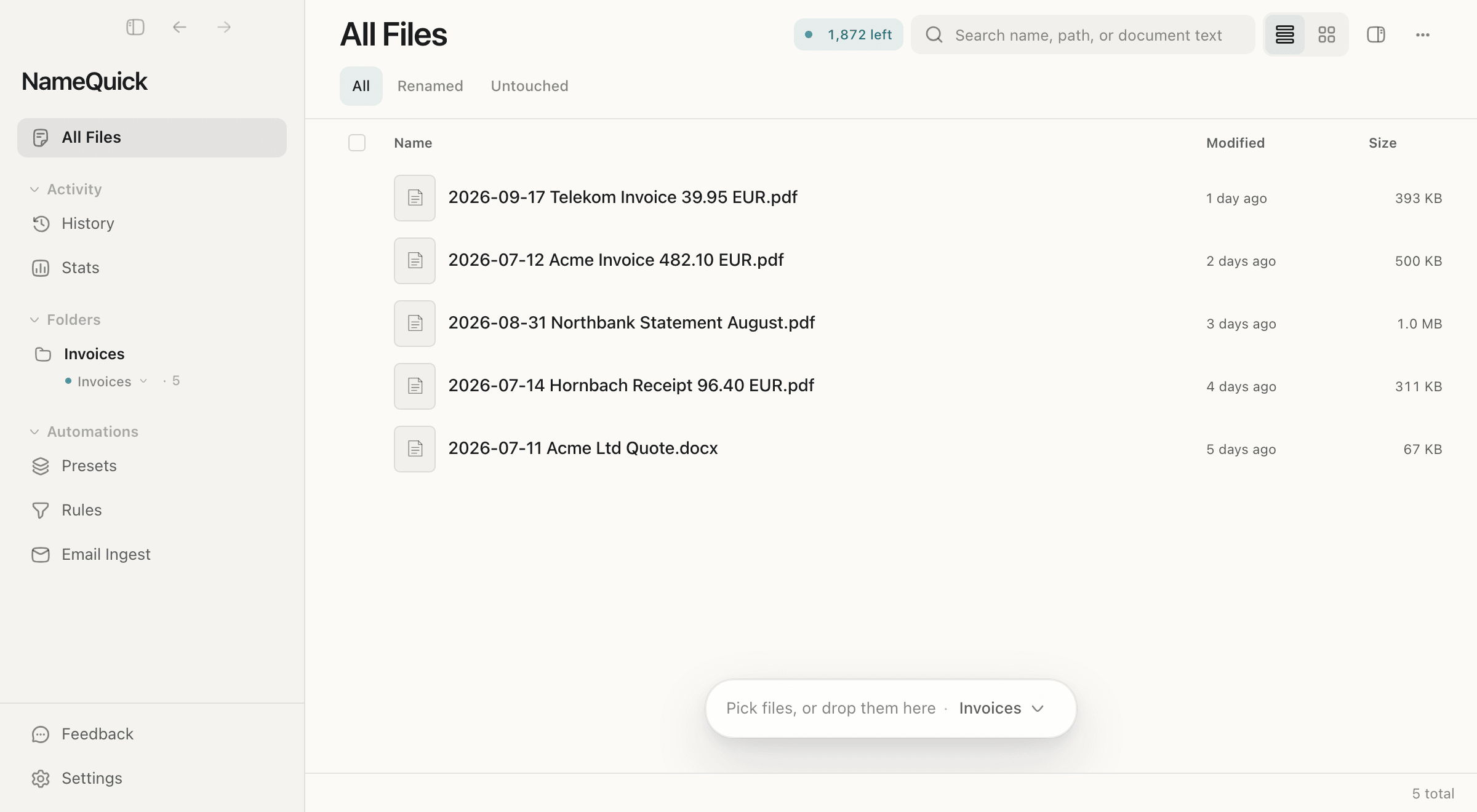
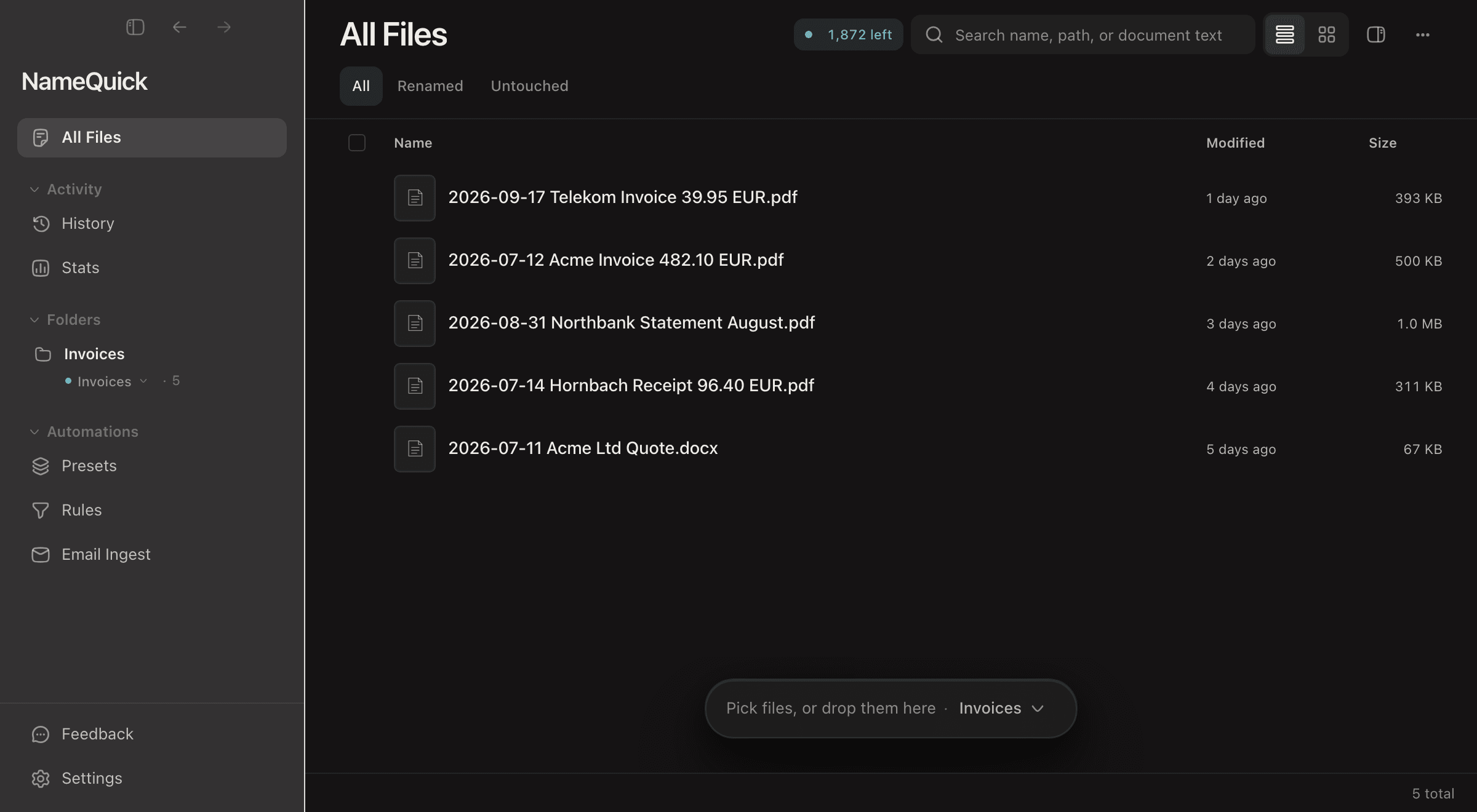
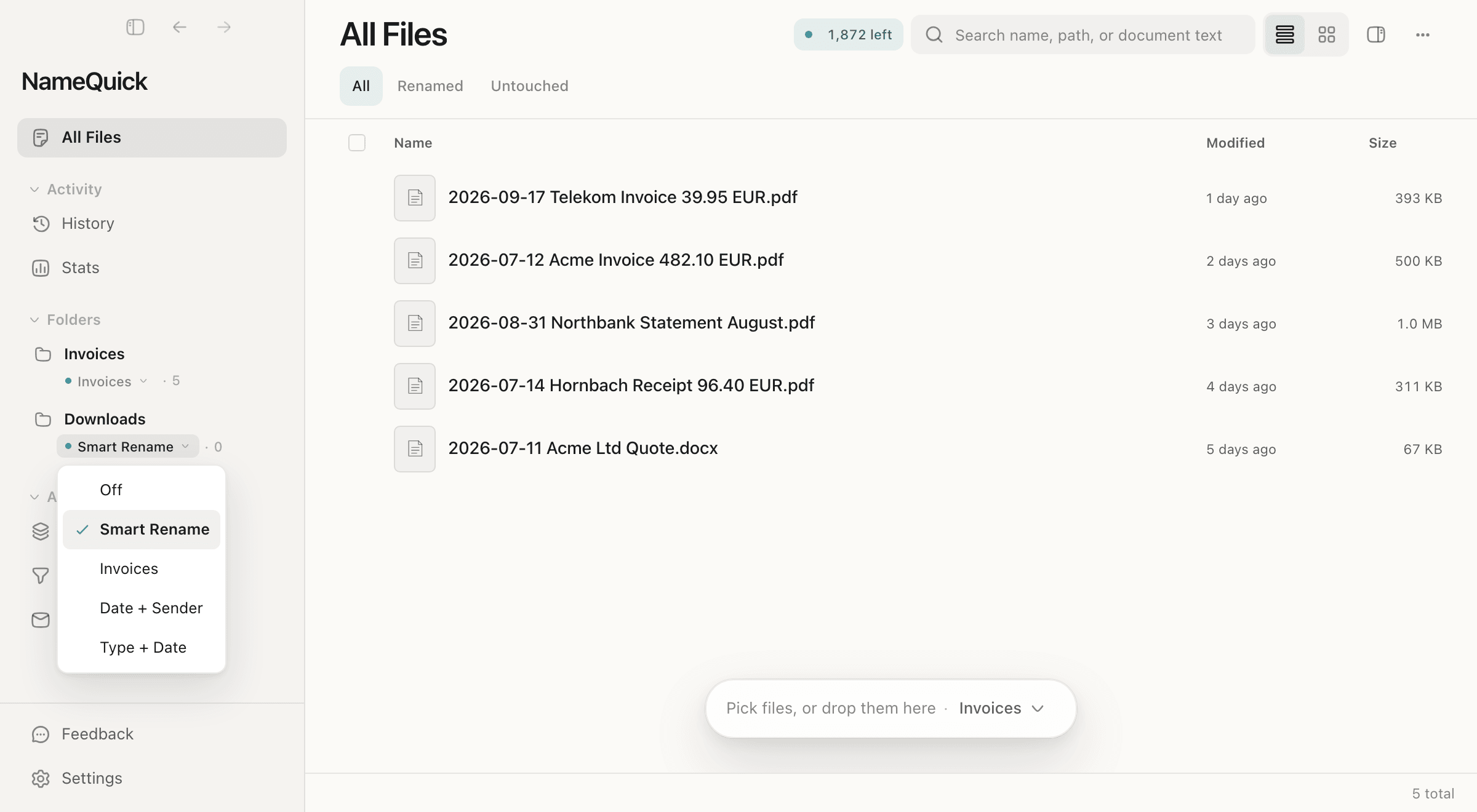
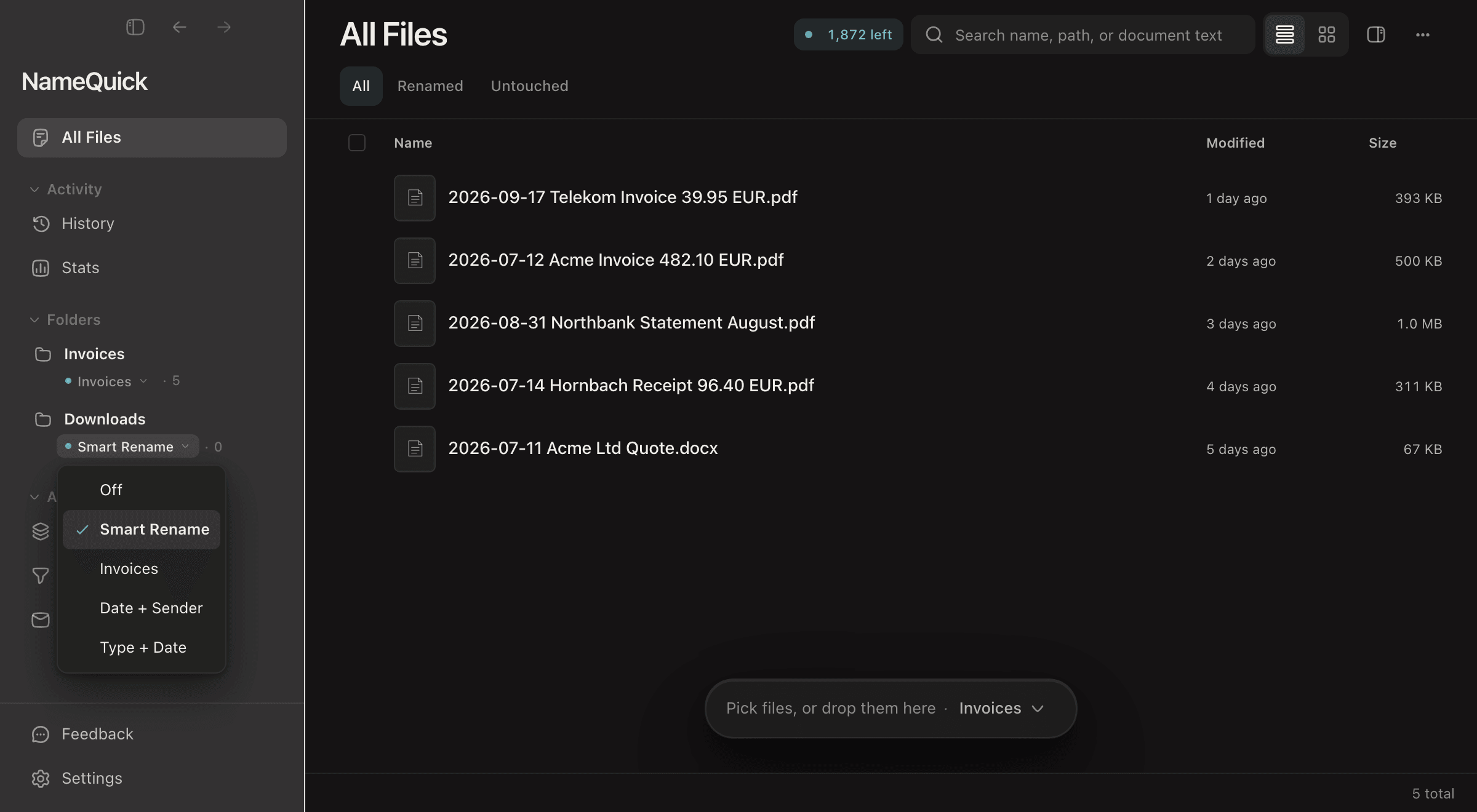
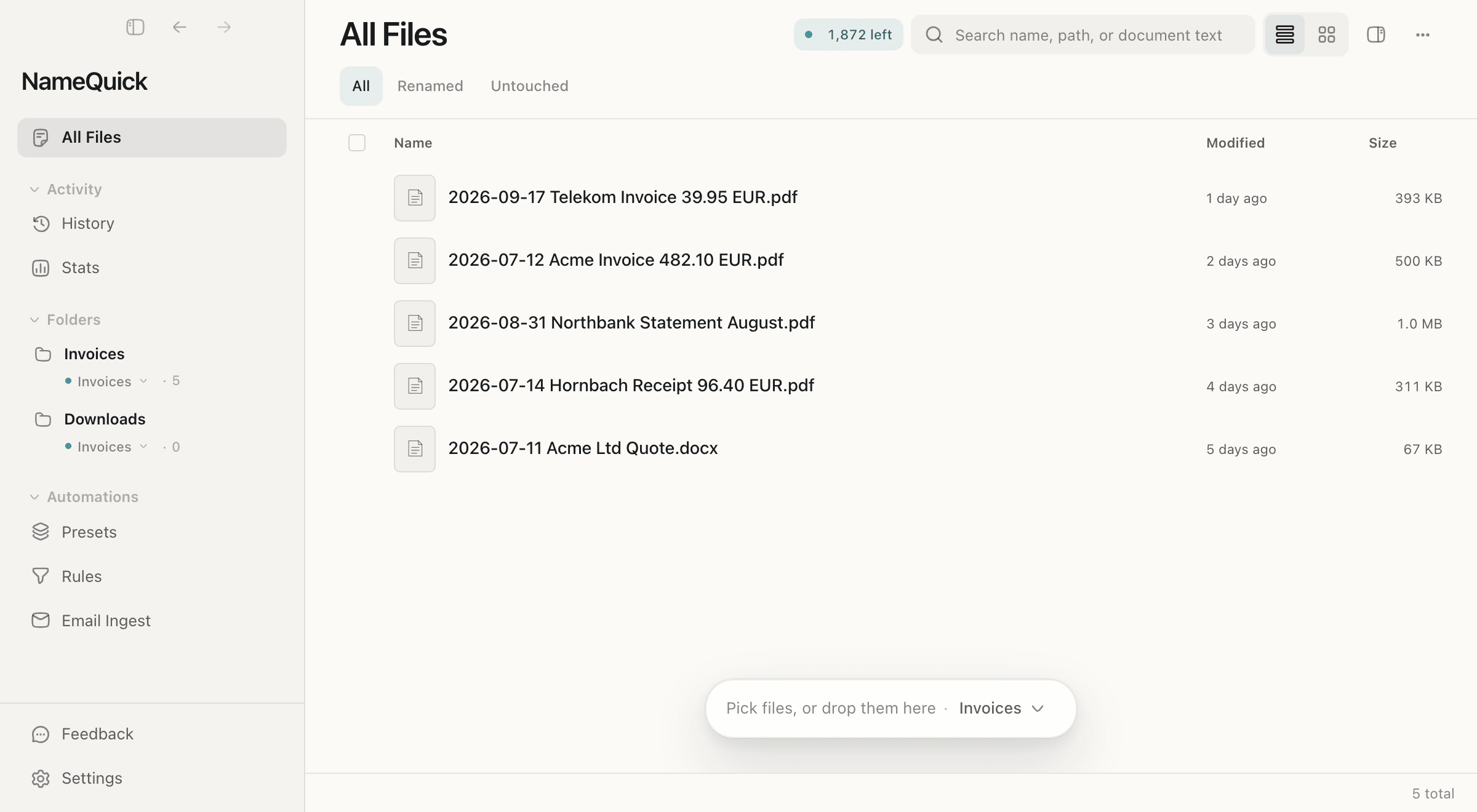
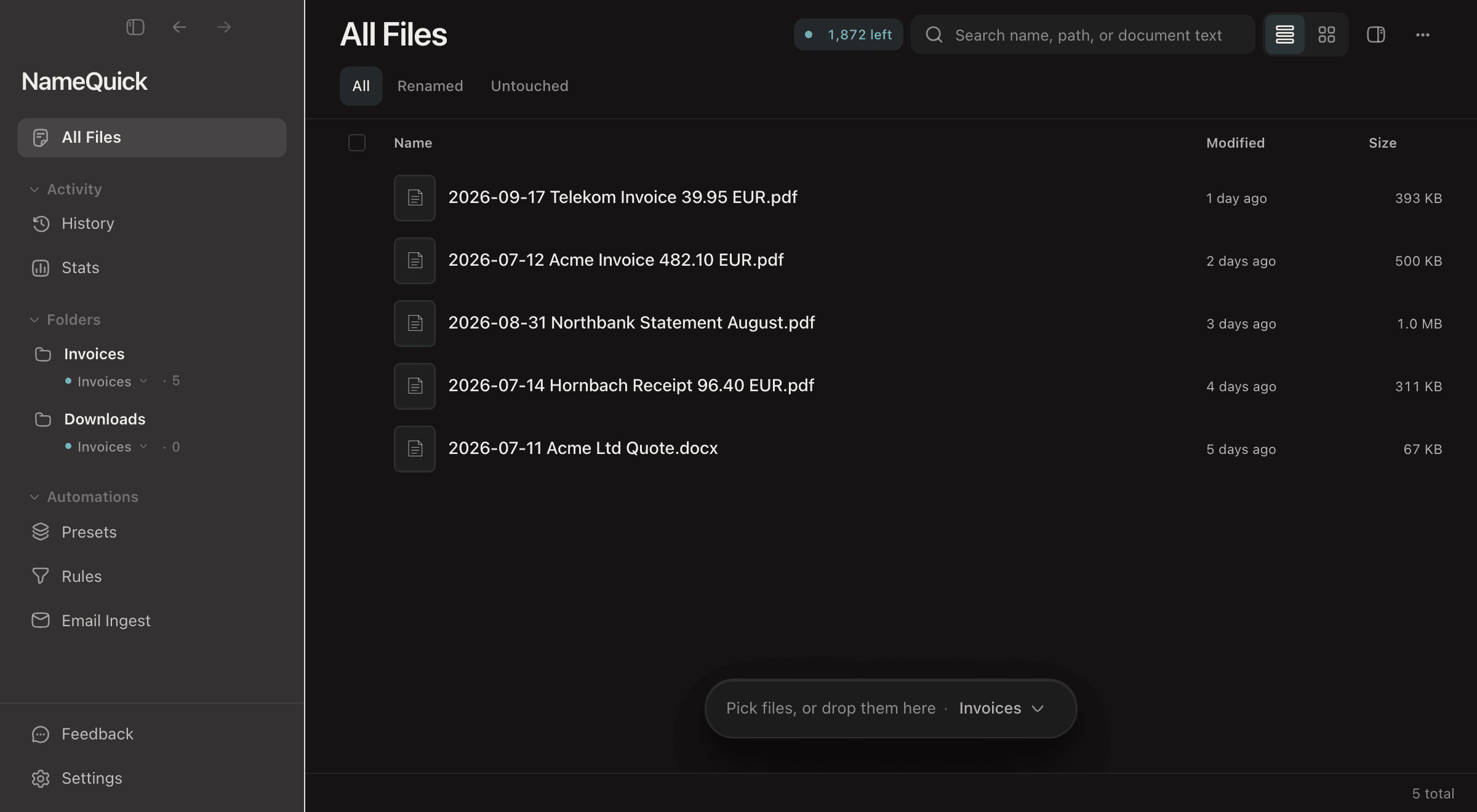
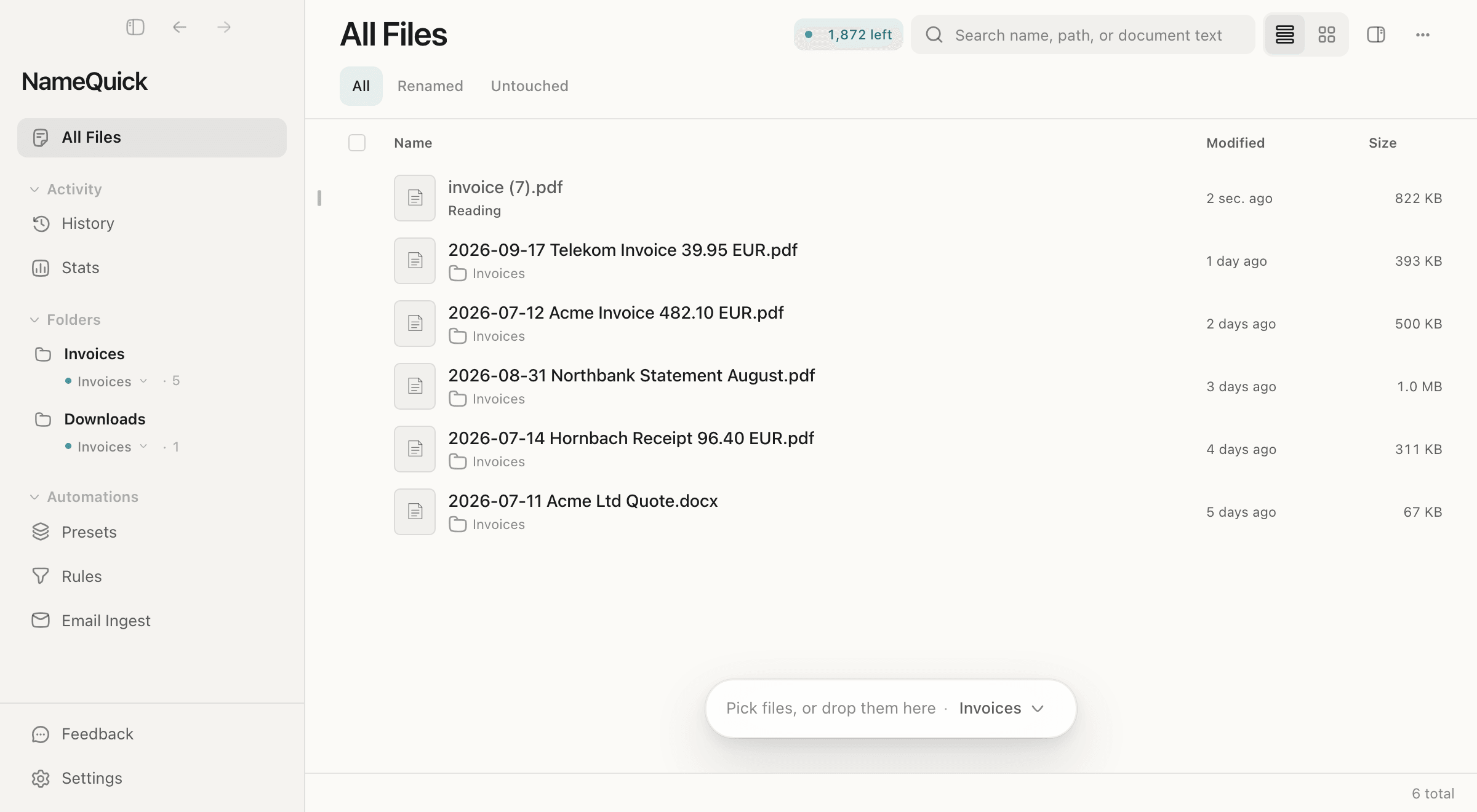
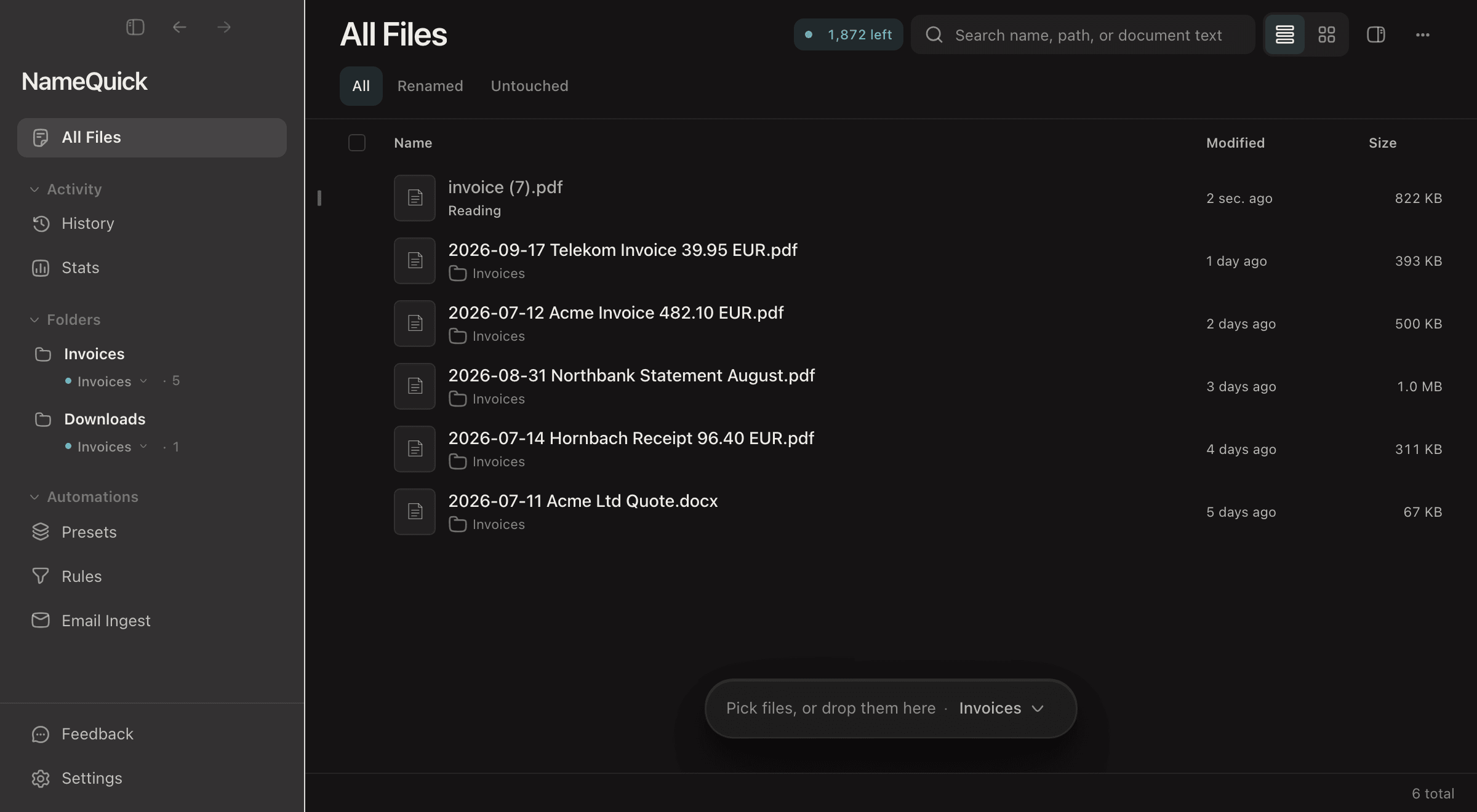
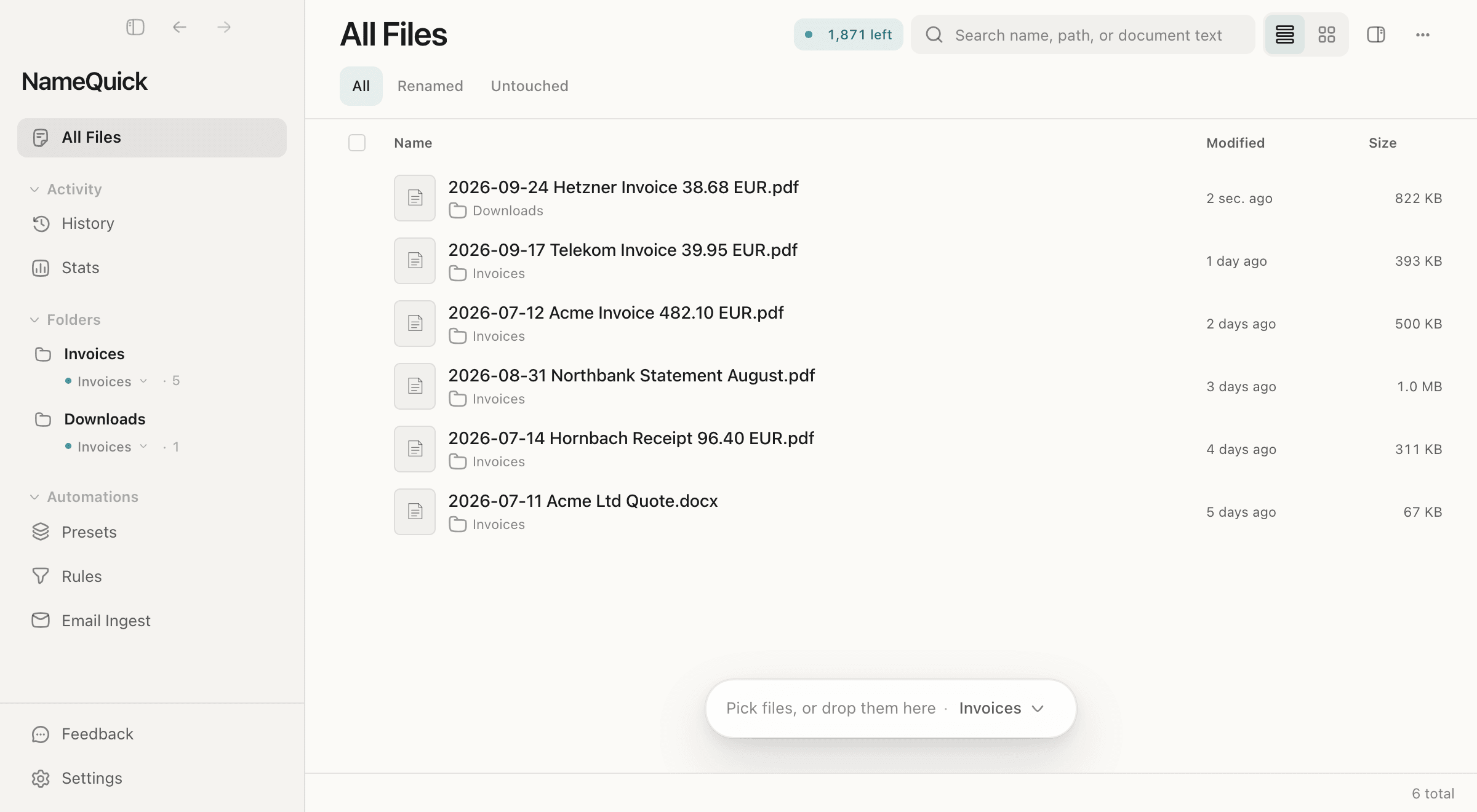
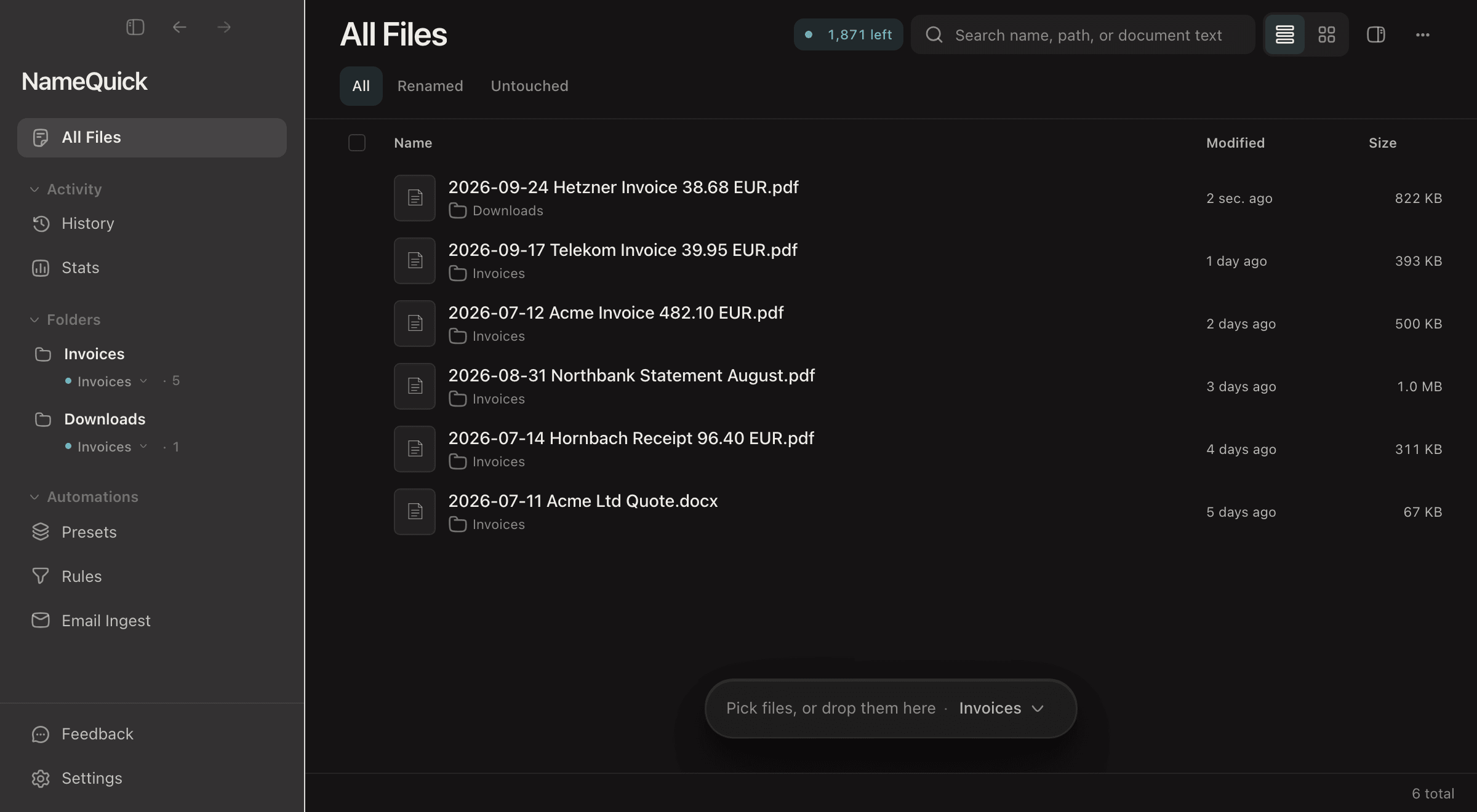
Every folder you add is watched: NameQuick renames new files in it as they arrive, with the processing mode set for files you add (Smart Rename unless you change it). To use a Preset for one folder, or to stop naming its new files, open SettingsFolders and pick a Preset or Off for that folder. To check names before they're applied, open SettingsRenaming and set Watched-folder approval to Review first. New files then wait in All Files, each marked New name. Once the names look right, set it back to Rename automatically. See Watch Folders and Rules.
This walkthrough adds Downloads, gives it the Invoices Preset, and shows two new files renamed as they arrive:
NameQuick has to keep running to watch folders. Closing the window keeps it running.
NameQuick has to keep running to watch folders. Closing the window quits the app, so minimize it instead.
To use your own AI, connect your own API key or run a local model. To see how NameQuick reads a file and builds its name, read How It Works.