
Rename Photos Based on Content: The Complete Guide for Mac
Want your photos named by what's actually in them? Choose your download
Learn More in the Docs
Name photos by what's in them
EXIF gives you the date. OCR reads the visible text. AI reads the scene. NameQuick combines all three into one filename — on your Mac.
If you want to rename photos based on content, you are solving a real file-management problem, not a cosmetic one. Camera dumps, screenshot folders, client deliverables, and travel archives all arrive with filenames like IMG_4827.JPG, DSC_0001.NEF, or Screenshot 2026-03-15 at 10.20.30 AM.png. Those names tell you almost nothing about what the image contains, where it was taken, or why it matters. If those images belong to a broader client handoff with PDFs, spreadsheets, decks, and videos, use the client project files workflow as the organizing layer.
The better approach is content-aware naming. That means using the information inside the image itself, such as EXIF metadata, visible text, and visual subject matter, to create filenames that are descriptive, searchable, and consistent. On macOS, that can be done manually, with metadata tools, with cataloguing software, or with AI-powered photo renaming software that combines all three.
What the search results tell us
As of March 2026, the search landscape for this topic is still fragmented. The current results lean toward tool pages and utility-driven solutions rather than a single comprehensive guide. You will find AI-first tools such as Renamer.ai and namethispic, metadata-first tools such as ExifTool, and established cataloguing products such as Lightroom and A Better Finder Rename. That gap matters because each tool solves only one slice of the problem.
That also explains why so many people still search for terms like "batch rename photos", "rename photos exif", and "auto rename photos" separately. The market has methods, but not many guides that connect metadata, OCR, AI vision, and Mac workflows into one practical system. If you already read our guides on AI file renaming, file naming conventions, or rename PDF files based on content, this is the photo-specific version of that same workflow.
Why generic photo names break your workflow
A good filename should answer four questions at a glance: when was this taken, where was it taken, what is in the image, and why do I care? Camera-generated names answer none of them. That becomes painful when you need to search a folder months later, upload images for SEO, hand off assets to a client, or separate work images from personal photos.
Here is what meaningful renaming looks like in practice:
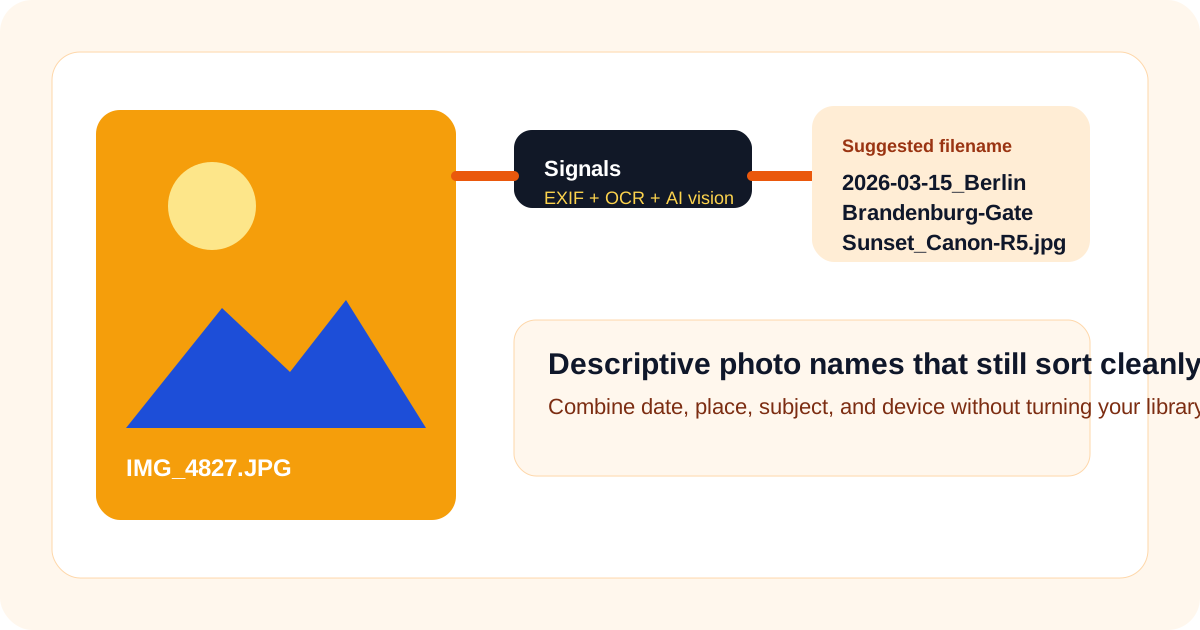
IMG_4827.JPG→2026-03-15_Berlin_Brandenburg-Gate_Sunset_Canon-R5.jpgDSC_0001.NEF→2026-01-20_NYC_Central-Park_Snow_Nikon-Z9.nefScreenshot 2026-03-15 at 10.20.30 AM.png→2026-03-15_Slack-Conversation_Project-Alpha.pngDCIM_0045.jpg→2026-02-14_Restaurant_Menu_Valentines-Dinner.jpgPhoto_2026-03-10_12-45-22.jpg→2026-03-10_Client-Meeting_Whiteboard-Notes.jpg
These names sort chronologically, surface context in Finder search, and stay useful outside your photo library. They also follow the same best practices used in robust file naming conventions: ISO dates, readable separators, and only the most relevant details.
The four main ways to rename images
1. Rename photos using EXIF metadata
EXIF is the traditional answer to "rename photos exif". It is the metadata written by cameras and phones into image files. Depending on the device and workflow, that can include date taken, GPS coordinates, camera model, lens, focal length, ISO, flash, and exposure details.
For metadata-based renaming, ExifTool remains the gold standard. Its filename and directory features let you rename or move image files using any metadata stored in the photo, with date formatting, dry-run testing, and collision handling. In other words, if your aim is to batch rename photos based on date taken, camera, or location, ExifTool is one of the most precise tools available.
The limitation is equally important. EXIF can tell you that a photo was taken on 2026-03-15 with a Canon R5 in Berlin, but it cannot tell you that the image shows Brandenburg Gate at sunset unless that information already exists in metadata. So EXIF solves structured facts, not semantic content.
2. Rename images based on text inside the photo
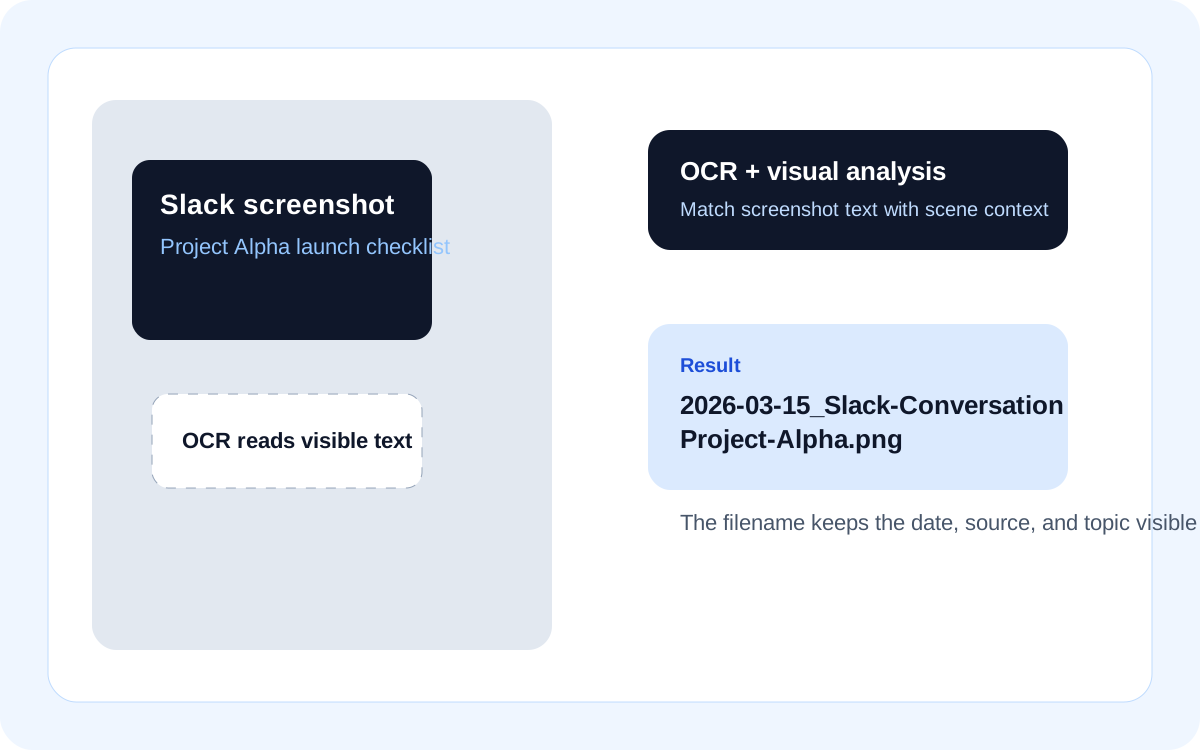
Some image files are really text documents in disguise. Think screenshots, whiteboards, restaurant menus, scanned receipts, conference slides, labels, and photographed notes. In those cases, OCR is the correct method. OCR reads visible text from the image, which means it can turn a generic screenshot into something like 2026-03-15_Slack-Conversation_Project-Alpha.png or 2026-02-14_Restaurant_Menu_Valentines-Dinner.jpg.
This is where Finder, Lightroom, and many traditional batch renamers fall short. They can rename strings or use metadata templates, but they do not analyse text in the image itself. DIY users often reach for Tesseract and shell scripts here. That works, but it adds technical overhead and gives you another pipeline to maintain.
3. Auto rename photos with AI visual analysis
AI vision is the new frontier. Instead of relying only on metadata or text, a vision-language model analyses what is actually in the frame: landmarks, objects, scenes, activities, food, pets, or products. Renamer.ai positions itself around this idea, describing a photo renamer that "looks at" the image rather than only adding dates or sequences. NameQuick takes the same content-first approach, pairing that visual analysis with EXIF so a single filename can carry both the recognized subject and the date the shot was taken.
This is the approach that makes filenames genuinely descriptive. It can turn IMG_5847.jpg into 2024-06-15_Paris_Eiffel-Tower.jpg or DSC_0923.jpg into 2024-03-22_Cat_Sleeping_Window.jpg when the software combines visual recognition with metadata. That is far closer to how humans remember photos.
The weakness is that AI vision still needs guardrails. If you let a model invent poetic descriptions, filenames drift into inconsistency. That is why the best photo renaming software combines AI extraction with templates and review.
4. Use built-in or catalogue tools on Mac
macOS Finder can batch rename files, but only in a string-based way. Apple's documentation shows three options for multiple items: replace text, add text, or change the name format with an index, counter, or date. That is useful for cleanup, but it does not read EXIF, OCR, or image content.
Lightroom is stronger for photographer-led workflows. It supports rename templates with variables including date, metadata, and custom text. A Better Finder Rename also goes deep into photo metadata, including shooting date, camera and lens metadata, and RAW support. Hazel can automate renaming and organisation on watched folders based on rules, but it is still rule-driven rather than image-understanding by default.
So the practical comparison is simple. Finder is quick but shallow. Lightroom and A Better Finder Rename are strong for structured metadata workflows. Hazel is excellent for Mac automation. ExifTool is unmatched for metadata precision. AI tools are strongest when you need filenames based on actual visual content.
Where NameQuick fits
NameQuick is built for the exact gap between those methods. It is a macOS-only app that uses OCR and AI to generate meaningful names from actual file content, and its image workflow combines visual analysis with metadata rather than treating them as separate systems. It can extract date and location from metadata when available, then add a descriptive subject from AI analysis.
For photo workflows, that matters because you rarely want only one signal. A travel photo often needs date, location, and subject. A screenshot needs date plus OCR. A client whiteboard photo needs date plus meeting context. NameQuick supports both structured filename formats such as {date}_{location}_{subject} and freeform written instructions, so you can standardise naming without losing flexibility.
It also goes beyond renaming. NameQuick's rules and watch folders let you monitor folders such as Downloads or Screenshots, rename new files automatically, then move them, tag them, comment them, or apply Finder colour labels based on conditions. The rules system supports EXIF-aware conditions and two execution phases, which makes it possible to filter before AI runs and organise after content extraction.
Safety is part of the value proposition too. NameQuick previews proposed names before applying them, supports undo, validates output, and offers Self-Managed (bring your own key, BYOK) with providers such as OpenAI, Claude, Gemini, and local Ollama or LM Studio models. Files remain on your Mac and content goes only to your chosen provider, or stays fully local when you use a local model. Learn more about how it works.

Try this on your own camera roll
NameQuick reads each photo — date, any visible text, and the actual subject — and turns IMG_4827.JPG into a name you can search. Self-Managed gives you 50 no-card renames in the app.
Best practices for content-based photo renaming
Use one naming pattern across a whole library. The strongest default is:
YYYY-MM-DD_location_description_camera
That produces filenames that sort correctly and stay readable. ISO 8601 dates are especially important because they avoid regional ambiguity and sort properly in Finder.
Do not try to stuff every possible field into the filename. Date, location, subject, and one optional device field are usually enough. Aperture, ISO, and lens can stay in EXIF unless they are central to your workflow.
Prefer underscores or hyphens over spaces and avoid unsafe characters. Apple warns against changing extensions and restricts some filename characters.
Keep RAW and export versions aligned. If you rename DSC_0001.NEF, rename the corresponding JPEG, XMP, or sidecar files in the same pass. Tools such as A Better Finder Rename are particularly useful here because they understand media relationships and tag-based renaming.
Always preview before applying a batch job. This matters most with AI-generated names, where one bad prompt can create a hundred almost-right filenames.
How to batch rename photos on Mac with NameQuick
-
Create a naming preset for your photo workflow. A good starting filename format is
{date}_{location}_{subject}_{camera}for camera images and{date}_{subject}for screenshots. -
Test the preset on a small mixed sample: a camera photo, a screenshot, a menu image, and a whiteboard shot. NameQuick's preset editor supports preview testing before real renames, which helps you refine output without committing.
-
Add text cleanup rules so multi-word values use hyphens consistently. For example, convert "Brandenburg Gate" to
Brandenburg-Gateand keep date formatting inYYYY-MM-DD. -
Set up watch folders for places where new images land, such as Downloads, Desktop/Screenshots, or an import folder from your SD card.
-
Add organisation rules after rename. For example, move camera photos into
Photos/{year}/{month}/, apply a green Finder label to screenshots, or tag whiteboard photos with "meeting-notes". -
Review the preview, apply the batch rename, and use undo if a result is off. That makes it viable to batch rename photos in the hundreds without turning your archive into a mess.
Once the structure works, let the workflow run automatically. New screenshots, client uploads, and travel photos can then be renamed the moment they arrive.
Practical use cases
Travel photography. Combine date taken, GPS-derived location, and landmark recognition. That turns a folder of IMG_*.JPG files into a searchable travel archive.
Client and creative work. Use OCR plus AI vision. A photographed whiteboard becomes 2026-03-10_Client-Meeting_Whiteboard-Notes.jpg, and a screenshot becomes 2026-03-15_Slack-Conversation_Project-Alpha.png.
SEO and asset preparation. Content-based renaming creates descriptive image filenames before upload. That is particularly useful when product photos, blog images, or content library assets need human-readable names instead of camera IDs.
Photography studios and wedding shoots. Process thousands of images from a single event. Combine date, venue, and sequence number to create an organised handoff for the client.
FAQ
How to rename photos based on date taken?
Use EXIF metadata. The simplest metadata-first tools are ExifTool, Lightroom, and A Better Finder Rename. ExifTool is the most flexible because it can rename files directly from metadata tags and format dates precisely. If all you need is YYYY-MM-DD_camera_sequence, EXIF is often enough.
Can AI rename photos?
Yes. AI can analyse the visual content of an image and generate names based on scenes, landmarks, objects, or activities. That is how tools such as Renamer.ai and NameQuick differ from standard batch renamers. They are not only changing strings. They are trying to understand the picture.
How to batch rename photos on Mac?
You have four realistic routes on Mac: Finder for simple text changes, Lightroom for catalogued photo templates, ExifTool for metadata-driven command-line renaming, and AI tools such as NameQuick when you need OCR or visual understanding. Finder is built in, but it only supports replace text, add text, or formatted sequences.
What is the best photo renaming software for Mac?
That depends on the job. ExifTool is best for metadata precision. Lightroom is strong if your images already live in a photo catalogue. A Better Finder Rename is excellent for metadata-heavy batch work. Hazel is ideal for rules-based file automation. NameQuick is strongest when you want one tool that combines EXIF, OCR, AI vision, naming presets, Watch Folders, and Mac-native organisation.
Can I rename screenshots and scanned images based on text?
Yes. That is an OCR task, not an EXIF task. If the image contains readable text, such as a Slack screenshot, menu, receipt, or whiteboard, OCR can extract that text and use it in the filename. NameQuick supports OCR for images and PDFs, which makes it suitable for screenshot-heavy workflows.
Is EXIF enough to organise photos on Mac?
Not always. EXIF is excellent for date, camera, and GPS data, but it does not describe the subject of the photo unless that information has already been added elsewhere. If you want filenames like Berlin_Brandenburg-Gate_Sunset instead of 2026-03-15_Canon-R5, you need AI vision or manual keywords in addition to EXIF.
Does NameQuick keep photos private?
Files stay on your Mac, keys stay in macOS Keychain, and you choose the AI provider yourself. With local Ollama or LM Studio models, the workflow can remain fully offline.
What comes next
Content-based photo renaming is moving from niche workflow to standard practice. EXIF still matters. OCR matters for screenshots and text-heavy images. AI vision matters when you need filenames that reflect what is actually in the photo. The most effective setup on Mac is the one that combines those signals into one naming system, then automates it. For that, NameQuick is worth a close look, especially if you want the same approach across photos, screenshots, documents, and PDFs.
NameQuick Team
AuthorThe NameQuick team writes practical guides for file organization, document workflows, and automation with NameQuick.